Channels
Registering attendance channels
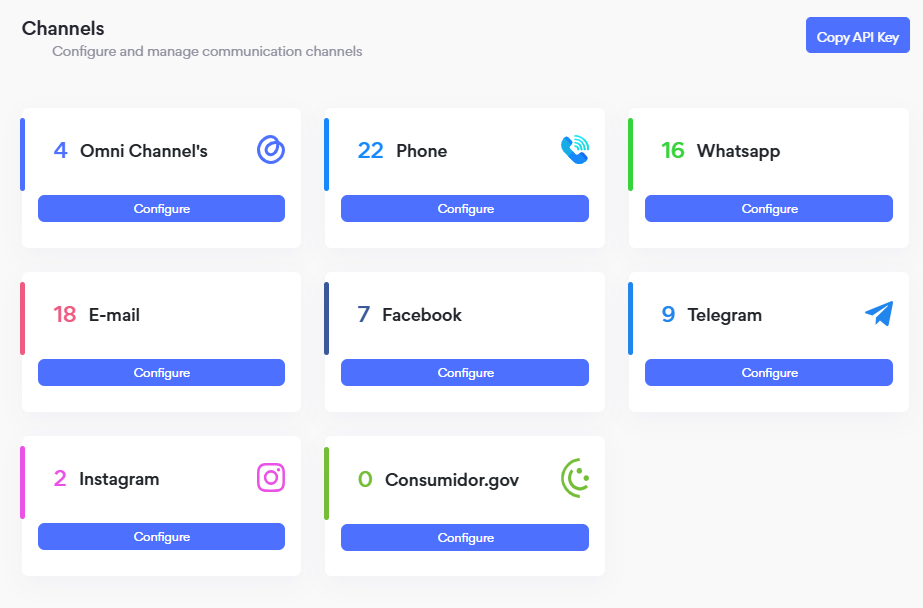
In Channels, all media that the company will use for attendance are registered: voice, WhatsApp, webchat, email, and Mercado Livre.
Channels Screen
Omni Channel
Omni Channel provides the possibility of integrating external clients with the Omni platform. Through a simple integration with just a few steps, you can already use all the communication features that Omni offers, such as attendance history, dashboards, and surveys. It is a generic channel that can receive information from any system, e.g., ERP, Trouble Ticket Systems, CRM, etc., allowing all communication received from your internal system to be unified in a single screen.
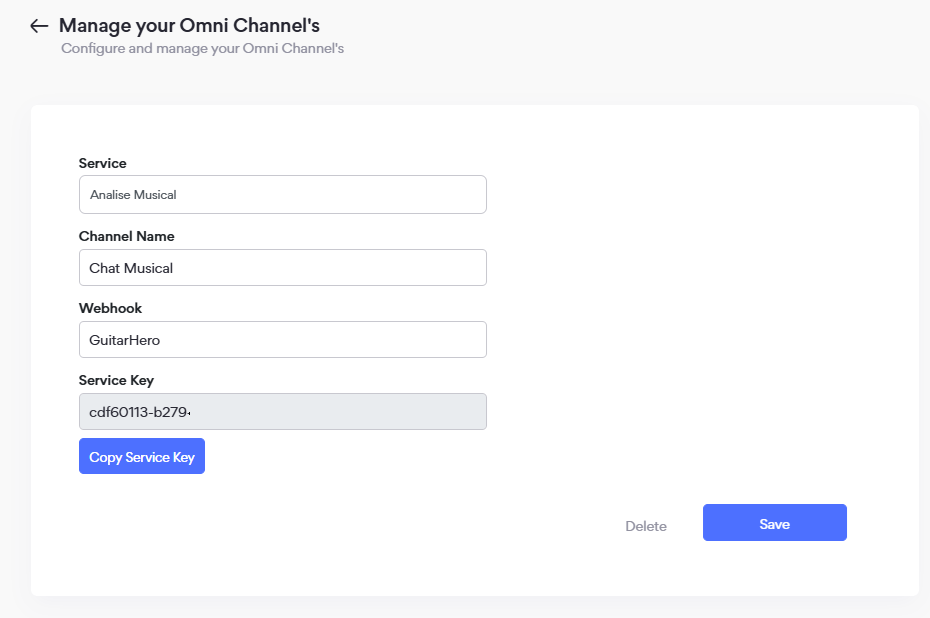
Technical Information
To create the Channel, the following must be performed:
- Create the company registration in the Omni platform – see Administrative / Companies
- Create a service to serve as a link in attendance – see Administrative / Services
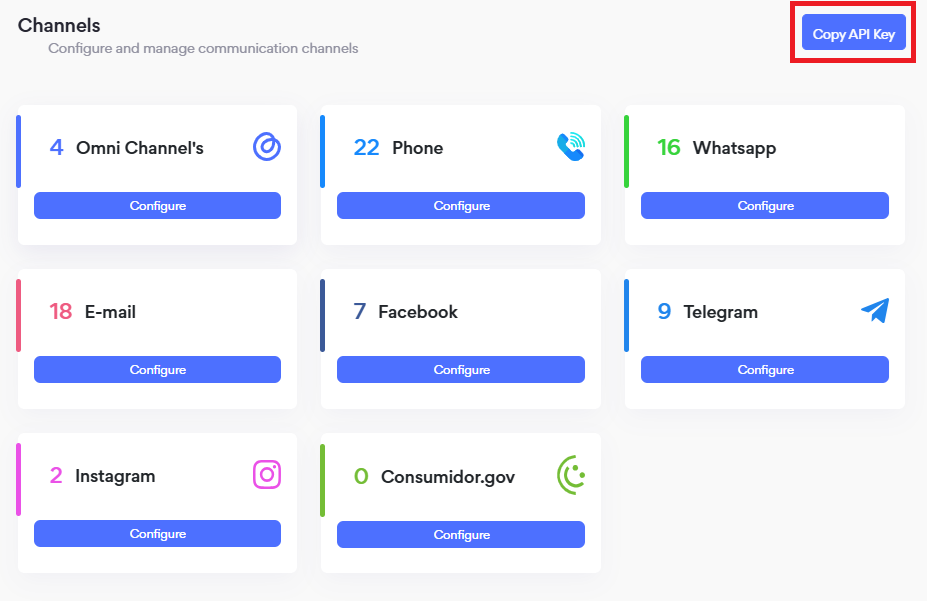
- An API KEY must be created. To do this, use the button on the Channels screen of the platform. This key will be used for all requests in your endpoints.
- Insert the webhook in the Omni Channel registration so that it receives messages from Omni, where it will receive a request in JSON format.
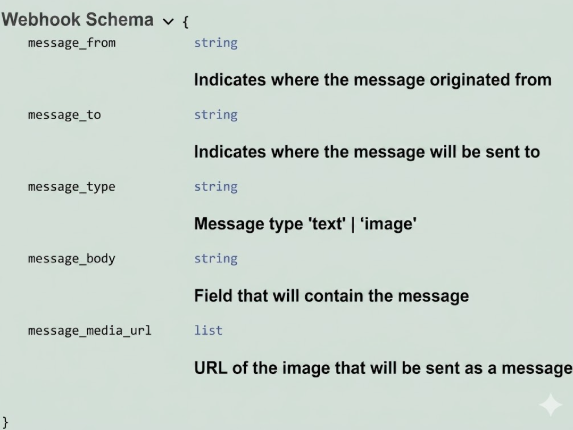
- Access to the message receiving endpoint can be done through the link:
https://omnichannel.omni.digitalcontact.cloud/v1/receive_hook
Message receiving request model
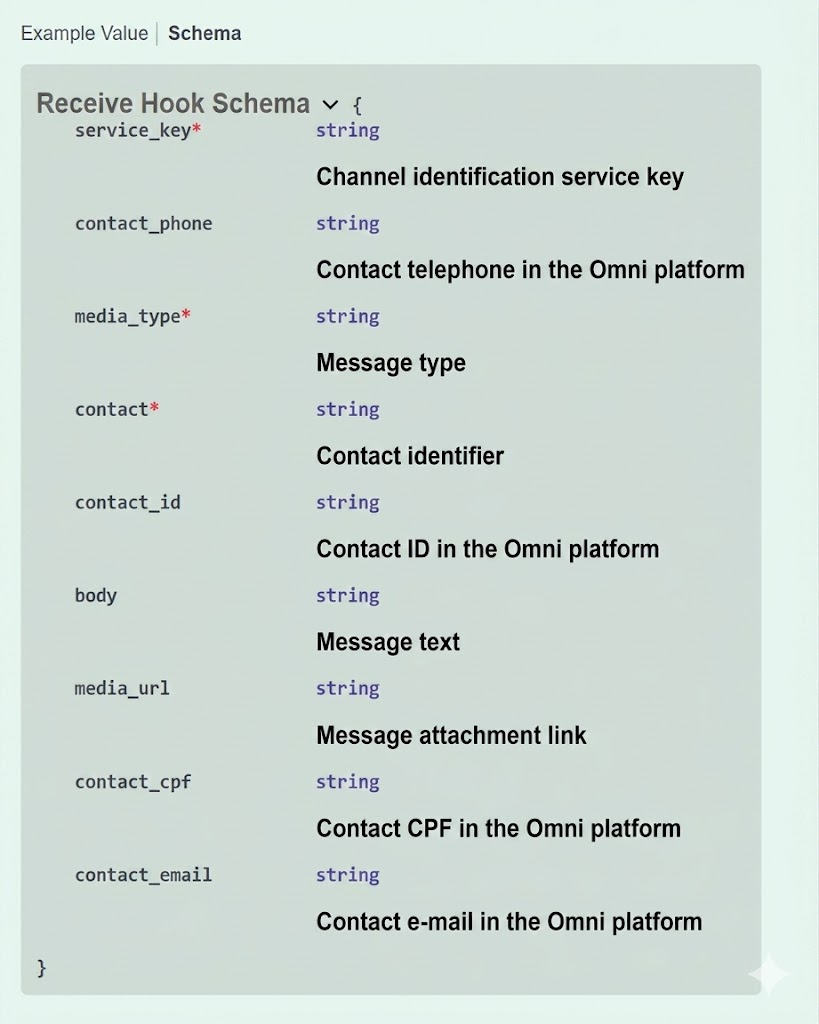
- In addition to making requests directly, you can also use Swagger through the link:
https://docs-history.omni.digitalcontact.cloud/
where all request models and additional audit endpoints are available.
Telephone
In this menu it is possible to register telephone numbers to make Inbound and Outbound calls and also register IVRs (URAs).
IVR (URA)
The registration and configuration of the IVR for attendance is carried out in a practical and intuitive way, but it is necessary that you first register the Inbound number.
On the main screen, click on + to register the IVR, filling in the fields:
- Choose the country of origin,
- Choose the area code – options of the telephone number that can be used for your attendance will be available,
- Choose a name,
Call registration and call routing management screen, where the attendance queue configuration is performed
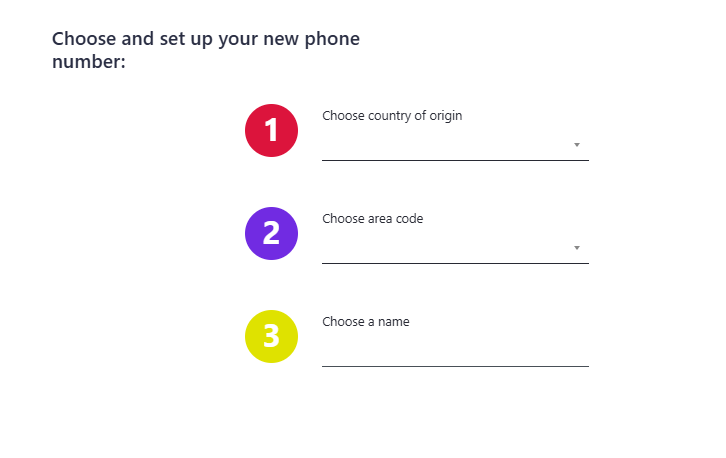
Telephone definition screen

After defining the telephone that will be available to receive calls, you must configure the attendance queue by service:
- Attendance Hours – selection of the day of the week and start and end times of attendance
- Welcome Message
- Closed Attendance Message
- Services that will be part of the attendance
- Message for unanswered calls
Attendance Hours
The configuration of attendance hours can be set as always open (24x7) or configured by day of the week according to the organization’s needs. In this case, you will choose the time zone and insert the day of the week and the start and end times for each day.
Attendance Hours Configuration
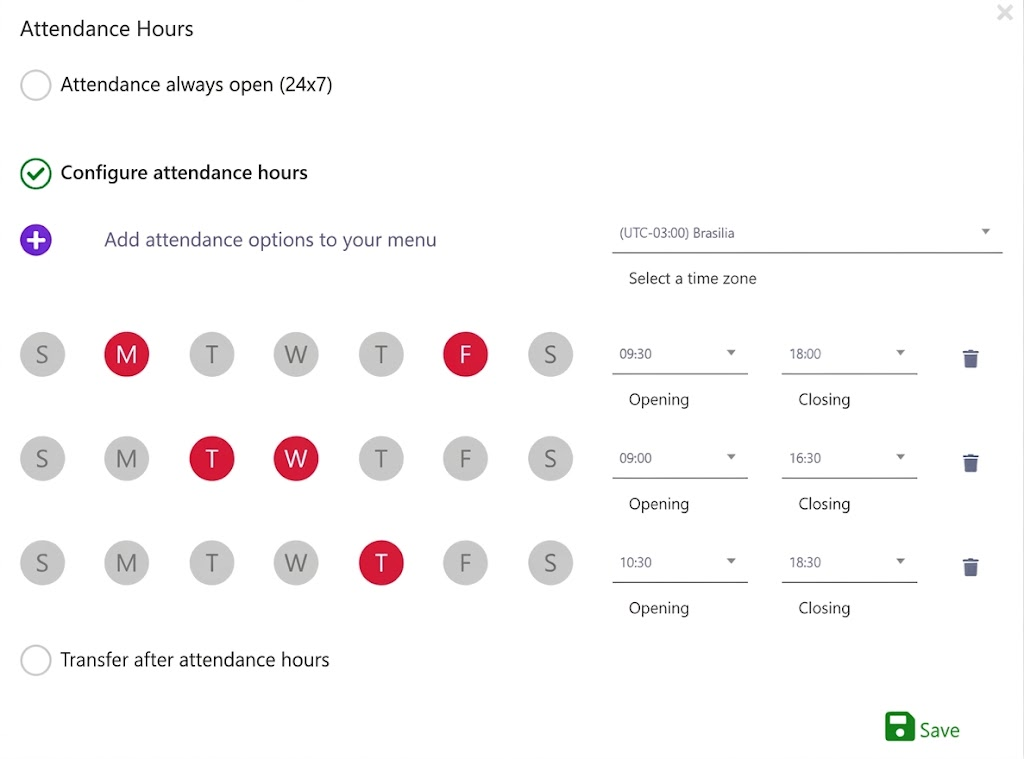
Welcome Message
Also known as a greeting message, it will be sent as soon as the contact is answered by the IVR. It can be registered internally in the platform, where the text is written, transformed into audio by the robot, and the voice used in the recording is defined. Alternatively, the organization can import its own audio file in .mp3 or .wav format.
Welcome Message Configuration
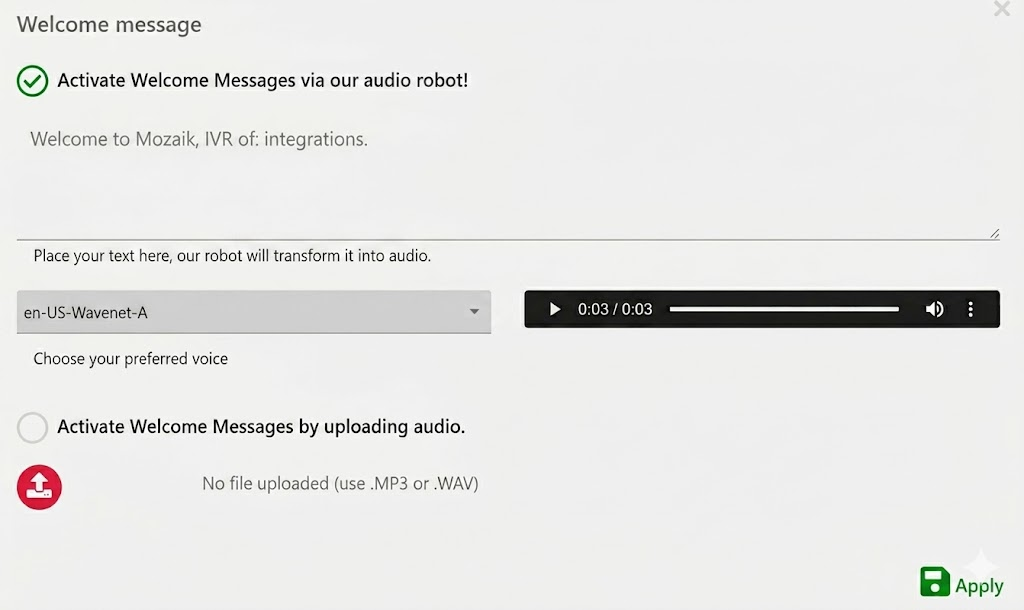
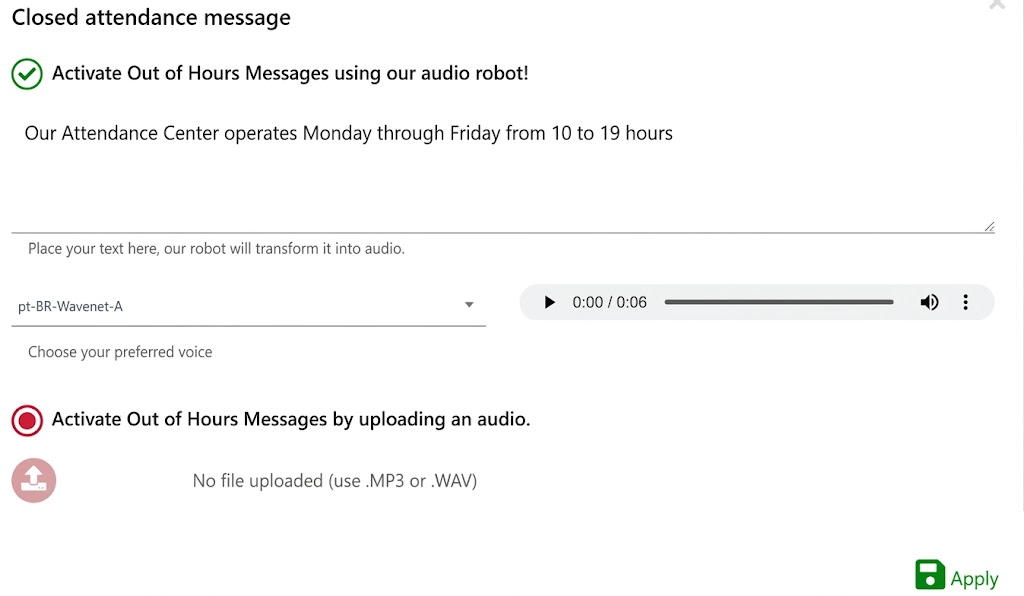
Closed Attendance Message
Used when the contact makes a call to the IVR outside its attendance hours. A recording is played to inform that they are not attending at the moment. It can be registered internally in the platform, where the text is written, transformed into audio by the robot, and the voice used in the recording is defined. Alternatively, the organization can import its own audio file in .mp3 or .wav format.
Closed Attendance Message Configuration
Service Registration
The choice of services that will be attended by the IVR should be made at the organization’s discretion, in the way that best suits it. By clicking the edit icon in the Attendance Menu, you can choose which service will be selected and in which dialing order it will appear in the IVR.
Whatsapp
Requirements:
To enable the Whatsapp Attendance Channel, a pre-approved Whatsapp number is required through an internal request to the Omni Team. Once the phone number is released, the creation of the Channel in Omni begins.
You must have the access profile "General Settings" enabled in the security menu.
You can see more about creating and managing access profiles in the security documentation.
Creating a new Whatsapp Channel
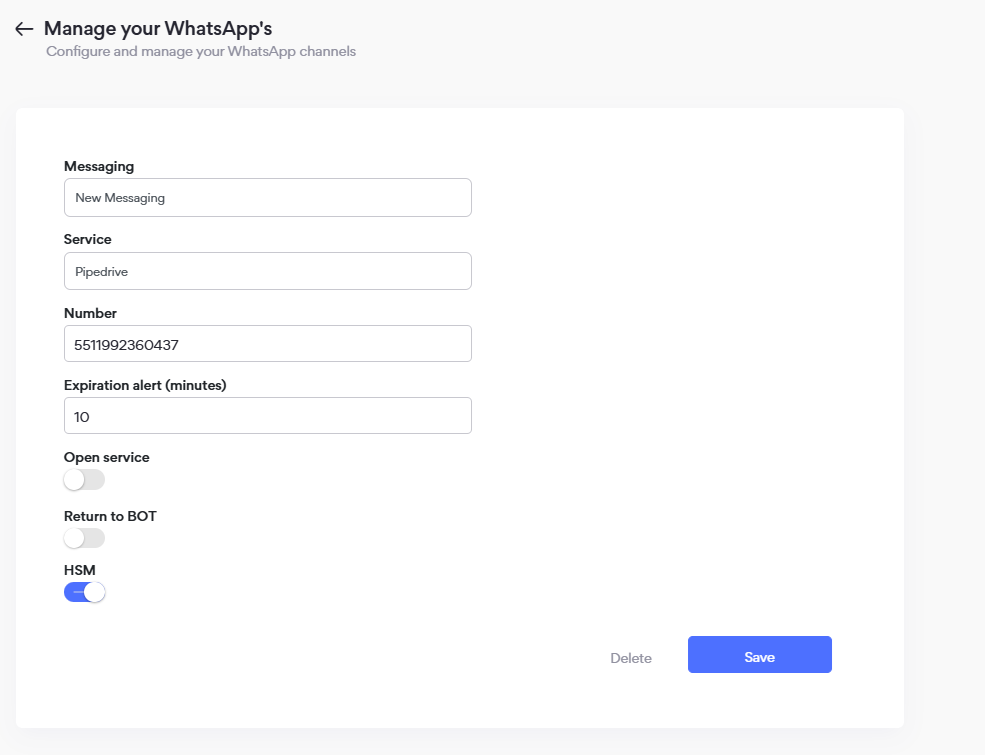
In the Channels module, follow the steps:
- Open the Channels screen and click the "configure" button in Whatsapp,
- In the Whatsapp Channels screen, click the "create new" button
- In the Messaging field, select the desired messaging option
- In the Service field, fill in the service where the attendances will be carried out
- In the Number field, insert the pre-approved Whatsapp number, including DDI+DDD+phone number
- The expiration alert field (minutes): defines how many minutes in advance the attendance will be signaled before expiration. The maximum value considered by the platform is 10 minutes. If the channel is configured with a period lower than 10 minutes, the value configured in the channel will be considered. In the absence of configuration, the default is 10 minutes.
- If it is necessary to return information to a bot, simply activate the "Return to BOT" button.
- When activating Return to BOT, fill in the Bot ID
- If the number will send messages to clients via HSM, keep the HSM button activated
- If redirected to a bot with the above data filled in, you can choose whether or not to open attendance:
- By deactivating this flag, when an HSM is sent through this Whatsapp, a new attendance will not be created on screen, as is normally done.
- Click the "Save" button
Editing a Whatsapp Channel
In the Channels module, follow the steps:
- Open the Channels screen and click the "configure" button in Whatsapp
- Select which channel you want to edit by clicking the "configure" button
- Edit the necessary fields
- Click the "Save" button
Email
Omni allows you to carry out attendances via email with your clients.
To configure the email channel, it is necessary to have correctly set up POP/IMAP forwarding in your email provider so that the system can send and receive emails through the configured account.
Note: The email service only reads messages that have not been previously read. Therefore, if the email has already been viewed by the user, it will not be submitted to the platform.
Creating a new Email Channel
In the Channels module, follow the steps:
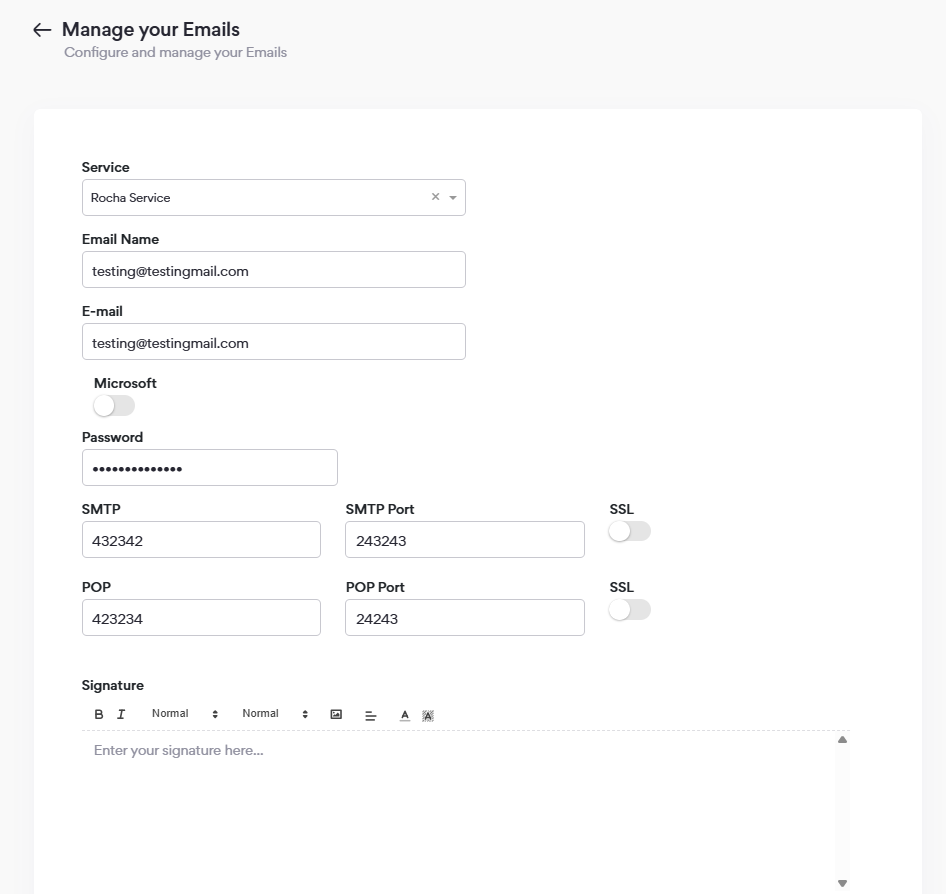
- Open the Channels screen and click the "configure" button in Email,
- In the Email management screen, click the "create new" button,
- In the Service field, enter which service will be used for attendances,
- In the Email Name field, enter the name for this channel,
- In the Email field, enter the email address you want to use to send and receive emails,
- In the Password field, enter the password to log into this email,
- Enter the SMTP server, SMTP port, and if you have an SSL certificate, activate it,
- Enter the POP server, POP port, and if you have an SSL certificate, activate it,
- Click the "Test Settings" button. If the settings are correct, the message "Settings OK" will appear,
- Click the "Save" button.
Creating a new Email
Email Signatures
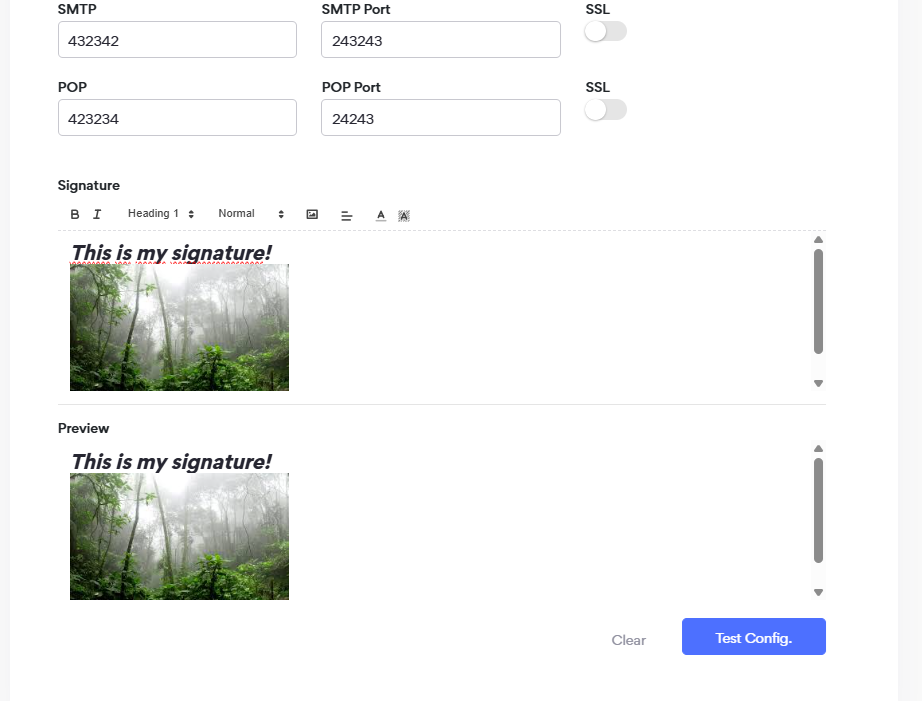
You can now configure email signatures to further personalize your attendances.
To do this, go to the email configuration section, under Signature.
You can:
- Add text,
- Define text layout:
- Bold,
- Italic,
- Alignment,
- Sizes,
- Colors,
- Insert Images,
After making the necessary edits, you can preview and check how your client will receive the signature.
Then just click "Test Settings" for the system to revalidate the email sending and receiving data and Save.
Email Signature
Microsoft and Google Email
If your email is from Google or Microsoft Azure providers, it is necessary to perform some configurations in the email provider.
If you need help with these configurations, you can access the page Email Sending Settings via Omni or click the links below:
Microsoft Azure Email Sending Settings
Instagram
Omni is an Omnichannel application, with active integrations with Whatsapp, Messenger, Twitter, among other communication channels. The integration with Instagram aims to add value and optimize management between Instagram business accounts and their clients, where Omni acts as the intermediary offering ease, control, and history of attendances carried out via DM (Direct Messenger).
The first step is the creation of an integration channel where the business account manager registers by providing their email and the related Instagram page. After the channel is created, attendance and conversations between business accounts and their clients can begin, enabling the management of the entire client journey for the Instagram business account.
Omni offers management during attendance, reports with indicators, history of the entire client journey, satisfaction surveys, and reports for analyzing the activities of your agents.
The integration with Instagram has some prerequisites:
- An Instagram account configured as a business account
- The Instagram account must be linked to a Facebook page