Tools
Managing your system efficiently: optimize processes and save time!
Mass Management
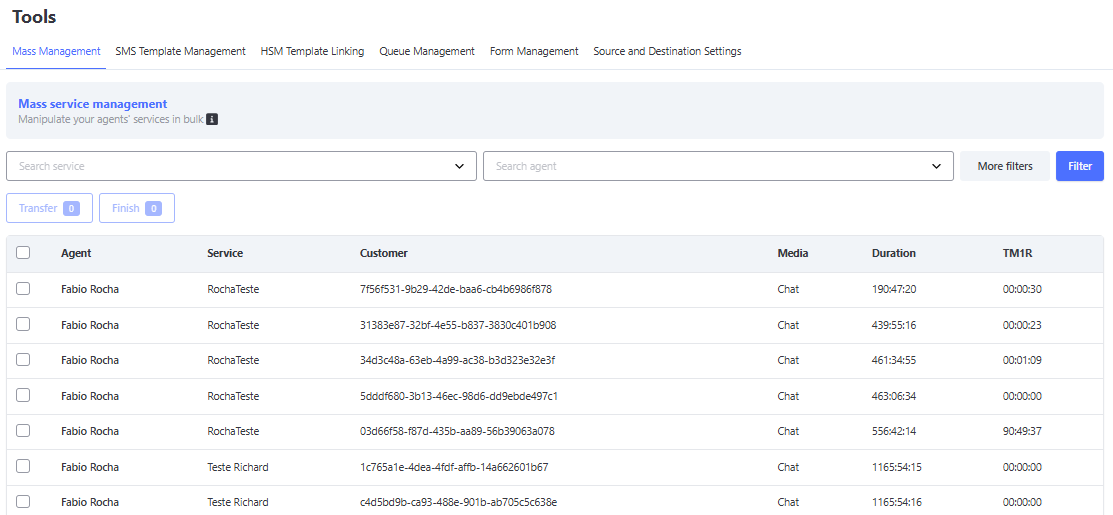
Objective: Manage mass attendance, making it easier to transfer or finalize simultaneous attendance sessions to optimize operations such as shift changes.
Common Filters
Both functionalities (Transfer and Finalize) use the same filters:
- Search Service: Select the desired service.
- Search Agent: Filter by specific agents.
- More Filters: Option to apply additional filters, such as contact and protocol.
Mass Management
Transfer Mass Attendance
Objective: Transfer attendance sessions simultaneously to other operators, making shift changes or workload redistribution easier.
Steps to Transfer
- Select a service in the "Search Service" field.
- Select the attendance sessions to be transferred (by checking the corresponding boxes).
- Click the "Transfer" button.
Mass Management Transfers
Screen Rules
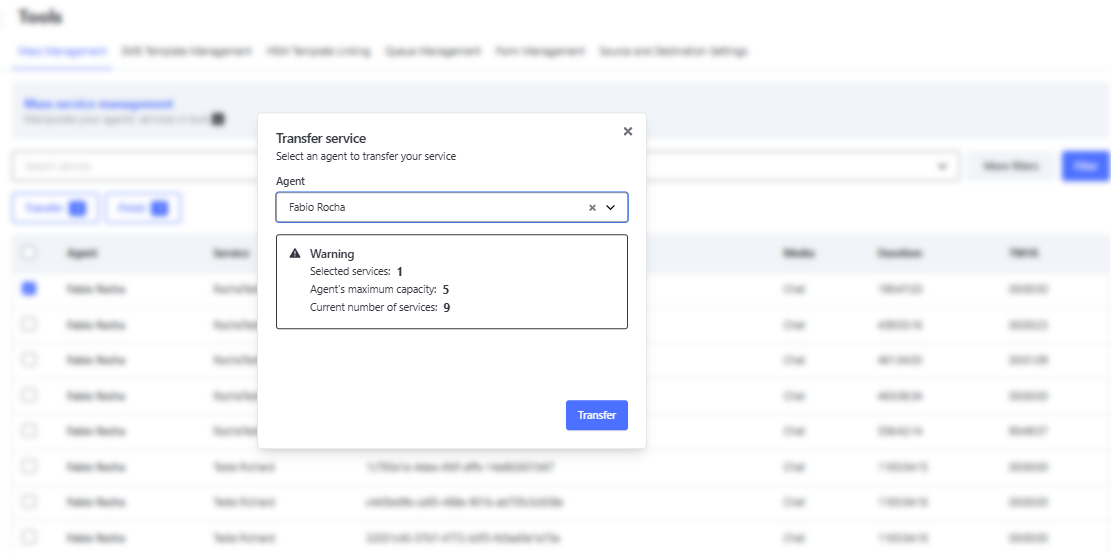
- Item Listing: The screen will display all attendances currently marked as "In attendance" in Omni.
- Multiple Transfers: It is possible to transfer several attendances simultaneously, as long as they belong to the same service.
- Agent Information: When selecting the destination agent, Omni will show:
- The number of current attendances assigned to the agent.
- The agent’s maximum capacity (informational only).
- Supervisor’s Decision: The transfer does not automatically respect the agent’s current capacity. The decision to proceed with the transfer is the supervisor’s responsibility.
- Error Handling: If any attendance cannot be transferred (e.g., expired attendance or system rules), a message will indicate which attendances failed. The remaining attendances will be transferred normally.
Advantages of Mass Transfer
✅ Agility: Reduces the time spent transferring attendances individually. ⏱️
🔄 Ease of Shift Change: Facilitates task redistribution among teams. 👥
📈 Increased Productivity: Frees operators to focus on new attendances. 💪
🎯 Supervised Control: The supervisor has full control over redistribution. 🕵️♂️
Finalize Mass Attendance
Objective: Finalize attendances on the agent’s screen in bulk, allowing multiple interactions to be closed at once and optimizing the task completion process.
Steps to Finalize
-
Select the attendances to be finalized (by checking the corresponding boxes).
-
Click the "Finalize" button.
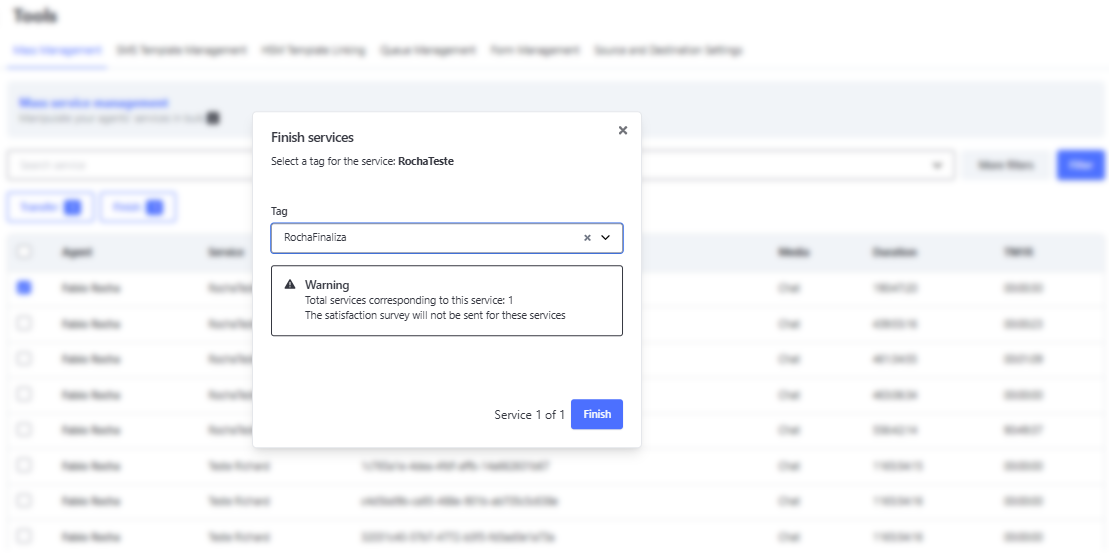
- When clicking "Finalize", a popup will appear with the following functionalities:
- Finalization Tag Selection: You must select a finalization tag for each chosen service. This tag is essential to complete the finalization process.
- Attendance Information: The popup will display relevant information about the attendances of the selected service, such as:
- The total number of attendances to be finalized linked to the service.
- Important notes, such as satisfaction surveys not being sent for finalized attendances.
- When clicking "Finalize", a popup will appear with the following functionalities:
-
After filling in all required tags and confirming the information, click "Next" to continue the finalization process.
-
Once tags are filled in for all services, click the "Finalize" button to start the finalization.
Additional Explanation
This confirmation and tag selection step is crucial to ensure that all attendances are finalized correctly. The popup helps prevent errors by requiring the necessary tags and providing clear feedback on the status of attendances.
Screen Rules
- Item Listing: The screen will display all attendances currently marked as "In attendance" in Omni.
- Multiple Finalizations: It is possible to finalize several attendances simultaneously, regardless of the service they belong to.
- Mandatory Finalization Tags: If a service does not have a finalization tag configured, the process will be interrupted when clicking the "X" button. To proceed, you can redo the process without selecting that service or pre-register the required finalization tag.
- Tags with Transfer Enabled: Finalization tags that have the transfer option enabled will not be displayed on the finalization screen. This ensures that only compatible tags are available for use.
- Linked Surveys: If an attendance is linked to a service with a satisfaction survey configured, this survey will not be sent after finalization.
Mass Management Finalization
Process After Starting Finalization
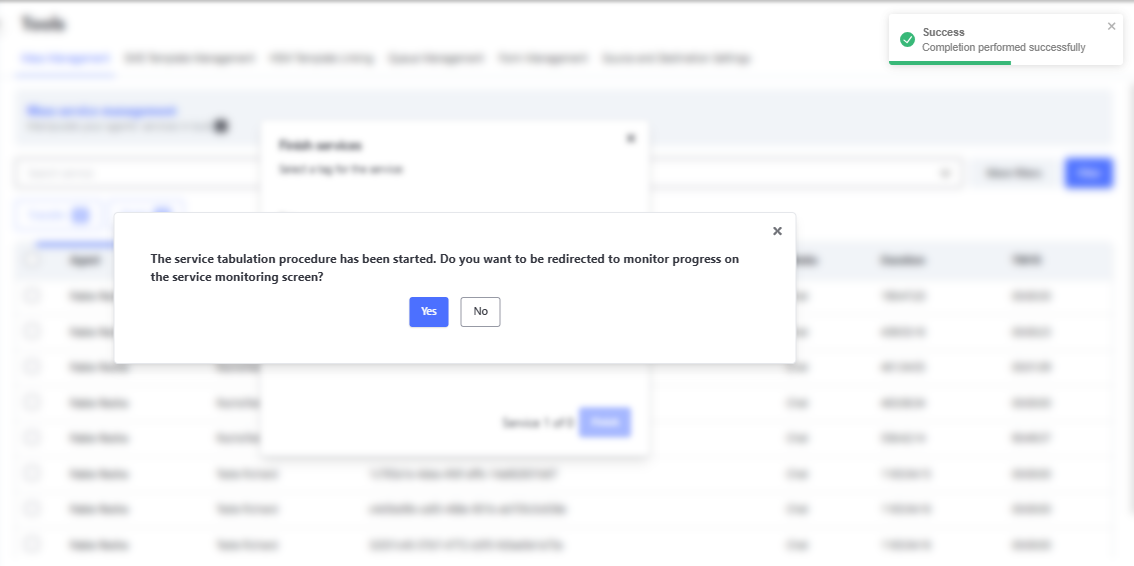
After starting the finalization process, a new popup will be displayed, informing you that the tabulation procedure of the attendances has begun. The popup will ask whether you want to be redirected to monitor the progress on the attendance monitoring screen.
Available Options:
- Yes: You will be automatically redirected to the monitoring screen, where you can follow the finalization status.
- No: You will remain on the same page without redirection. However, this page does not update in real time, so it is not ideal for tracking the progress of finalizations.
Note: Finalizations occur in the background and are processed regardless of the choice made in the popup. It is not necessary to redo the finalizations if you choose to remain on the same page.
Mass Management Finalization
Advantages of Mass Finalization:
✅ Time Savings: Close multiple attendances with just a few clicks. ⏱️
🧹 Efficient Cleanup: Quickly remove completed attendances from the queue. 🗑️
📈 Improved SLA: Reduces the average handling time. 📈
🎯 Error Reduction: Minimizes human errors by avoiding repetitive manual finalizations. 🚫
📊 Better Organization: Keeps the attendance list cleaner and more manageable. 🗂️
SMS Template Management
Objective: Facilitate the process of registering SMS messages for Quick Sending.
On this screen, filters are available for the Template Name and Content, as illustrated in the image below.
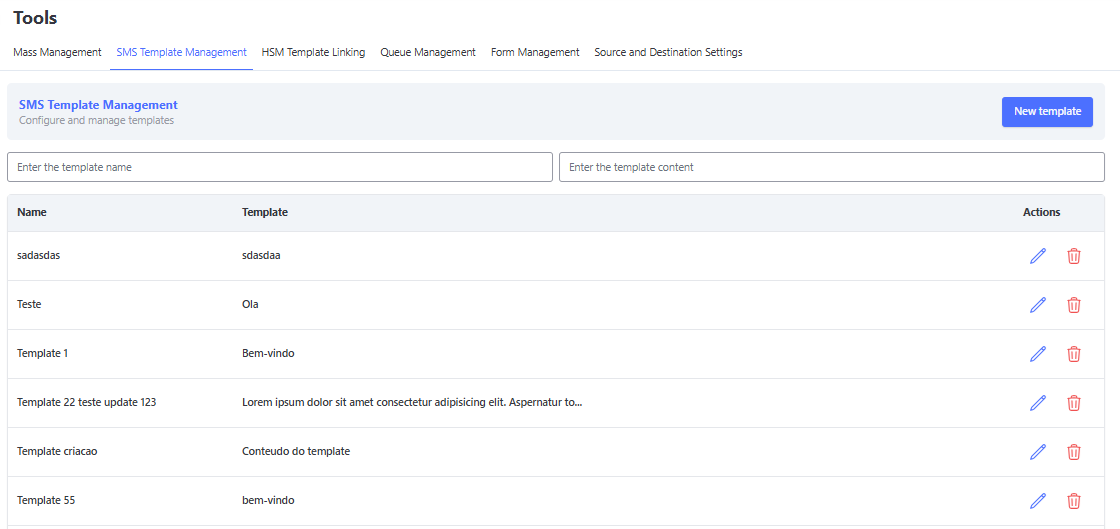
When clicking the "New Template" button, a mandatory registration screen will be displayed, where you must enter the Template Title and its corresponding message.
After registering a new template, it can be selected for sending in SMS Broadcast and Quick Sending.
HSM Template Linking
Objective: Allow the user to create links between multiple HSM templates and various services, simplifying the process of sending Broadcasts and Quick Sending.
Note: If no link is established, all HSM templates registered in the company will be displayed.
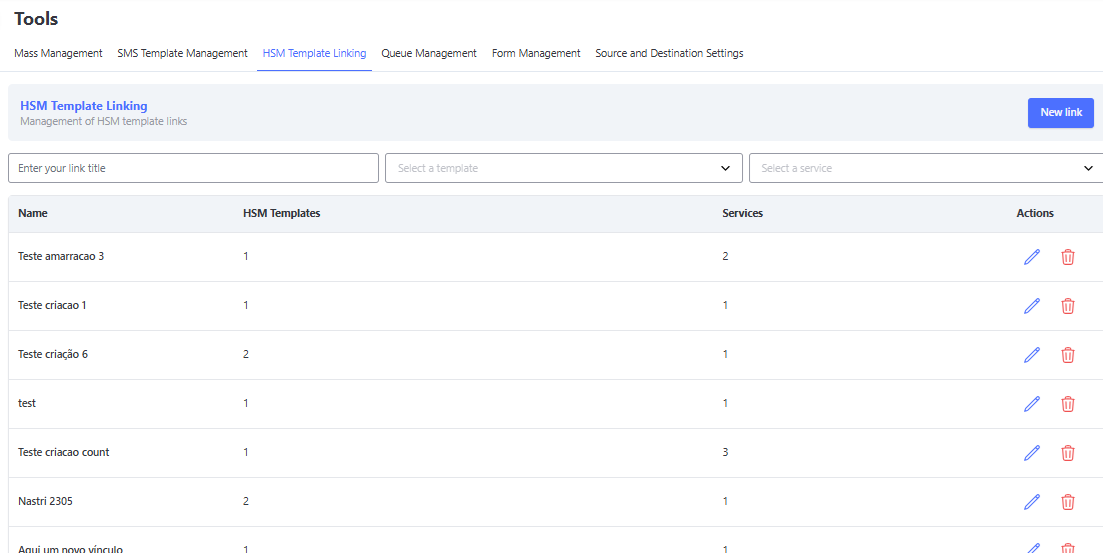
When clicking the "New Link" button, a registration screen will be displayed to create a new HSM template link. It is mandatory to enter the Title, Service(s), and Template(s).
After registering a new link, you will be able to view the HSM templates during WhatsApp Broadcast sending and Quick Sending.
Queue Management
Objective: Provide the manager with the ability to review and conclude all interactions currently in the queue, according to the selected service.
Note: This functionality operates with a queue system, allowing multiple requests to be executed sequentially.
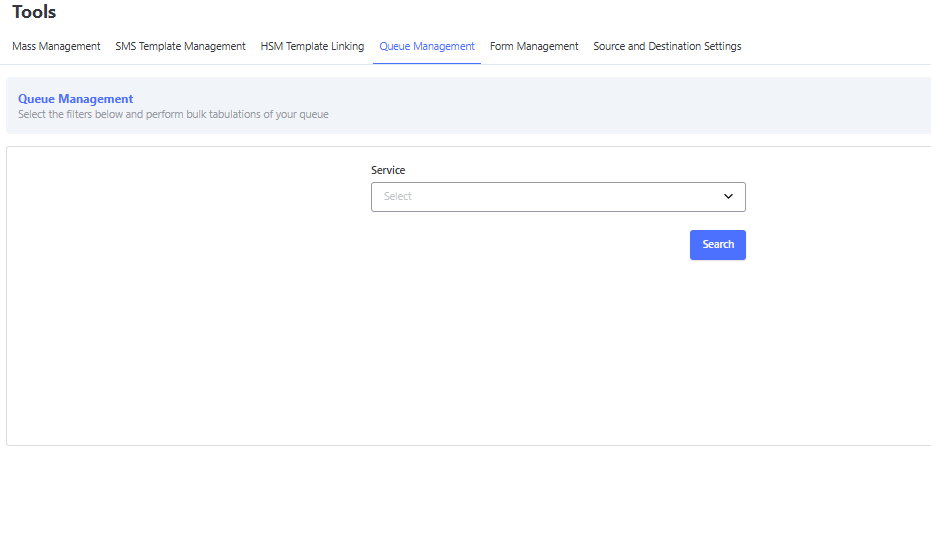
When selecting a service and clicking the ‘Search’ button, a pop-up will be displayed indicating the number of attendances in the queue for that service and offering the option to tabulate or not those attendances.
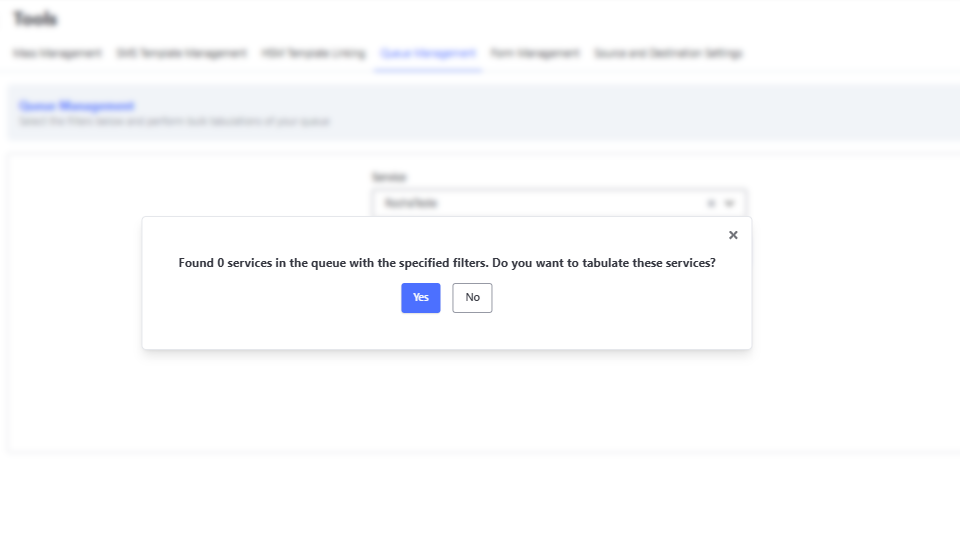
If the option to tabulate the attendances is selected, a new pop-up will be displayed asking whether the manager wishes to be redirected to the monitoring screen to follow the finalization of these interactions.
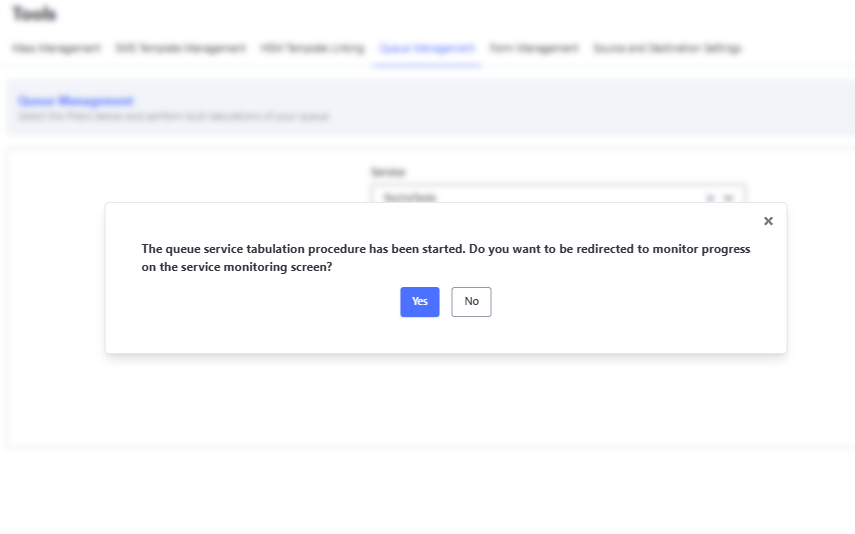
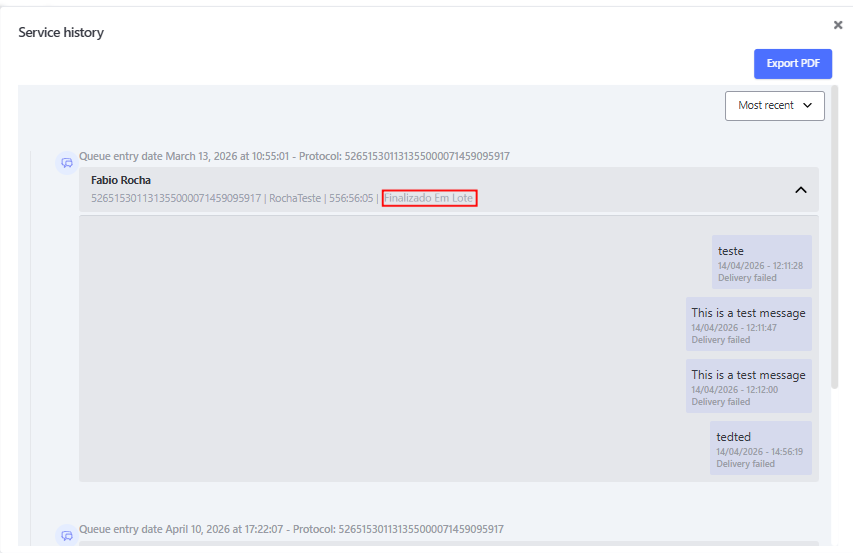
The interactions finalized through this functionality will be tabulated with the status "Batch Finalized", and their history will be available in the Interaction Tracking report.
If there is an automatic message registered, it will also be displayed in the interaction history.
As shown in the example below: