Omni Login and Logout
This module explains how to log in and log out on Omni.
The goal is to ensure that each user can securely access their account, use the available features, and log out properly, while maintaining the integrity of the information.
Login with E-mail and Password
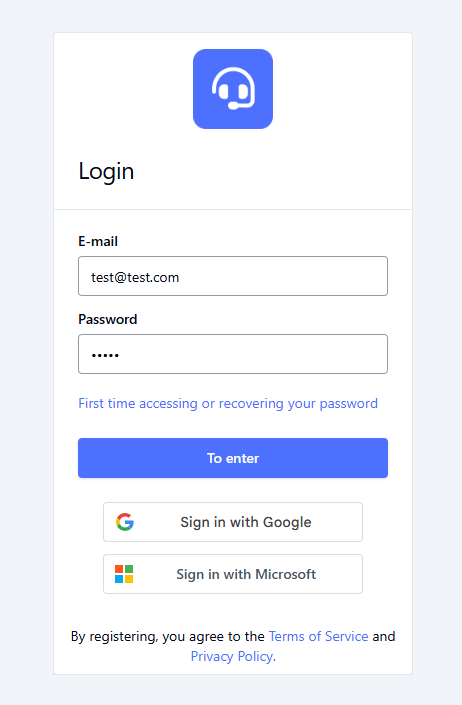
The standard login process for Omni uses the username and password registered in the system.
Prerequisites
- The user must be active in Omni.
- The password must comply with the complexity policy (minimum number of characters, uppercase/lowercase letters, numbers, and symbols).
- Upon first login, the initial password must be set using the token received via email.
💡 If there's any questions about first-time login or user registration, please refer to the official documentation: Users
Step by step
- Go to the Omni login page.
- Enter your username/email in the appropriate field.
- Enter your password.
- Click the Log In button.
Important behaviors
- 🔑 The system allows users to reset their password via the “Forgot my password” option, with a link sent to their registered email address.
- 🚫 If the user is inactive or does not have any linked access profiles, log in will be denied.
Integrated Login via SSO Google
Omni allow users to log in using Google accounts that are already linked to the system.
Prerequisites
- Have an email account hosted on Google Cloud Platform.
- Have a user registered in Omni with the same email address, with all settings configured.
- Have logged in at least once using your email and password to link the account.
Step by step
- Go to the Omni login page.
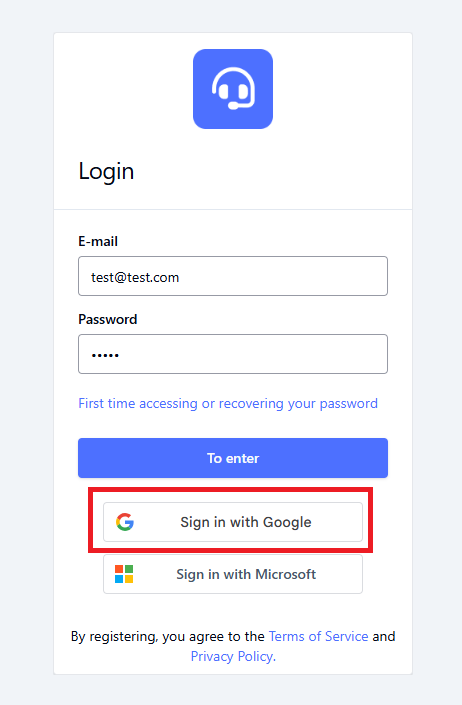
- Click the “Sign in with Google” button.
- Sign in with your Google account (if you are not already signed in to your browser).
- If you are already signed in to your browser with a valid Google account, the system will sign you in automatically.
💡 If automatic login fails, please, use the Log in with Google button manually.
💡 If already signed in to your browser, the system will display photo, name, and email address from your Google account. Just click Sign in with Google and confirm the desired account on the Choose an account screen.
Most Common Error Scenarios
- ❌ Account not linked: Message: “Omni user not found”.
- 🔄 Different account: If the Google email address does not match the one registered in Omni, login will be denied.
- 🚫 Permissions blocked: if the browser blocks the authentication pop-up, you'll need to allow access.
Integrated Login via Microsoft SSO
In addition to Google, Omni can also be accessed using corporate accounts linked to the Microsoft platform.
Prerequisites
- An active corporate account on the Microsoft domain.
- A user previously registered on Omni with the same email address.
- First login using email/password to link the account.
Step by step
- Go to Omni login page.
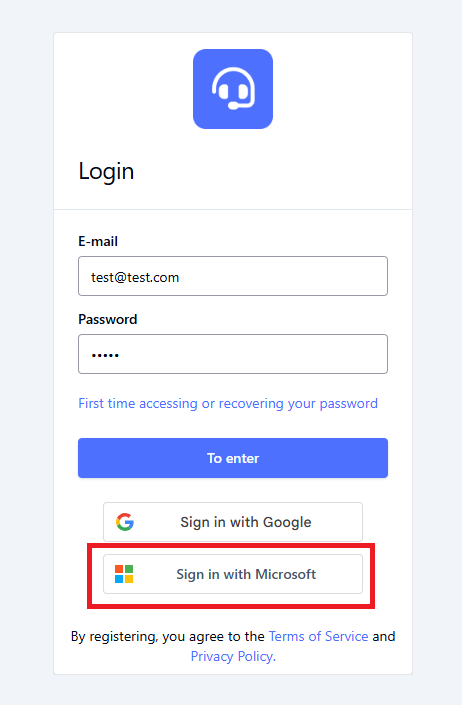
- Click the “Sign in with Microsoft Account” button.
- Sign in using the Microsoft login window.
- Once verified, the system will automatically redirect you to Omni.
Most Common Error Scenarios
- ❌ Account not linked: Message: “Omni user not found”.
- 🔄 Different account: If the Microsoft email address does not match the one registered in Omni, login will be denied.
- 🚫 Permissions blocked: if the browser blocks the authentication pop-up, you will need to allow access.
⚠️ If you encounter an error, verify that the email address matches the one registered in Omni, and the account is active on Microsoft domain.
Logout
To safe log out of the system, click the Logout button, located next to the company logo (if available) at the top of the left side menu, as shown in the image below:
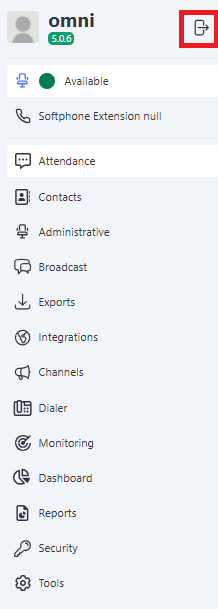
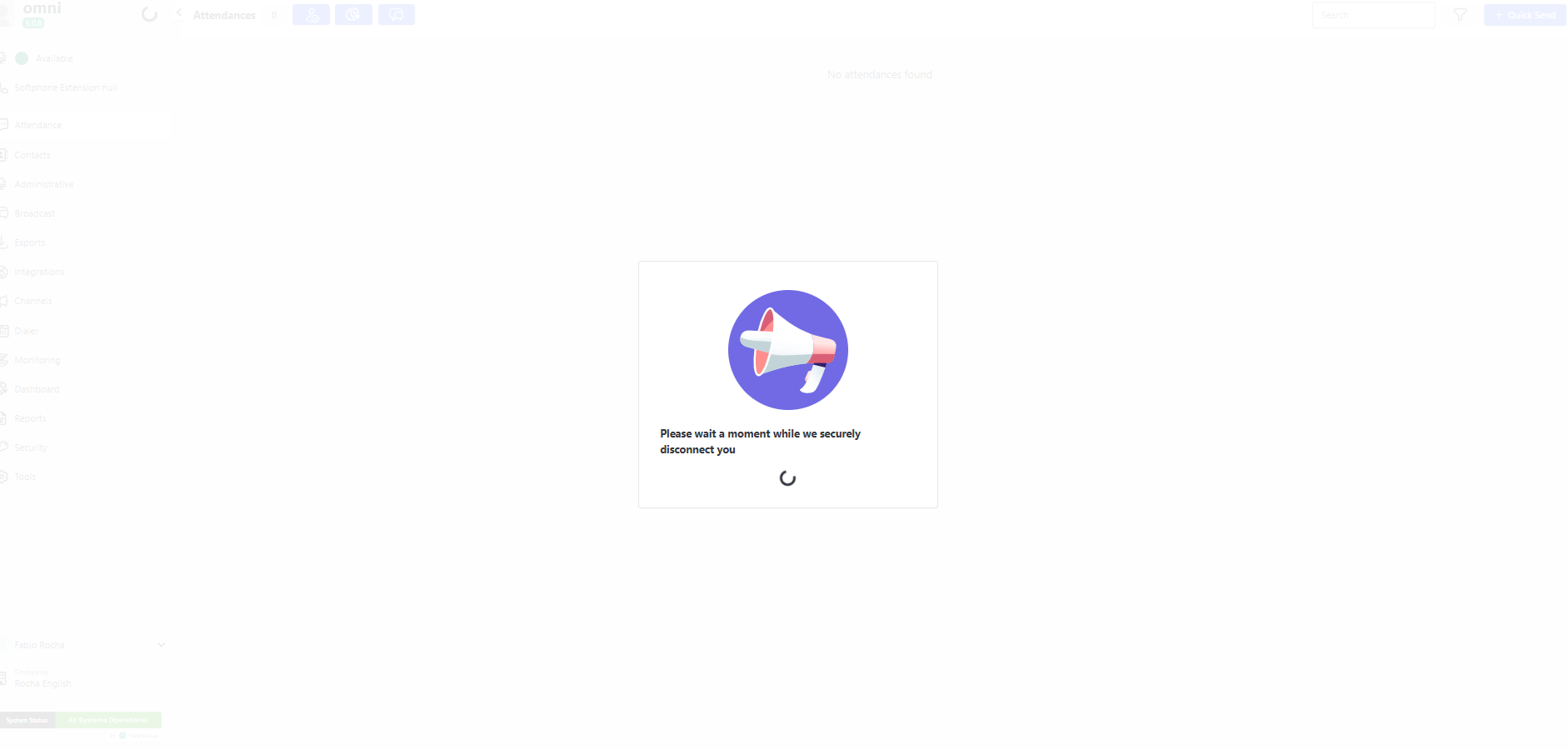
After clicking the button, a screen will appear with the message “Please wait a moment while we securely log you out”. Wait for the process to complete, and you will be redirected to the system's login screen.
If you follow these steps correctly, the system will ensure:
- A secure logout.
- That login and logout information is recorded in the activity log.
The Importance of Logging Out Properly
Follow these best practices to ensure security and integrity while using the system:
- 🔒 Protecting your information: Prevent unauthorized access to your credentials and data.
- 💾 Saving data: Ensure that all information is saved before logging out of the system.
- 📊 Auditing and monitoring: Ensure that all login and logout activities are properly logged for auditing purposes.
Best Practices for Logging In and Out
To maximize security and efficiency when using the system, follow these recommendations:
- 🚫 Do not share your credentials: Each user must have their own credentials. Never share your username and password.
- 🔐 Enable two-factor authentication (2FA): Add an extra layer of security to your login.
- 🚪 Always use the logout button: When ending your session, click the Logout or Sign Out button before closing your browser or the app.
- ✅ Check the logout confirmation: Make sure the system displayed a message confirming that you have been successfully logged out.