Monitoring
The Monitoring Module of Omni allows real-time tracking of customer interactions and agents, facilitating operational management and ensuring a quick and organized response to clients.
The Monitoring - Interactions screen provides information about ongoing interactions, those still waiting for distribution, and also allows checking and managing scheduled interactions.
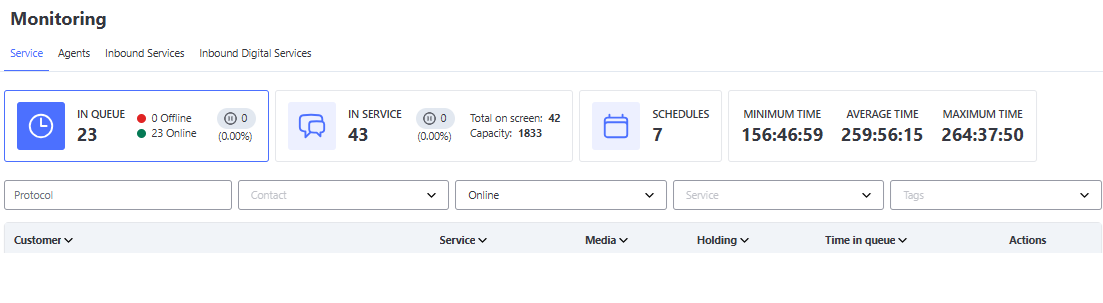
Screen Refresh Rate (Refresh)
To ensure system performance, the monitoring screen works with an automatic refresh interval of up to 30 seconds.
Therefore, there may be a slight delay between the actual event and its visualization on screen. Consider this "delay" when analyzing:
- ⏳ The inflow and outflow of interactions in the queue;
- 🎧 The immediate availability in the agent slots.
Queue Monitoring
This section shows all interactions that have not yet been assigned to an agent. In other words, they are waiting for distribution.
Overview
On the Interactions in Queue screen, you can view:
- Total number of interactions in queue
- Number of Online and Offline interactions
- An icon with the total number of interactions on Hold
- The percentage (%) of interactions on Hold is displayed just below, making analysis easier.
- Minimum, average, and maximum waiting time
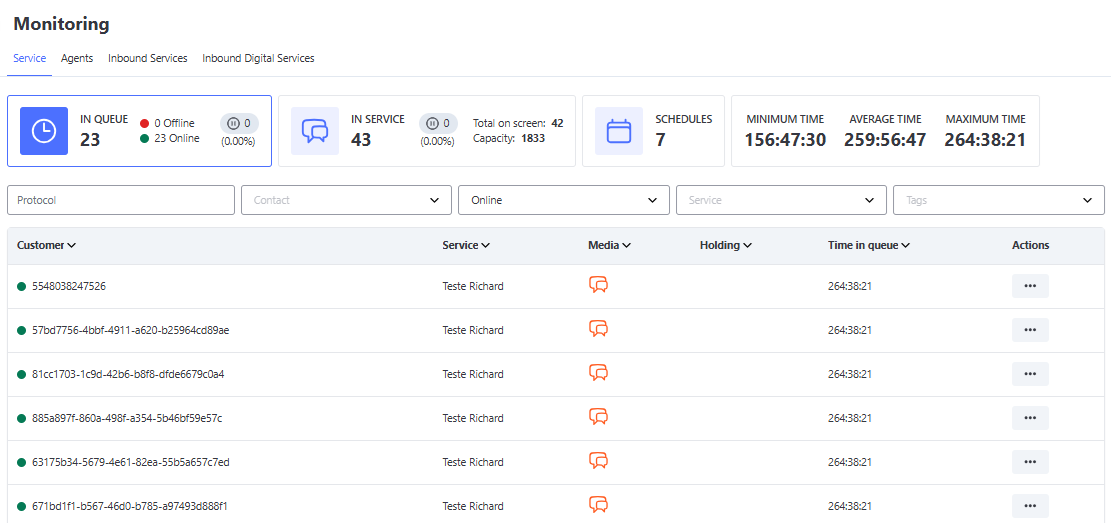
- Interaction details (customer, attendance, media, time in queue)
- Possible actions for each interaction
⚠️ Important:
The Online and Offline status only appears if the functionality is enabled via a request to N3, and it applies exclusively to Chat/Bot media.
Available Filters
You can filter interactions using the following criteria:
- Protocol: Search by the unique interaction number.
- Contact: Filter by contact.
- Status: Display interactions with the following statuses:
- Online
- Offline
- All
⚠️ Important Note:
The Online and Offline statuses are only available if the functionality is enabled via N3 and apply exclusively to Chat/Bot media.
- Attendance: Filters interactions based on the linked attendance(s).
- Allows selecting one or more attendance to display only the related interactions.
- User Tags: Filters by tags associated with the users of the interactions.
💡 Quick Tip: Use combined filters to quickly locate a specific interaction or analyze trends in the interaction flow.
Time Information
Three important metrics related to the waiting time of interactions in the queue are displayed:
| Field | Description |
|---|---|
| Minimum Waiting Time | Shows the interaction with the shortest time in the queue. |
| Average Waiting Time | Calculates the average time of all interactions in the queue. |
| Maximum Waiting Time | Indicates the interaction with the longest time waiting for an agent. |
⚠️ Note: These metrics are updated in real time and help identify bottlenecks in the interaction flow.
Fields Displayed in the List
Each row in the list provides the following information:
- Customer: Name, email, phone number of the customer... (depending on the type of interaction).
- Service: Name of the service linked to the interaction.
- Media: Type of channel used (e.g., Chat, Telegram, WhatsApp, Email, ...).
- Holding: Shows if the interaction in the queue has the Hold status.
- Time in Queue: Time elapsed since the interaction entered the system and has been waiting for distribution.
- Actions: Buttons with options to interact with the interaction.
Available Actions
⚠️ Important: The Actions button is available only for interactions from Chat/Bot and WhatsApp media.
Click the Actions button to perform the following operations:
| Action | Description |
|---|---|
| Observe Conversation | Allows you to view the interaction without interfering with it. |
| Insert Internal Comments | Add notes visible only to agents. |
| End Interaction | Manually closes the interaction (if necessary). |
| Prioritize Agent | Raises the priority of this interaction and immediately distributes it to the agent selected from the list of available agents, ignoring the maximum limit of simultaneous interactions. Useful for urgent cases. |
💡 Quick Tip: Use the Prioritize Agent function to speed up responses in critical situations or with priority customers.
Hold in Queue
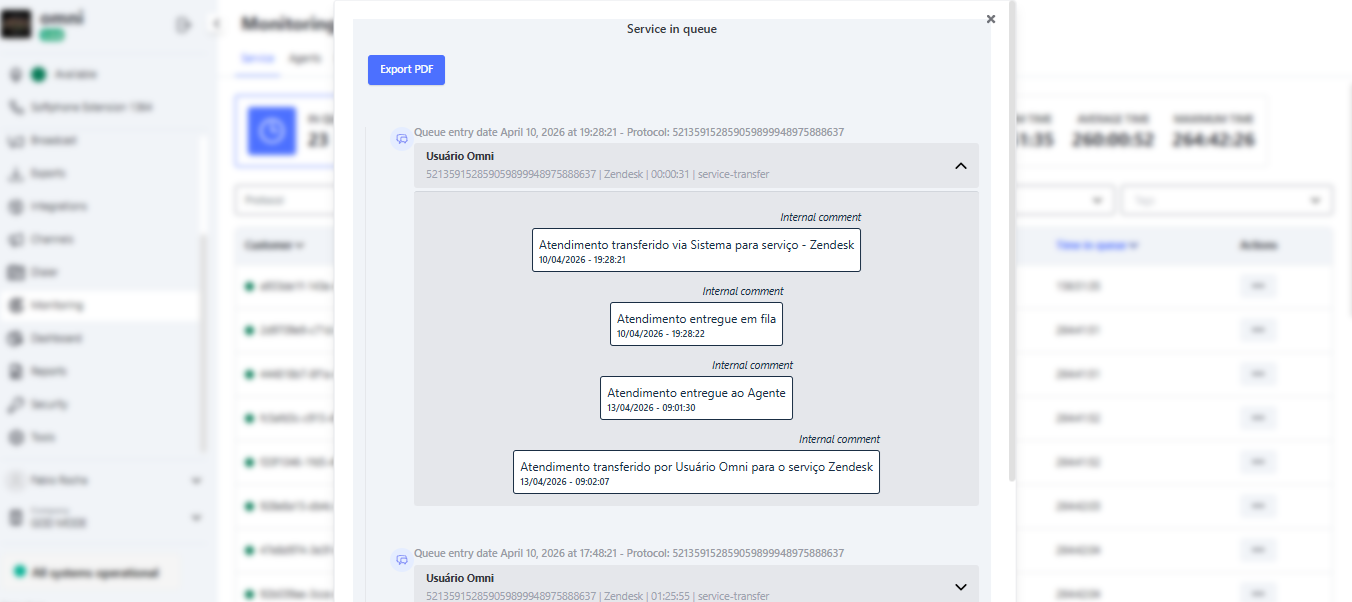
The Hold in Queue section displays all interactions that returned to the queue after a waiting period (Hold).
This occurs when the interaction is transferred to another service, access grid, or transferred for any other operational reason, and then re-enters the queue list.
At the top of the screen, there is a Hold interactions indicator, which shows the total quantity and percentage of these interactions in relation to the overall queue, making it easier to quickly assess occupancy.

In the interaction list, cases on Hold are marked with the “pause” icon in the Holding column, while maintaining the same information displayed for the others — customer, service, media, time in queue, and available actions.

💡 Tip: This view makes it easier to identify interactions that returned to the queue with Hold status, providing a clearer and more transparent reading of the operational flow.
Monitoring In Progress
The Monitoring - In Progress module provides a consolidated view of the digital interactions currently being handled by each agent. This screen helps managers and supervisors track team performance and ensure that all interactions are being managed efficiently.
📊 General Information
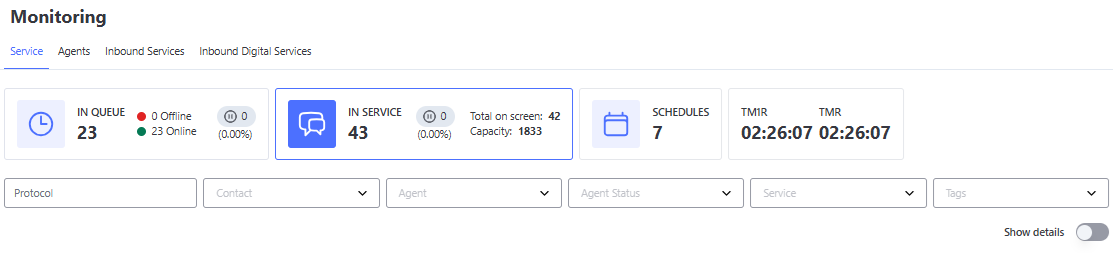
The main In Progress screen displays a summary of the following information:
-
Total number of ongoing interactions: Indicates how many interactions are currently being handled by agents.
- An icon with the total number of interactions on Hold is displayed next to the total ongoing interactions.
- The percentage (%) of interactions on Hold is shown just below, making it easier to analyze agent occupancy.
- Total on Screen: Indicates the total number of interactions currently visible on the agents’ screen, i.e., those actively being handled.
- Capacity: Represents the total number of interactions that logged-in agents could handle at that moment, according to their individual limits configured in the system.
-
ART (Average Response Time): Average time between customer messages and agent responses.
-
AFRT (Average First Response Time): Average time between the start of the interaction and the first response sent by the agent to the customer.
-
CWT (Customer Waiting Time for Agent Response): Time the customer is waiting for the agent’s response. This indicator counts the time since the customer sent a message and is waiting for the agent’s reply. The counter resets when the agent interacts or when the interaction is transferred by service.
- Transfers by agent do not reset the counter for this indicator.
🔎 Available Filters
At the top of the screen, you can apply filters to refine the view of interactions:
- Protocol: Search by the unique interaction number.
- Contact: Filter by name or contact identifier.
- Agent: Filter interactions by the responsible agent.
- Agent Status: Filter by agents’ Online or Offline status.
- Service: Filter interactions based on the linked service(s).
- Allows selecting one or more services to display only the related interactions.
- User Tags: Filter interactions based on tags associated with users.
💡 Quick Tip: Use combined filters to quickly locate a specific interaction or analyze trends in the interaction flow.
🎨 Types of Views
The view can be displayed in two ways:
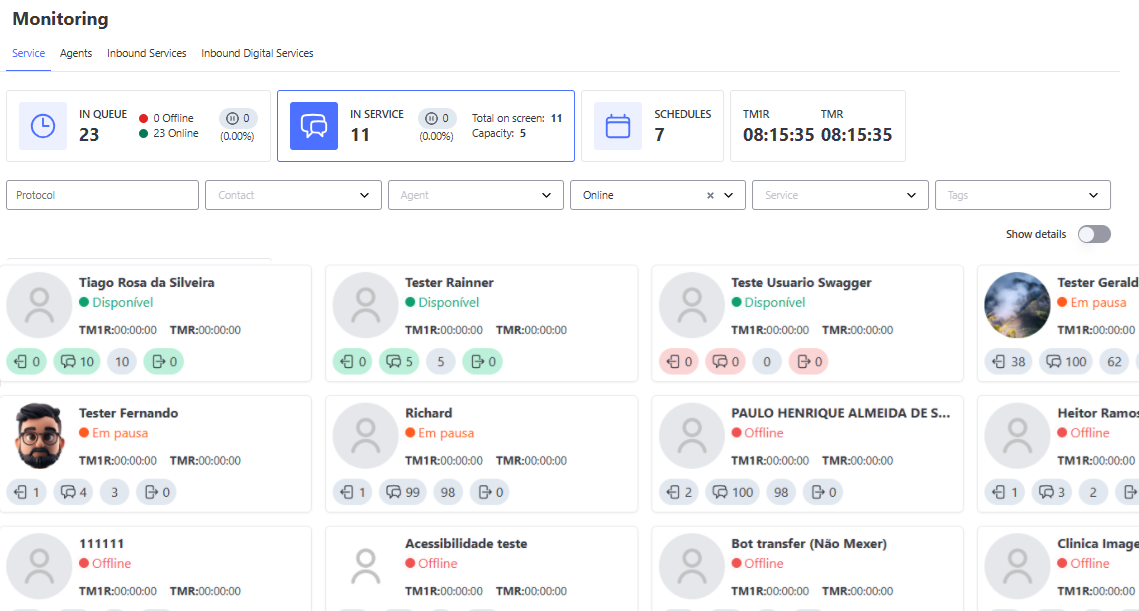
- Card View: Shows summarized information for each agent, making it easier to quickly identify who is available, on pause, or offline.
- List View (Show Details): Displays all ongoing interactions in order of duration, allowing for more detailed monitoring.
Card View
The card view screen is the main screen for monitoring digital interactions. It shows: All agents online, on pause, and offline who have any service other than voice, including those who do not currently have any active interactions.
The card view provides a quick and organized overview of agents and their respective interactions. Each card contains the following information:
🧑💻 Information Per Agent
- Agent Photo: Profile image of the agent.
- Agent Name: Full name of the agent.
- Agent Status:
- Green - Available
- Orange - Pause
- Red - Offline
- AFRT and ART: Average response times specific to the agent.
- Number of Inbound Interactions: Number of interactions received by the agent.
- Maximum Number of Inbound Interactions: Configured limit for the agent.
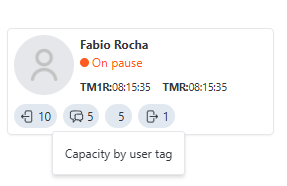
- Capacity by User Tag: Indicates the remaining number of interactions the agent can still receive, according to the capacity assigned to the user.
- Number of Outbound Interactions: Number of interactions initiated by the agent (not included in the maximum inbound interaction count).
📌 Behavior with Service Filter
When applying a filter by service, the following behavior occurs:
- The overall total of interactions displayed on the screen may vary depending on the applied filters, reflecting only the ongoing interactions according to the selected criteria.
- In the agent cards, the total number of interactions the agent is handling will be displayed, regardless of the service.
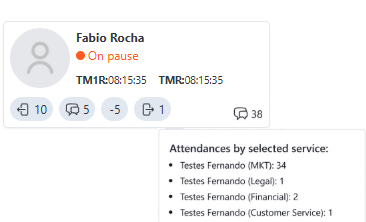
- Number of Interactions per Service:
- In the bottom-right corner of each card, the total number of interactions linked to the filtered service(s) is displayed. When hovering over this number, a tooltip appears with specific details of the interactions per service.
- The tooltip provides information such as:
- Number of interactions per service.
- Breakdown of the filtered services.
- The tooltip provides information such as:
⚠️ Important:
This behavior is different from what occurred previously: in the past, when filtering by service, the number of interactions per agent was based only on the filtered service, which caused confusion in understanding the actual workload and number of interactions in the queue.
❗Important Notes
- Changes to the Maximum Number of Interactions: If the maximum limit of interactions is reduced via user configuration, the screen will continue showing the current values until the agent performs a re-login.
- Inactive agents will continue to appear on the monitoring screen if they have open interactions. It is recommended to transfer or tabulate these interactions to maintain efficient management.
🏷️ Behavior with User Tag Filter and Capacity Indicators
The capacity indicators by user tag feature was created to facilitate the analysis of interaction distribution on the Monitoring screen.
With it, you can view how many interactions are active and what the total available capacity of the agents is.

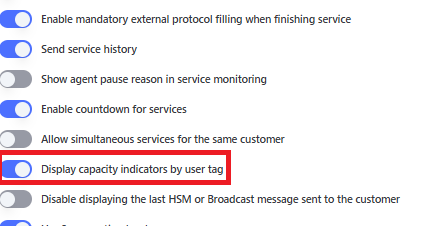
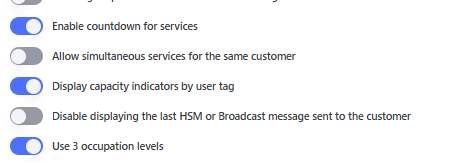
To display the capacity indicators by user tag on the Interaction Monitoring screen, you must enable the option "Show capacity indicators by user tag", located in the Company menu, within the Administrative area.
This configuration activates two complementary functionalities:
- Display of capacity by tag in the agent cards.
- Enabling of the agent status filter (Online and Offline) in the "In Progress" tab, allowing for more refined control in combination with tags.
⚠️ IMPORTANT:
After saving the configuration, it is necessary to log out and log back into the system for the changes to take effect on the monitoring screen.
🧮 Behavior of Indicators
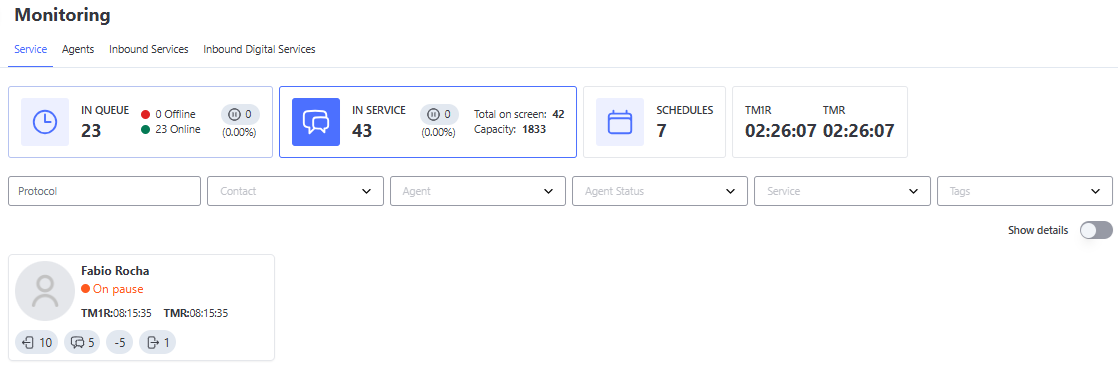
When tag indicators are enabled and you apply a filter by a user tag:
- The Total on Screen section will show only the ongoing interactions of agents who have the selected tag.
- The Capacity section will display the sum of the total handling capacity of those same agents, according to their individually configured limits.
💡 Note:
The definition of “Total on Screen” and “Capacity” remains the same, but the displayed content will be filtered based on tags and agent status.
🧩 Combined Use with Agent Status Filter
When using the agent status filter together with tags:
- The system will consider only the agents that match both the selected tag and status.
- Thus, both the total interactions on screen and the total capacity will be recalculated based on these two filters.
📌 Capacity Indicator by Tag in the Agent Card
When tag indicators are active, each agent card will display an additional icon representing:
- The remaining number of interactions the agent can still receive.
- A tooltip with the description "Capacity by user tag" is shown when hovering over the number.
🎨 Color Customization by Occupancy Level
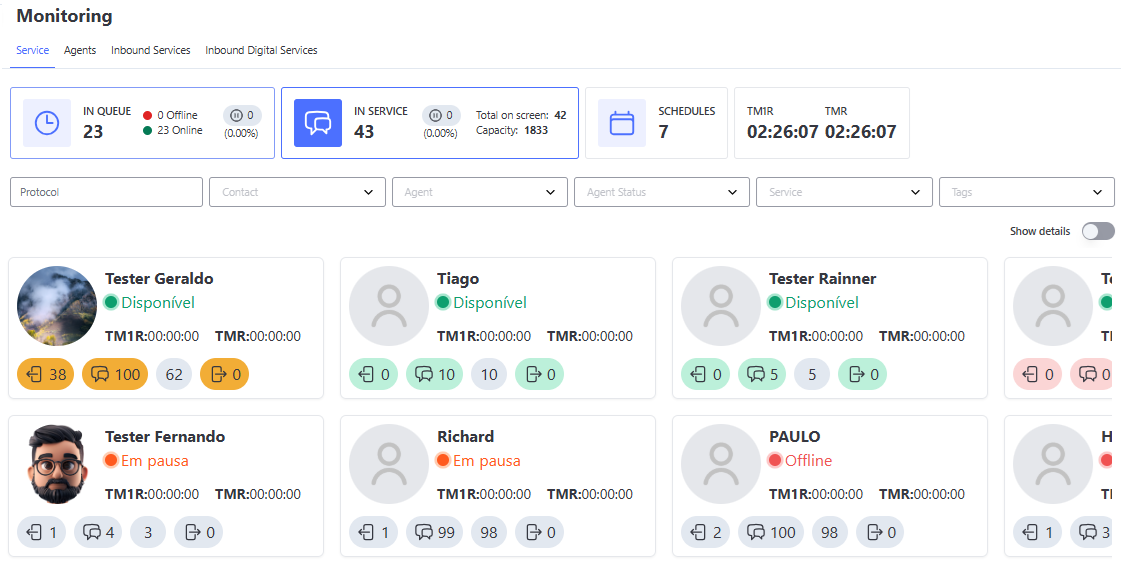
The Interaction Monitoring screen allows customization of the color of indicators in agent cards, according to the percentage of Inbound interaction occupancy.
This feature was created to facilitate quick visualization of each agent’s workload level, enabling supervisors and managers to clearly identify who can still receive interactions and who is already overloaded.
When occupancy reaches or exceeds the configured percentage, the system will apply the chosen custom color (e.g., yellow, orange, blue, etc.).
This configuration can be enabled per company and defines automatic coloring according to the following criteria:
- ✅ Light Green: When the agent still has available capacity below the configured percentage.
- 🟨 Custom Color: When the agent’s occupancy percentage is equal to or above the defined value.
- 🟥 Light Red: When the agent’s maximum capacity has been reached (no more room for new interactions).
- 🔲 Gray: When the agent is Offline or On Pause, indicating they cannot receive new interactions.
The color is applied only to the indicators of:
- Inbound Interactions
- Maximum Inbound Interaction Capacity
- Number of Outbound Interactions
⚙️ How to Enable Colors by Occupancy Level
To enable color customization:
- Go to the Administrative > Company menu.
- Activate the option "Use 3 occupancy levels".
- Fill in the displayed fields:
- Occupancy Percentage (%): Value between 1 and 99.
- Chosen Color: Use the color picker or enter a code in RGB, HEX, or HSL.
💡 Quick Tip:
Avoid using colors too similar to the system’s default colors, such as light green (available capacity) and light red (maximum capacity reached), to prevent visual confusion.
Also avoid very dark colors, as they may make the text displayed in the indicators harder to read.
⚠️ IMPORTANT:
After saving the configuration, it is necessary to log out and log back into the system for the changes to take effect on the monitoring screen.
Agent Activities
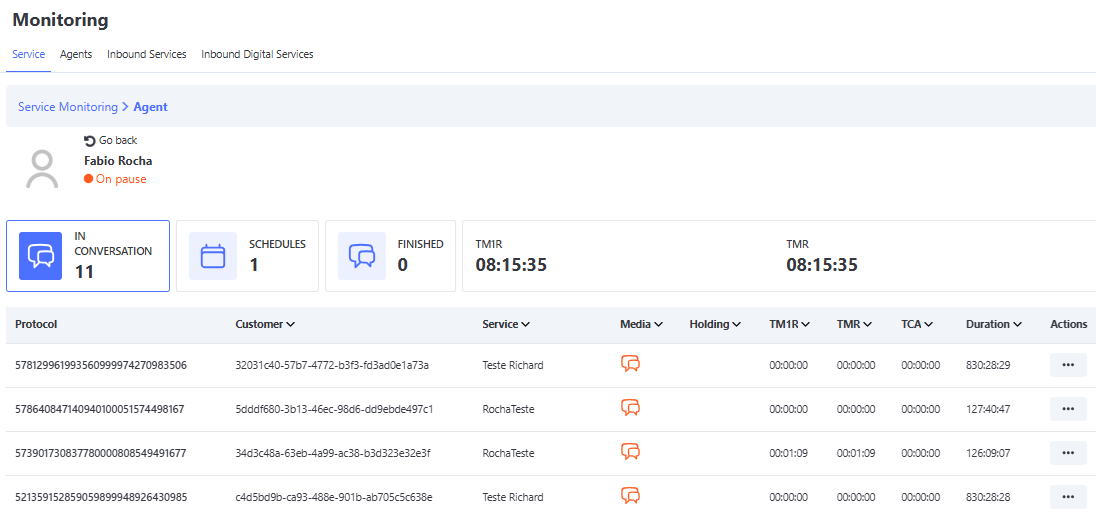
By clicking on the agent cards, you gain access to a detailed view of each agent’s individual activities. This screen provides essential information about the agent’s performance and current status, as well as enabling deeper monitoring of the interactions being handled.
ℹ️ Information Displayed in Agent Activities
🌐 Agent Status:
- The agent’s current status is indicated by a color and text next to the name:
- Green - Available: The agent is connected to the system.
- Orange - Pause: The agent is temporarily unavailable.
- Red - Offline: The agent is not connected to the system.
📈 Activity Summary:
- In Conversation: Total number of ongoing interactions handled by the agent.
- If there are interactions on Hold, a hold icon will be displayed.
- The percentage (%) of interactions on Hold is also shown next to the total number.
- Scheduled: Number of interactions scheduled for the future.
- Completed: Number of interactions concluded by the agent during the day.
- ART (Average Response Time): Average time between customer messages and agent responses.
- AFRT (Average First Response Time): Average time between the start of the interaction and the first response.
📊 Activity Details Table
Below the summary, there is a table with detailed information about each interaction handled by the agent. The displayed columns are:
💡 Quick Tip:
Click on the column headers (such as ART, Duration, Customer,...) to sort the table in ascending or descending order. This helps identify interactions with longer response times or prioritize specific cases.
- Protocol: Unique identifier of the interaction.
- Customer: Name or identification of the customer.
- Service: Service linked to the interaction.
- Media: Channel used for the interaction (e.g., WhatsApp, Chat, Telegram).
- Holding: Visually indicates when an interaction is on hold (holding status).
- AFRT: Average time between the start of the interaction and the first response sent by the agent to the customer.
- ART: Average time between each customer message and the agent’s response, considering all interactions within the case.
- Duration: Duration of the interaction.
- Actions Button: Buttons with options to interact with the interaction:
🎯 Available Actions
Click the Actions button to perform the following operations:
| Action | Description |
|---|---|
| Observe Conversation | Allows viewing the interaction without interfering in the communication. |
| Insert Internal Comments | Add notes visible only to other agents. |
| End Interaction | Manually closes the interaction (if necessary). |
| Transfer by Agent | Transfers the interaction to another available agent. |
| Transfer by Service | Transfers the interaction to another service. |
List View
The list view (Show Details) provides a detailed and organized view of ongoing interactions, allowing supervisors and managers to track specific metrics for each case. This view is ideal for those who require greater control over interactions.
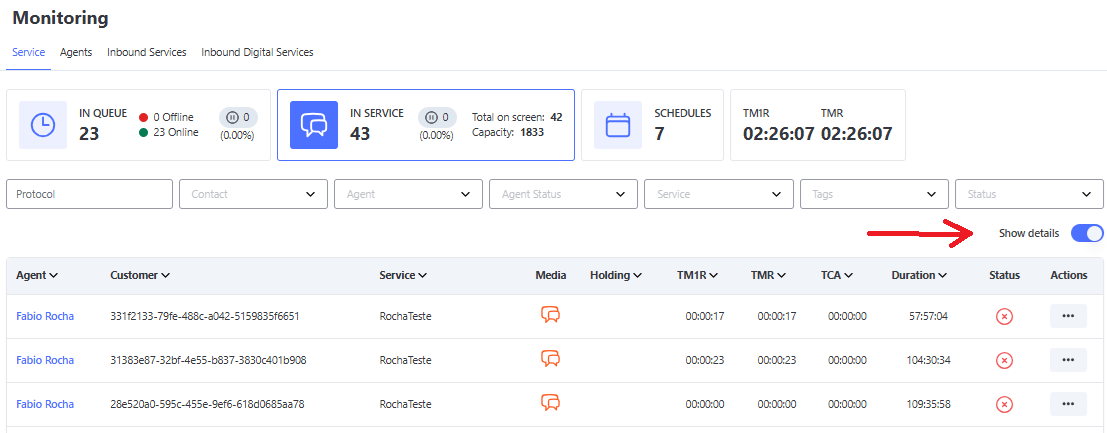
💡 Quick Tip:
On this screen, you can check all agents’ interactions sorted by duration.
🔍 Available Filters
At the top of the table, you can apply filters to customize the view:
- Protocol: Locate specific interactions by protocol number.
- Contact: Filter by contact.
- Agent: Display only interactions handled by a specific agent.
- Service: Display only interactions in certain services.
- Tags: Display only interactions in specific User Tags.
- Status: Check interactions in specific states (e.g., Active, Expired).
📋 Information Displayed in the Table
The list view table provides the following data for each interaction:
- Agent: Name of the agent responsible for the interaction.
- Customer: Identification of the customer (protocol or name).
- Service: Service linked to the interaction.
- Media: Channel used for the interaction (e.g., WhatsApp, Chat, Telegram).
- AFRT: Average First Response Time — average time from the start of the interaction until the first response sent by the agent.
- ART: Average Response Time — average time between customer messages and agent responses.
- Duration: Total duration of the interaction.
- Status: Current status of the interaction (e.g., Active, Expired).
- Actions Button: Buttons with options to interact with the interaction:
🎯 Ações Disponíveis
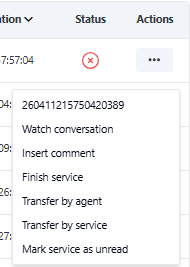
Click the Actions button to perform the following operations:
| Action | Description |
|---|---|
| Protocol Number | Quick shortcut to copy the interaction’s protocol number. |
| Watch Conversation | Allows viewing the interaction without interfering in the communication. |
| Insert Internal Comments | Add notes visible only to other agents. |
| Finish Interaction | Manually closes the interaction (if necessary). |
| Transfer by Agent | Transfers the interaction to another available agent. |
| Transfer by Service | Transfers the interaction to another service. |
| Mark Interaction as Unread | Marks the interaction as unread on the agent’s screen. |
Monitoring Scheduled Interactions
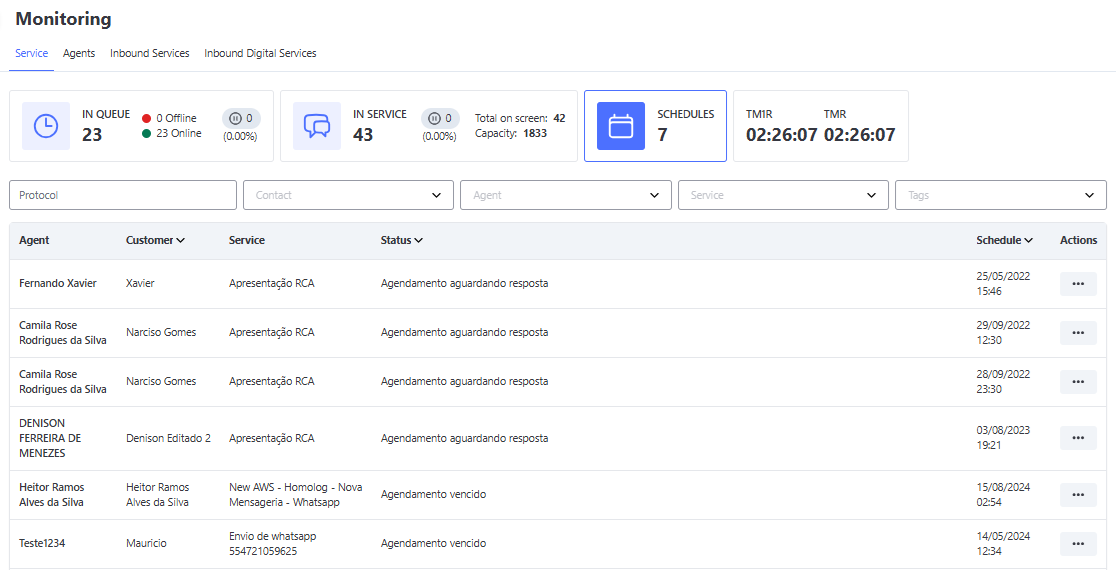
Note: The monitoring screen displays all interactions that are still ongoing. If a user has been deactivated, they will continue to appear on the Monitoring Screen as long as they have open interactions. Our recommendation is that whenever a user is deactivated, their interactions should be transferred or tabulated.
Agents
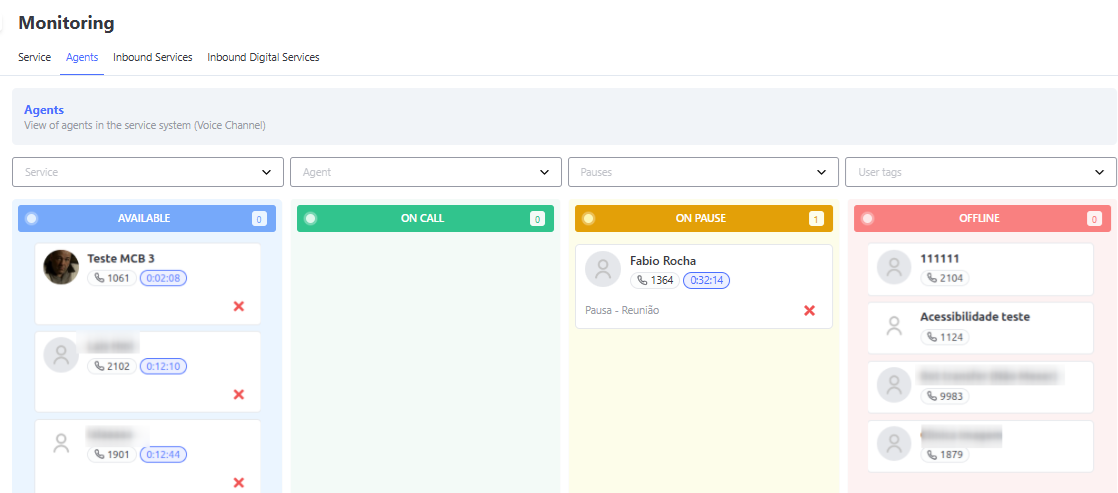
The Agent View screen displays user status and login information based on softphone logins exclusively. Companies that do not have voice interactions will not have visibility on this screen.
This screen reflects the softphone statuses, meaning agents who do not have a voice service or do not log into the softphone will appear with the Offline status, even if they are logged into the platform.
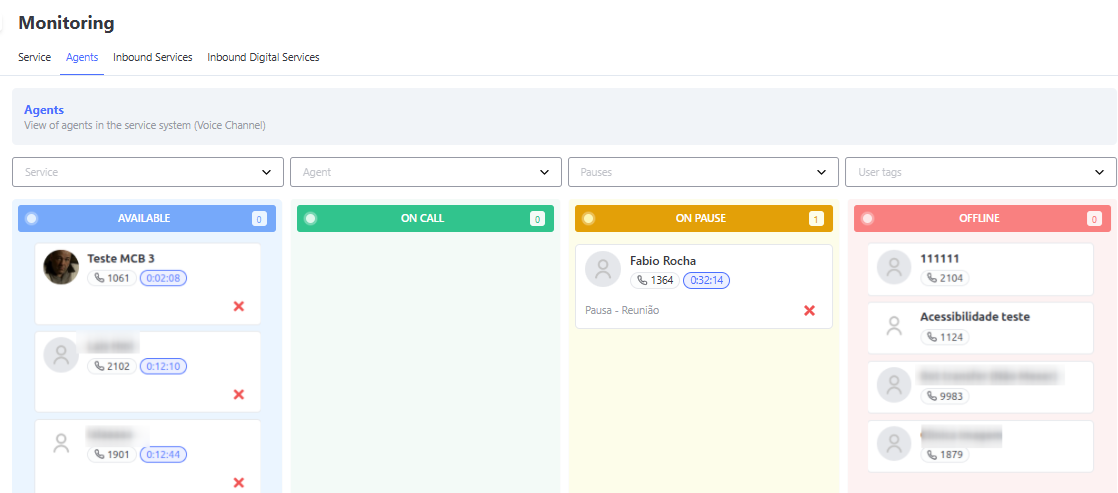
It presents the following fields:
- Available – agents/users who are free to receive new interactions, displayed in a queue according to how long they have been idle.
- On Call – agents/users who are currently handling an interaction.
- On Pause – agents/users who are on pause.
- Offline – agents/users who are disconnected from the softphone.
The screen provides filters to facilitate the manager’s view, allowing searches by service, agent, or user tag.
Call Monitoring
During a call, the manager can assist the agent/user or monitor them for future feedback. See the image below for a description of the actions.
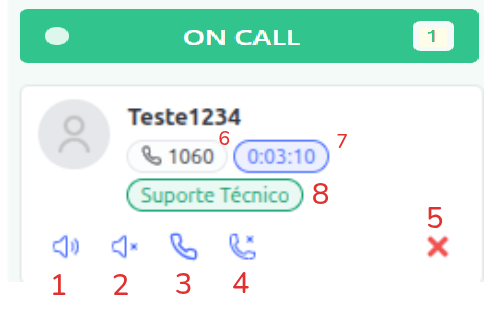
1 - Listen to Call – Only listens to the ongoing call.
2 - Whisper – When joining the call, only the agent will hear what is being said by the person who joined.
3 - Join Call – When joining the call, everyone can hear what is being said by the person who joined.
4 - Take Over Call – When joining the call, you can take over the call. The previous agent is removed, and you become the host.
5 - Log Out Agent – Logs the agent out of the platform.
6 - Agent Extension – The agent’s extension number.
7 - Call Duration – Total duration of the ongoing call.
8 - Call Service – Indicates the service in which the call is taking place.
Note: This field will not be available for calls originated by the IVR and distributed through the DTMF extension flow.
New Agent Monitoring Screen
The agent monitoring screen has been redesigned. Below, we show the new layout. If you wish to migrate to this screen, we have new interfaces in several parts of the system to improve your experience in Omni.
If you want to switch to the new layout, just contact your CS.
Indicator of Agents without Microphone Permission
To ensure the efficiency of voice operations and allow supervision to quickly identify possible impacts on attendance due to lack of audio access, the Monitoring > Agents panel now includes a real-time visual indicator to identify operators who do not have microphone permission enabled in the browser.
🎙️ How the Visual Indicator Works
When the browser of an agent registered in a voice service does not have or loses permission to use the microphone, Omni detects this restriction and displays a red microphone icon with a block slash right next to the operator’s name on the card.
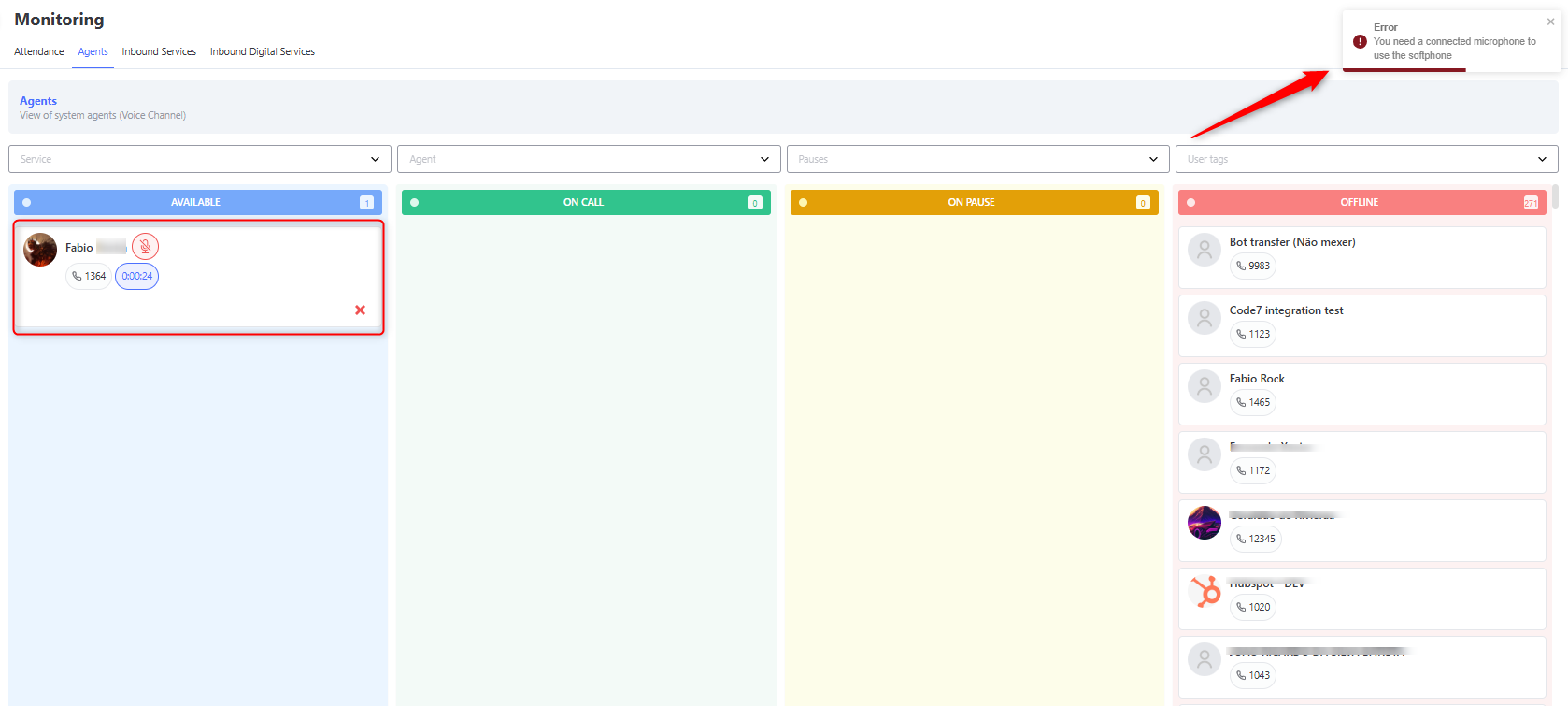
💡 Note: The indicator is automatically updated. As soon as the agent grants audio access permission in their browser settings, the alert icon is automatically removed from the monitoring card.
Agent Pause View
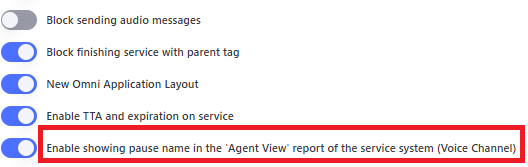
You can enable, in the Company menu, the option to display on the agent monitoring screen the visualization of the names of the pauses that users are currently in.
Change of Pause Types
If the agent changes the type of pause, it will be reflected in this view, always showing the user’s current status.
If these pauses are changed in the Salesforce softphone, they will also be reflected on this screen.
Inbound Services
The Inbound Services (Voice) module is part of the Monitoring area, allowing real-time tracking of the performance of telephone attendance queues.
It provides detailed indicators on call volume, average wait time, and operational efficiency — essential for monitoring voice operations.
💡 This feature is especially aimed at supervisors and managers who want to track service performance and identify bottlenecks in queues.
Overview
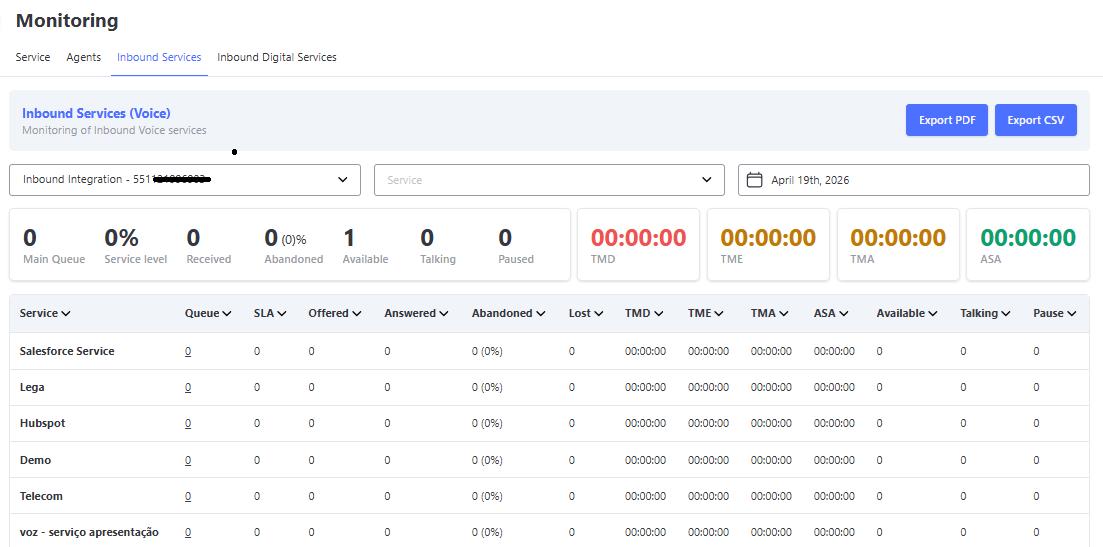
The Inbound Services (Voice) screen allows real-time monitoring of the performance of telephone attendances queues, with indicators that show the call flow and the service level of each configured IVR.
How it Works
By selecting the desired IVR, the system displays a dashboard with indicators related to the date range and services defined in the filters.
This data shows the current status of the queues and helps measure service efficiency.
📊 Main Indicators:
- 🎧 General Queue — Total number of customers waiting for service. These contacts can also be viewed on the Service → In Queue screen.
- 📈 Service Level — Percentage of interactions handled within the configured time (SLA).
- ☎️ Received — Total number of calls received during the selected period.
- 🚫 Abandoned — Calls ended before being answered.
- 📉 Lost — Calls that reached the maximum wait time in the queue (Timed out) without being answered.
- ⚠️ Note: The expiration time is configurable, but any adjustment requires opening a support ticket, as it directly impacts IVR flow rules.
- 👤 Available / Paused / Talking — Number of agents by current status.
Average Indicators
In addition to totals, the dashboard presents average performance indicators that assist in operational analysis:
- ⏳ ACWT – Average Call Withdrawal Time: average time customers wait before abandoning the call.
- 🕐 LWT – Longest Wait Time: longest wait time recorded among customers in the queue.
- ⌚ AHT – Average Handling Time: average duration of calls from start to finish.
- ⏱️ ASA – Average Speed of Answer: average time customers wait in the queue before being answered by an agent.
Services Table
At the bottom of the dashboard, a table with the services linked to the IVR is displayed, showing the following information per row:
| Column | Description |
|---|---|
| Queue | Current number of customers waiting for service. |
| SLA | Percentage of interactions handled within the configured time. |
| Offered / Answered / Abandoned / Lost | Call counts by status. |
| ACWT / LWT / AHT / ASA | Average indicators per service. |
| Available / Talking / Pause | Real-time agent statuses. |
Queue Customer View
By clicking on the number of customers in the Queue of a service, the system displays a detailed window with the list of calls waiting for service.
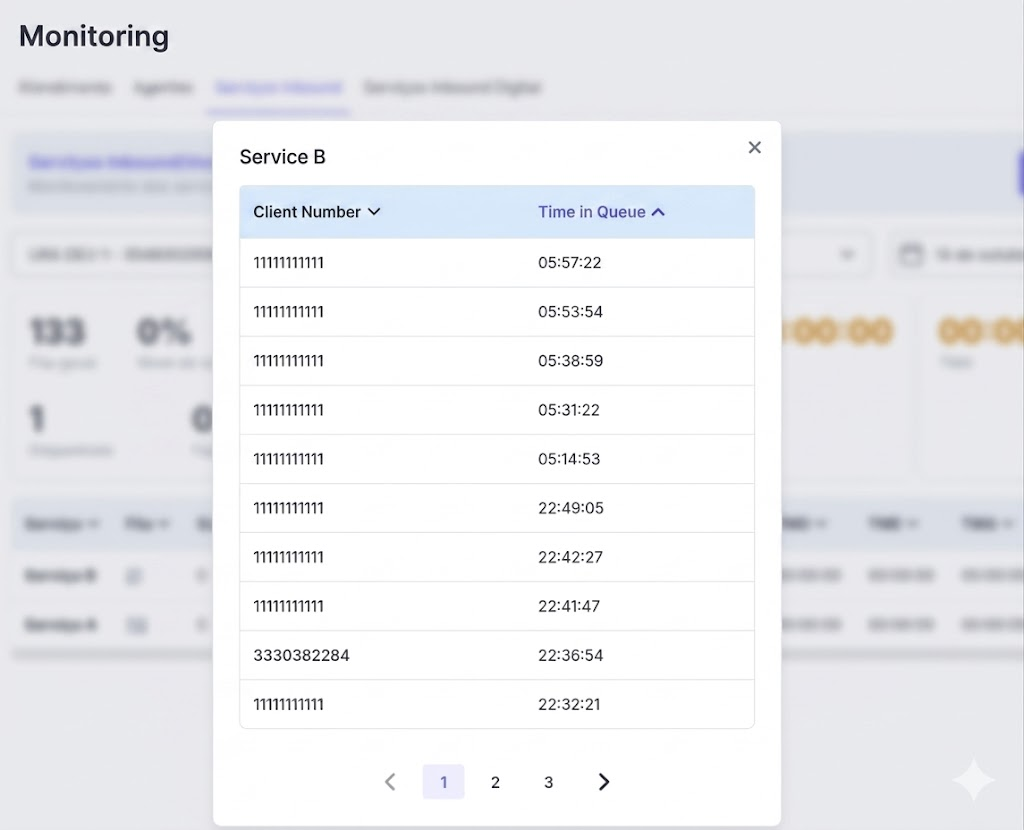
📋 In the window, the following columns are displayed:
- Customer Phone — Origin number of the call.
- Queue Time — Total time the customer has been waiting to be served.
This view makes it easier to monitor individual calls.
✨ With these indicators, it is possible to quickly identify congested queues, adjust teams, and ensure that voice service maintains the expected service level.
Inbound Digital Attendances
The Inbound Digital Attendance screen monitors queues (services) by media, with the option to filter by a specific service.
After selecting the desired media, the dashboard will display indicators referring only to the current day, without service distinction. Below, a table is shown with the same indicators for each service. The indicators presented are:
-
In Queue:
- Customer interactions waiting for service. This indicator shows the sum of the current number of interactions awaiting assignment to an agent.
-
In Service:
- Customer interactions currently being handled. This indicator shows the sum of interactions assigned to agents that have not yet been closed.
-
Received:
- Total number of interactions that reached the platform. The calculation is the sum of all interactions that entered the platform, including those already handled and closed.
-
Completed:
- Displays the number of interactions that had a closing tag inserted. This indicator sums all finalized interactions.
- Note: This indicator does not verify the date the interactions entered the platform, only the date they were closed.
-
Capacity:
- Shows the maximum number of simultaneous interactions supported. The calculation is the sum of the maximum number of interactions of all agents currently available.
-
AFRT (Average First Response Time):
- Average time of the first response sent in an interaction. Calculated as the average difference between the time each interaction was assigned to an agent and the agent’s first response.
-
ART (Average Response Time):
- Average response time of interactions. Calculated as the average difference between the time taken for the agent to respond to each customer message.
- Note: ART includes AFRT in its calculation, considering it as one of the responses.
-
AHT (Average Handling Time):
- Represents the average time elapsed between the start and end of each interaction. The start time is recorded when the interaction is assigned to an agent, and the end time is recorded when the interaction is closed. For ongoing interactions, the end time is considered as the current time.
-
Online:
- Number of agents available on the platform. Sum of all agents logged in and with status available.
-
On Pause:
- Number of agents on pause. Sum of all agents logged in with pause status.
-
Offline:
- Number of agents logged out. Sum of agents not connected to the platform.