Lira
What is Lira
It is a Generative AI supporting companies in optimizing their work routines. With its advanced technology, it goes beyond traditional AIs, as it is capable of reading, interpreting, and extracting valuable insights from internal documents and websites that contain FAQs or system documentation.
How to Activate
To start using it, you will need to:
1. Contact your CS so they can adjust the commercial conditions and processes in the Billings system.
2. The CS must open a ticket for Omni, informing the org and users who should have access so that the module can be released.
How to enable LIRA’s features
After activation, the profile with Lira’s permissions will be added to the organization, making it possible to grant access to other users. As shown in the following image:
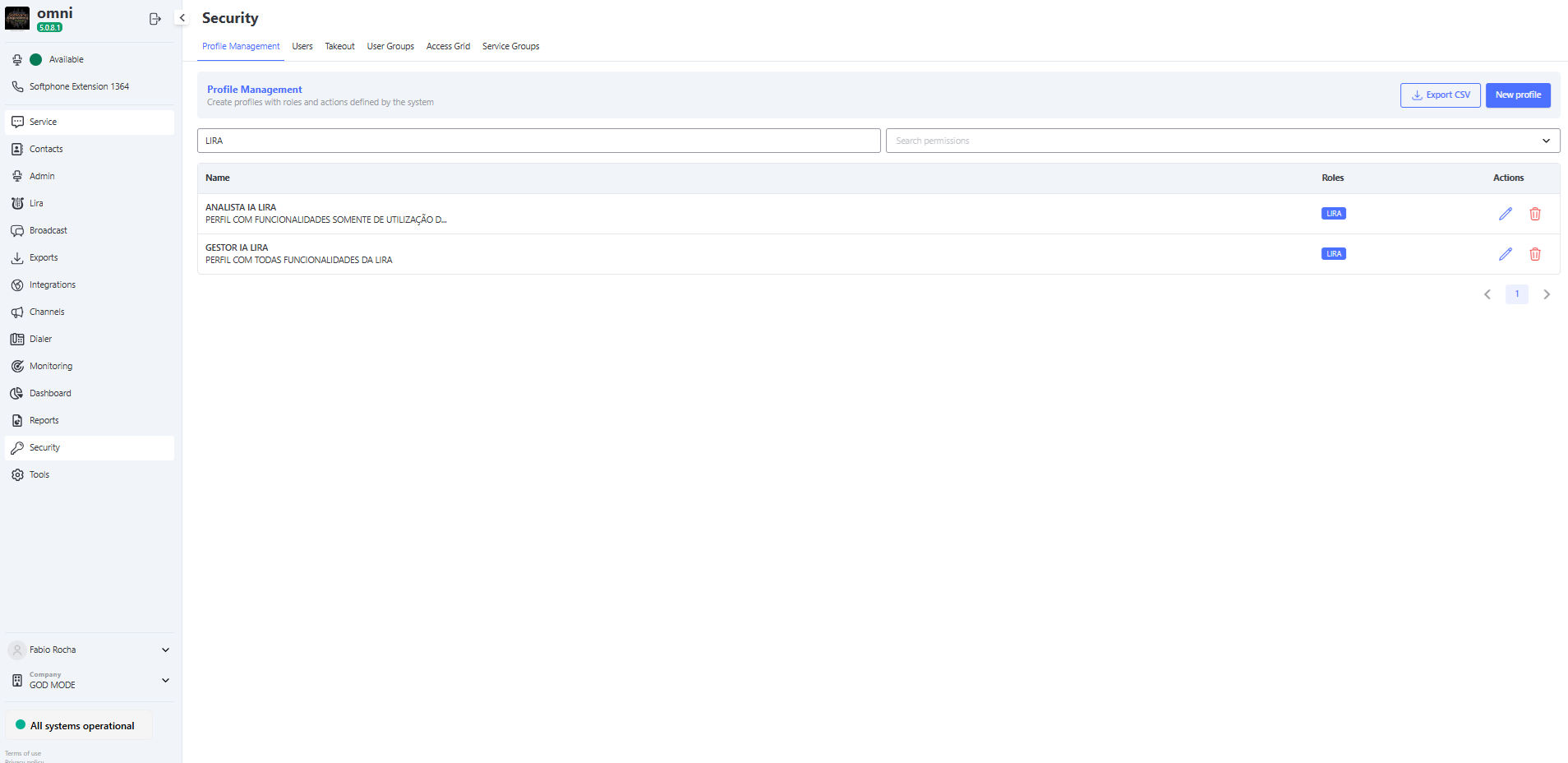
NOTE: This profile has only one permission, which is access to Lira. Therefore, we do not recommend changing or deleting this profile.
Difference between profiles:
Analyst IA Lira: A profile with functionalities restricted to prompt usage.
Manager IA Lira: The manager profile is the most complete within the Lira module, offering full access to all available functionalities and resources.
How to configure
Access the Lira Menu Prompt, where it will be possible to manage the files for Lira’s processing.
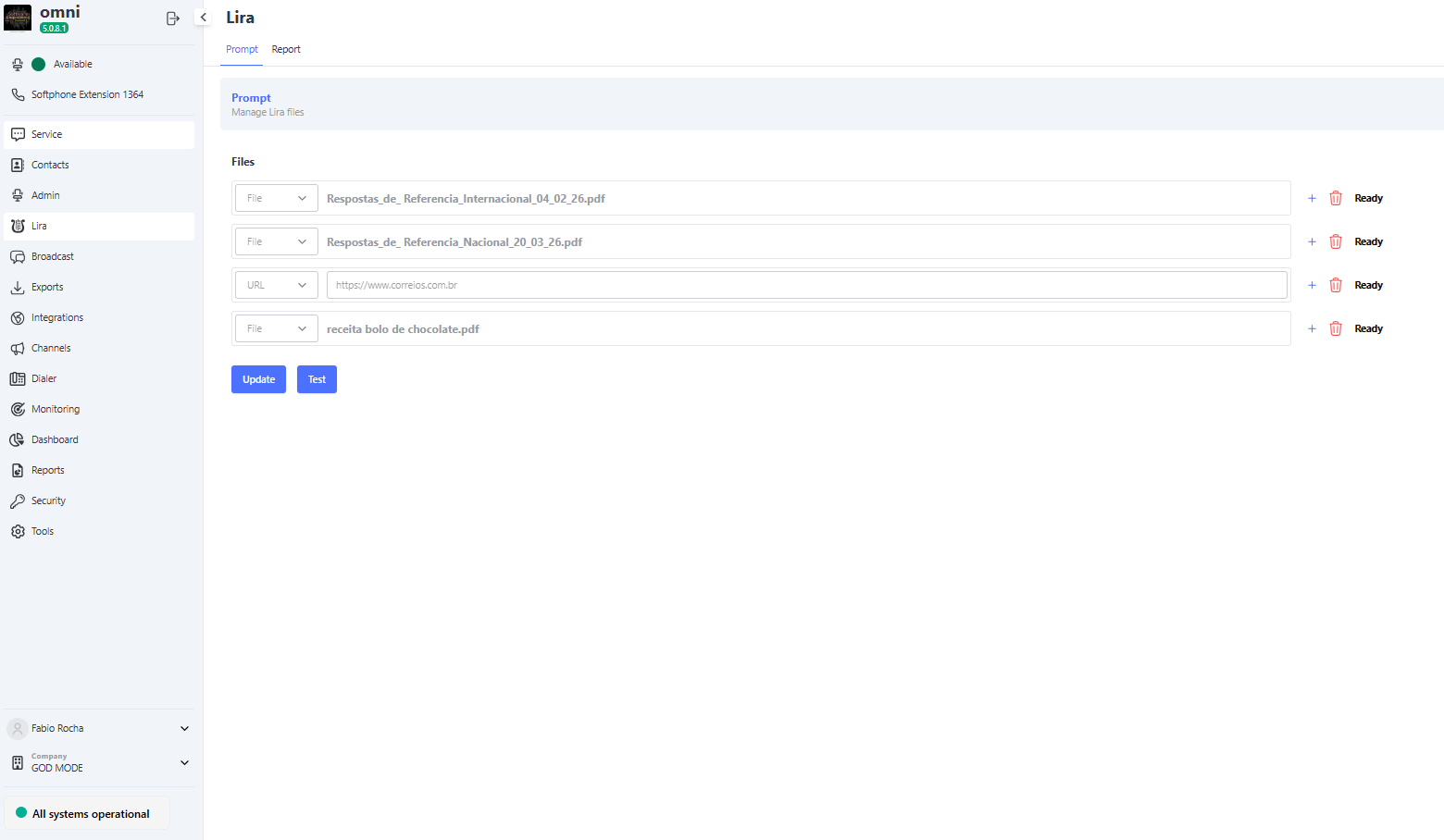
In this Prompt submenu, two types of files can be inserted for analysis by the generative assistant:
-
URL: A URL can be inserted (FAQ, Wikipedia, or sites such as Omni’s own documentation for analysis, where the text will be used for the generative assistant’s analysis).
-
File: A file containing text can be uploaded, which will be used for the generative assistant’s analysis.
After inserting, simply click the Update button and wait for processing.
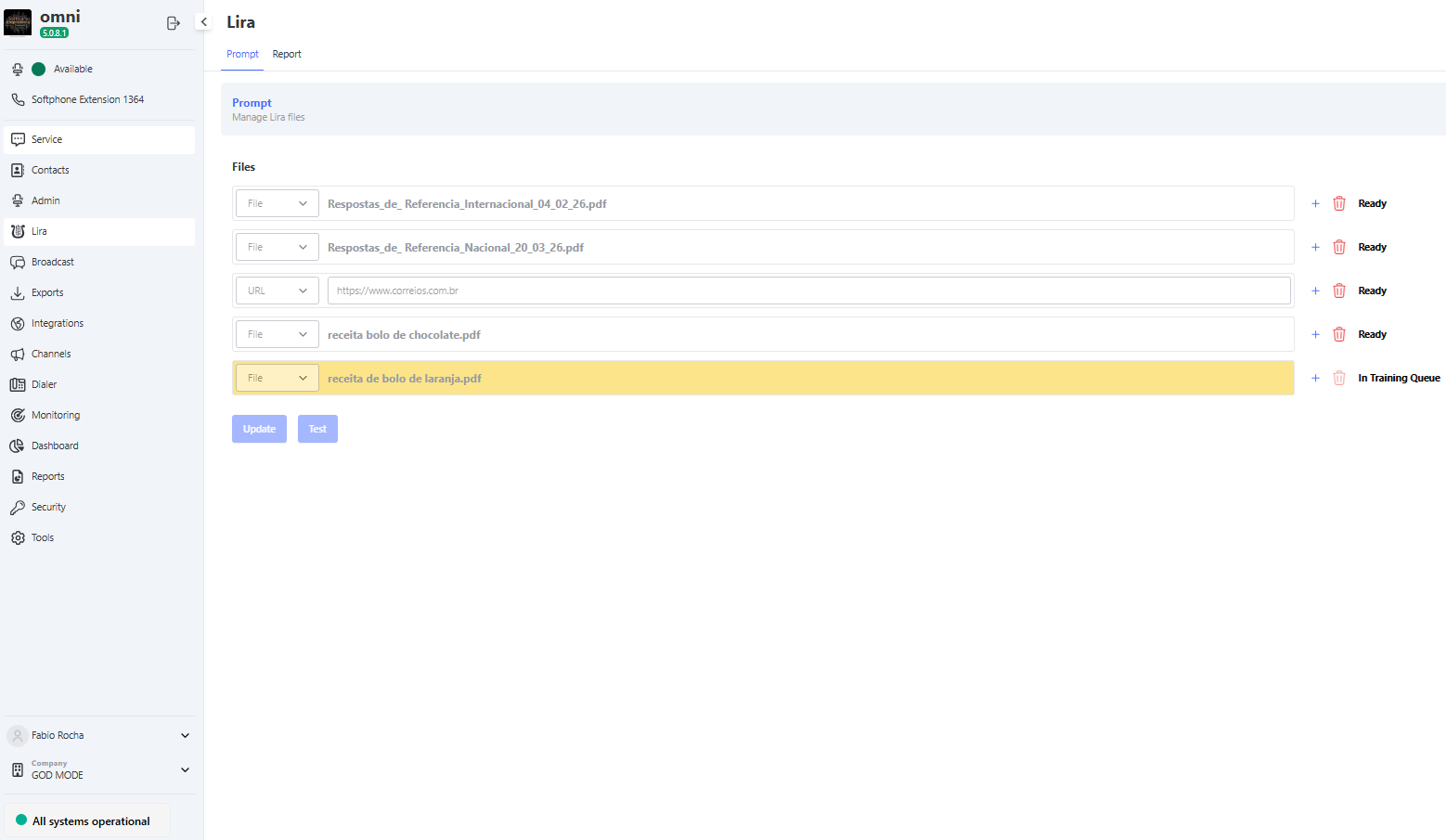
Multiple insertions are possible, so by clicking the '+' button you can insert more files, with a maximum of 5 files/URLs. This insertion is per organization.
It is also possible to delete records from the list by clicking the 'Trash' button, where the data will be removed from the generative assistant after a few minutes.
Action Buttons
On this screen, the administrator has full control over the lifecycle of the files that feed the knowledge base of the generative assistant. The screen is composed of the following commands and indicators:
- ➕ Add New Database (Multiple Upload): Allows importing new files or knowledge URLs into the assistant.
- Business Rule: Insertion can be done in batch. By clicking the
+button, the system allows attaching multiple files simultaneously, respecting the maximum limit of 5 files or URLs per organization.
- Business Rule: Insertion can be done in batch. By clicking the
- 🗑️ Delete (Batch Deletion): Allows removing records from the listing.
- System Behavior: It is possible to select and delete more than one record at a time through the checkbox. By pressing the trash button, the selected databases will be marked for removal from the generative assistant ecosystem. After clicking Update, the background cleanup process may take a few minutes to be fully completed.
- 📊 Database Status: Real-time visual indicator that displays the current phase of the file in the data pipeline.
- 📥 File Download: Allows downloading the original document stored in the cloud for quick content verification.
- 🔄 File Reprocessing: Command to force a new reading of the document. Ideal for scenarios where there was a temporary processing failure or when the data source needs to be reindexed.
How to test
After the data has been fully processed, it can be tested using the "Test" button.
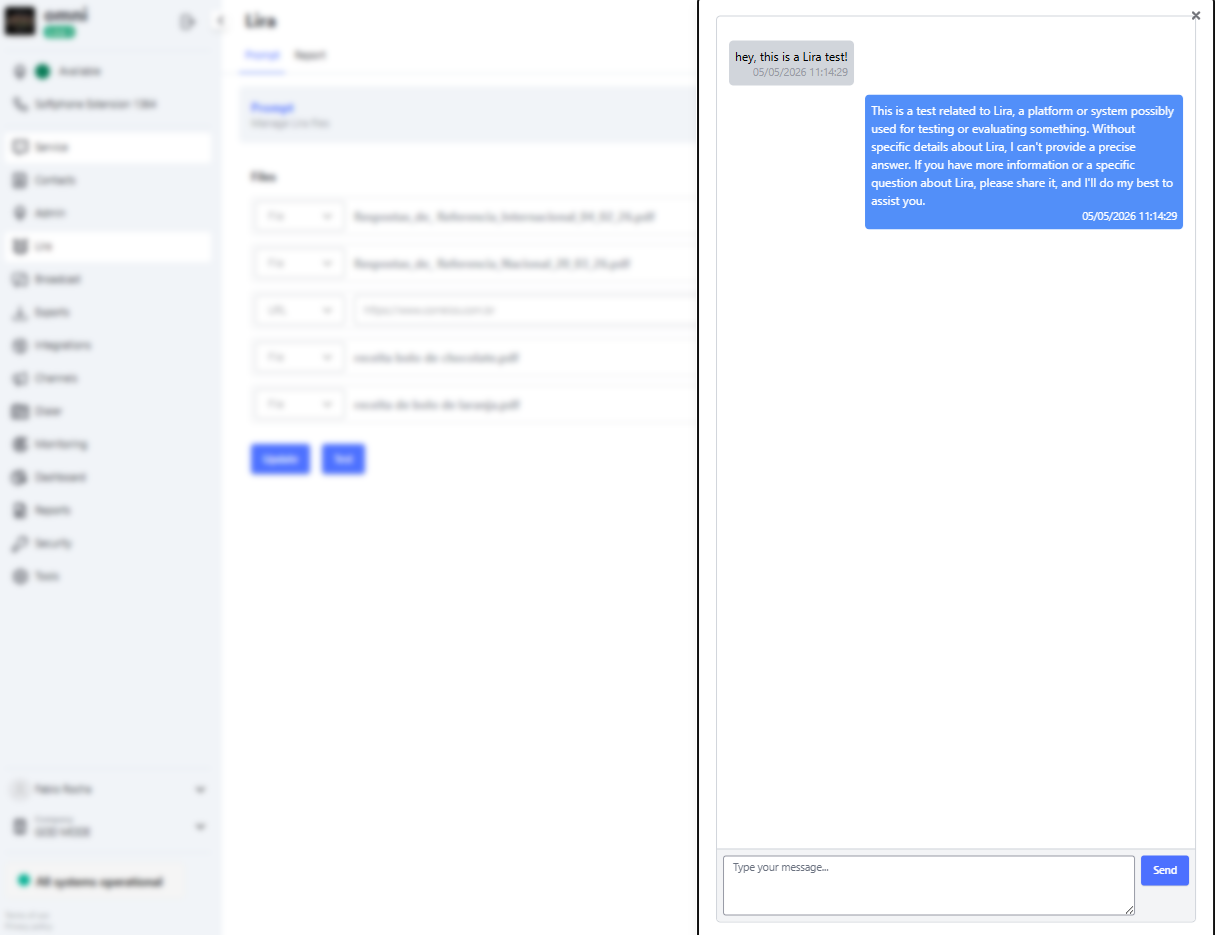
As the results are generated by the generative assistant, the answers will not always be identical. However, as long as the question is identified by the generative assistant’s knowledge base, the results will be quickly returned to the user consulting Lira.
How to use
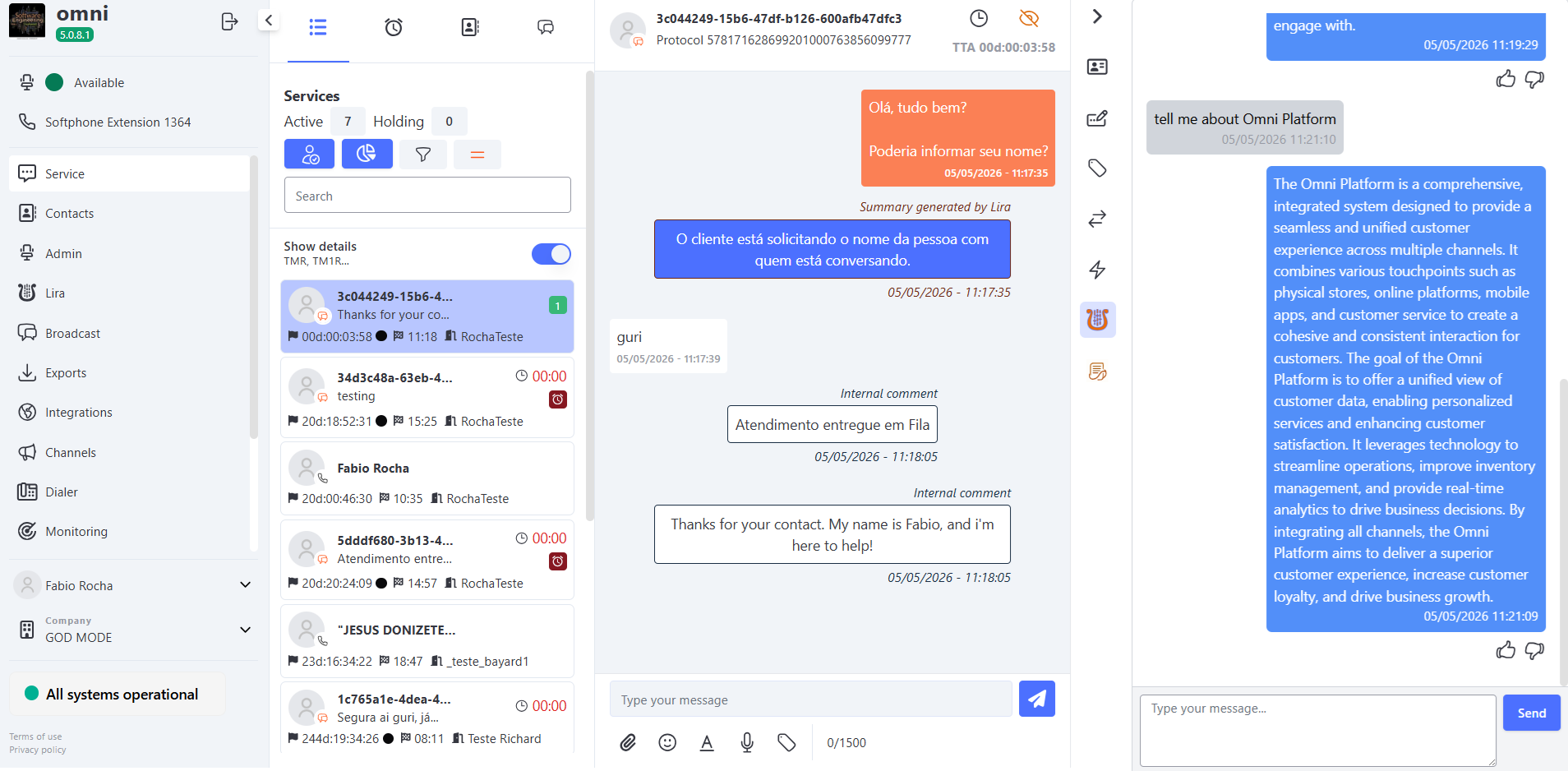
To use Lira, simply access an attendance, and in the right-hand side menu, according to the logged-in user’s permissions, select the "Lira" button. In the text box, type the question you want the generative assistant to answer.
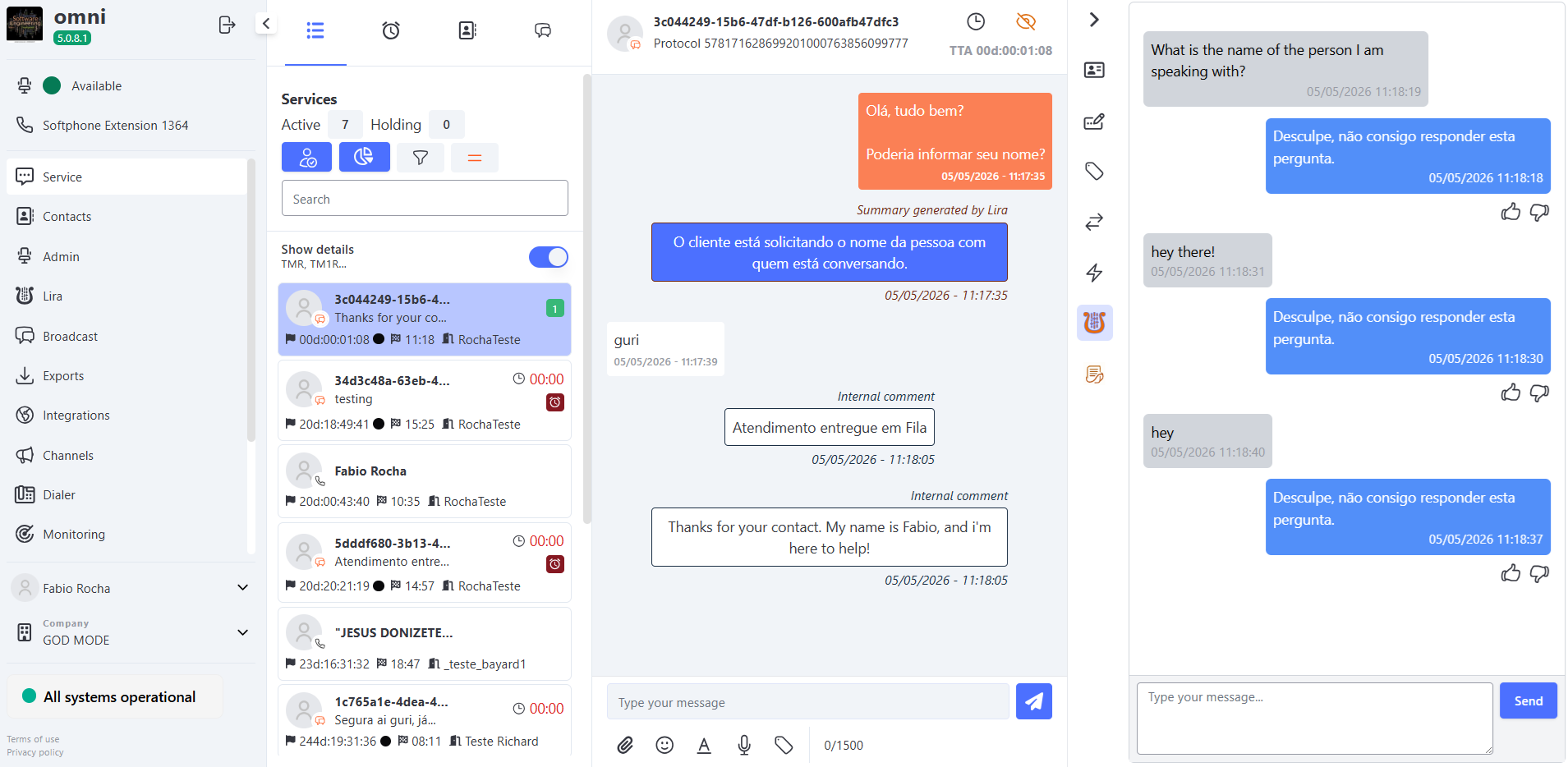
After the question is asked, a brief interval will happen, and the answer will be displayed to the user. During this interval, for security reasons, the platform blocks new messages until the response is completed.
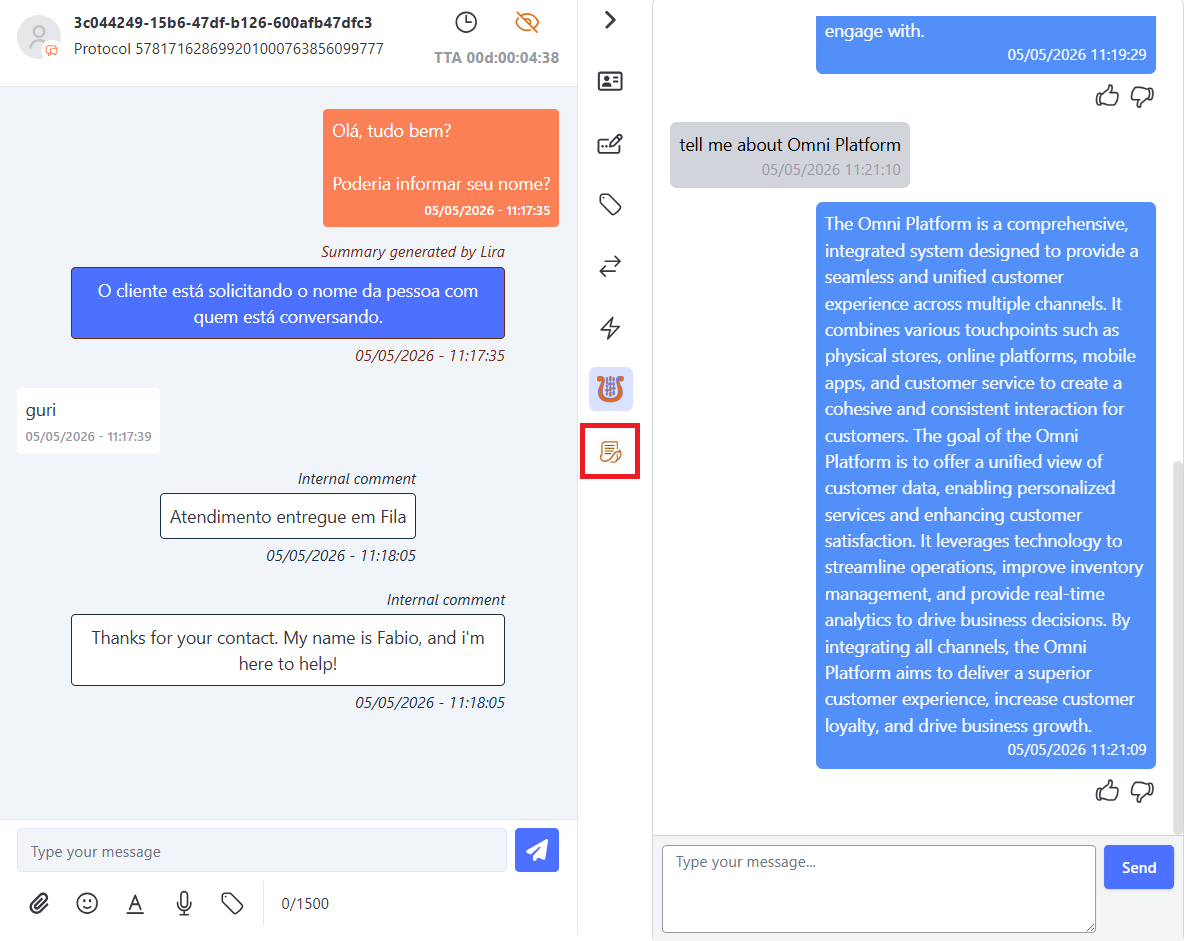
Help Me Button
The Help Me feature was created to assist agents during attendance, generating automatic summaries of conversations and formulating questions that can facilitate the search for answers in Lira’s knowledge base.
Main Features
-
📝 Attendance Summary
By clicking the Help Me button, the system automatically generates a summary of the ongoing conversation.- The summary includes both the client’s messages and the agent’s.
- It highlights the main situations reported, making consultation more practical and faster.
-
🤖 Agility in Attendance
Along with the summary, the system automatically creates a question directed to Lira, based on the context of the conversation.
This way, Lira can suggest a useful answer, speeding up the attendance. -
🔄 Control of New Messages
- A new summary will only be generated if there are new interactions since the last summary.
- If there are no new messages, the system informs that there are no additional interactions to summarize.
-
📍 Button Location
The Help Me button is available within the attendance:- In the sidebar, just below the Lira button.
-
📂 Summary Availability
All generated summaries are stored and can be consulted in the Interaction Tracking. -
💬 Available Channels
Currently, the feature is enabled for attendances via Chat/Boteria and WhatsApp.
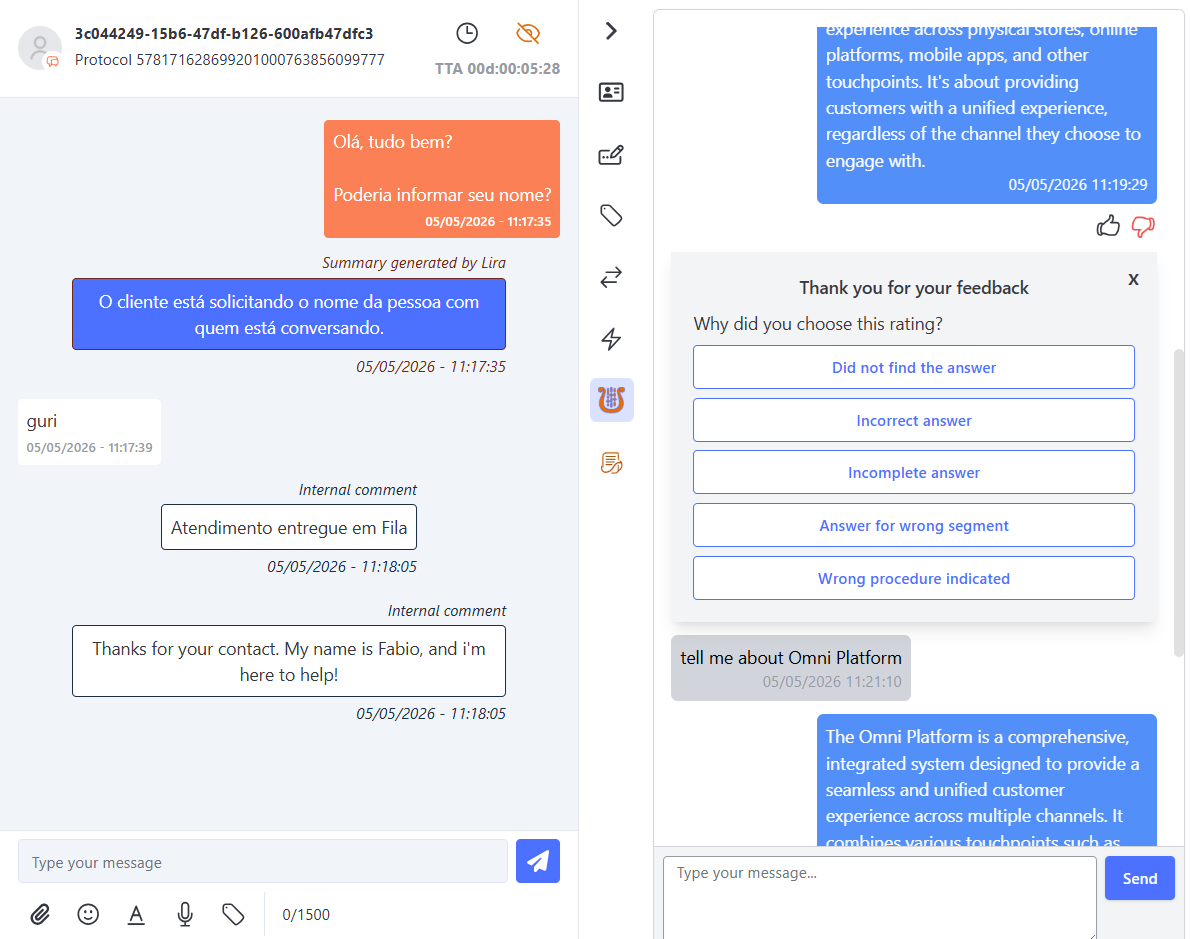
Like and Dislike Button
This feature allows the user to evaluate the response generated by Lira, indicating whether it was useful or not.
At the end of each response, two buttons are displayed:
- 👍 Like — used when the answer was satisfactory.
- 👎 Dislike — used when the answer did not meet expectations.
🟢 Like
When the user clicks the Like button, the button turns green, indicating that the feedback was positive.
Right after, a thank-you message is displayed:
💬 "Thank you for your feedback!"
This record is saved in Lira’s history, and the supervisor can view it in the report as a positive evaluation (score = 1), along with the time it was submitted.
🔴 Dislike
When clicking Dislike, the button is marked in red and a similar thank-you message appears, followed by a list of dissatisfaction reasons:
- ❌ Did not find the answer
- ⚠️ Incorrect answer
- 🧩 Incomplete answer
- 🏷️ Answer for the wrong segment
- 🔄 Wrong procedure indicated
The user selects one of the reasons, and the system records this evaluation with score = 0, along with the reason and the date/time of the record.
📋 History and Reports
In Lira’s report, it is possible to consult all evaluations performed.
The message history displays only the type of evaluation (Like or Dislike), without detailing the reason.
To view the reasons, the supervisor can download the CSV of evaluations, which contains the complete information.
🧾 Example of Data in CSV
| score | reason | score_time |
|---|---|---|
| 1 | — | 2025-10-15 10:33:16 |
| 0 | Wrong procedure indicated | 2025-10-15 10:33:54 |
| 0 | Did not find the answer | 2025-10-15 10:34:43 |
| 0 | Incomplete answer | 2025-10-15 10:35:58 |
| 0 | Answer for the wrong segment | 2025-10-15 10:30:40 |
📌 Tip:
- score = 1 → Like (positive evaluation, no reason)
- score = 0 → Dislike (negative evaluation with selected reason)
Quick Prompts
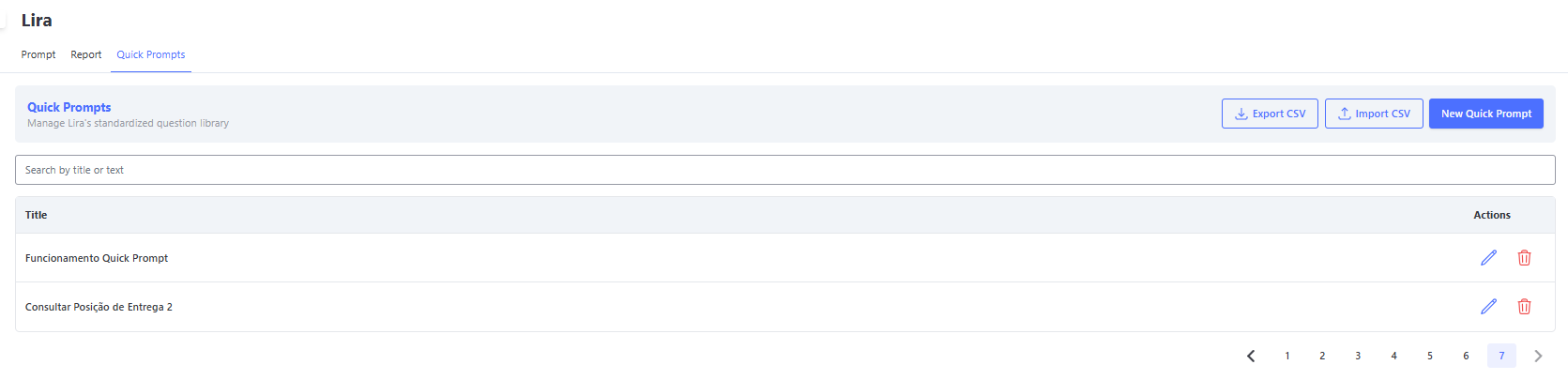
Quick Prompts is a feature that allows registering predefined questions and commands to streamline the attendance routine. With it, the agent can quickly trigger frequently asked questions in Lira, optimizing response time and ensuring greater efficiency in daily operations.
Restrictions and Access Requirements
To manage the Quick Prompts feature (register, import, and export questions), the user must have the Lira AI Manager profile.
💡 Note: Operators with the Lira AI Analyst profile are only allowed to use the prompts during attendance.
How to Register
You can register questions in two ways: individually or in bulk (via CSV file).
✍️ Creating a New Quick Prompt
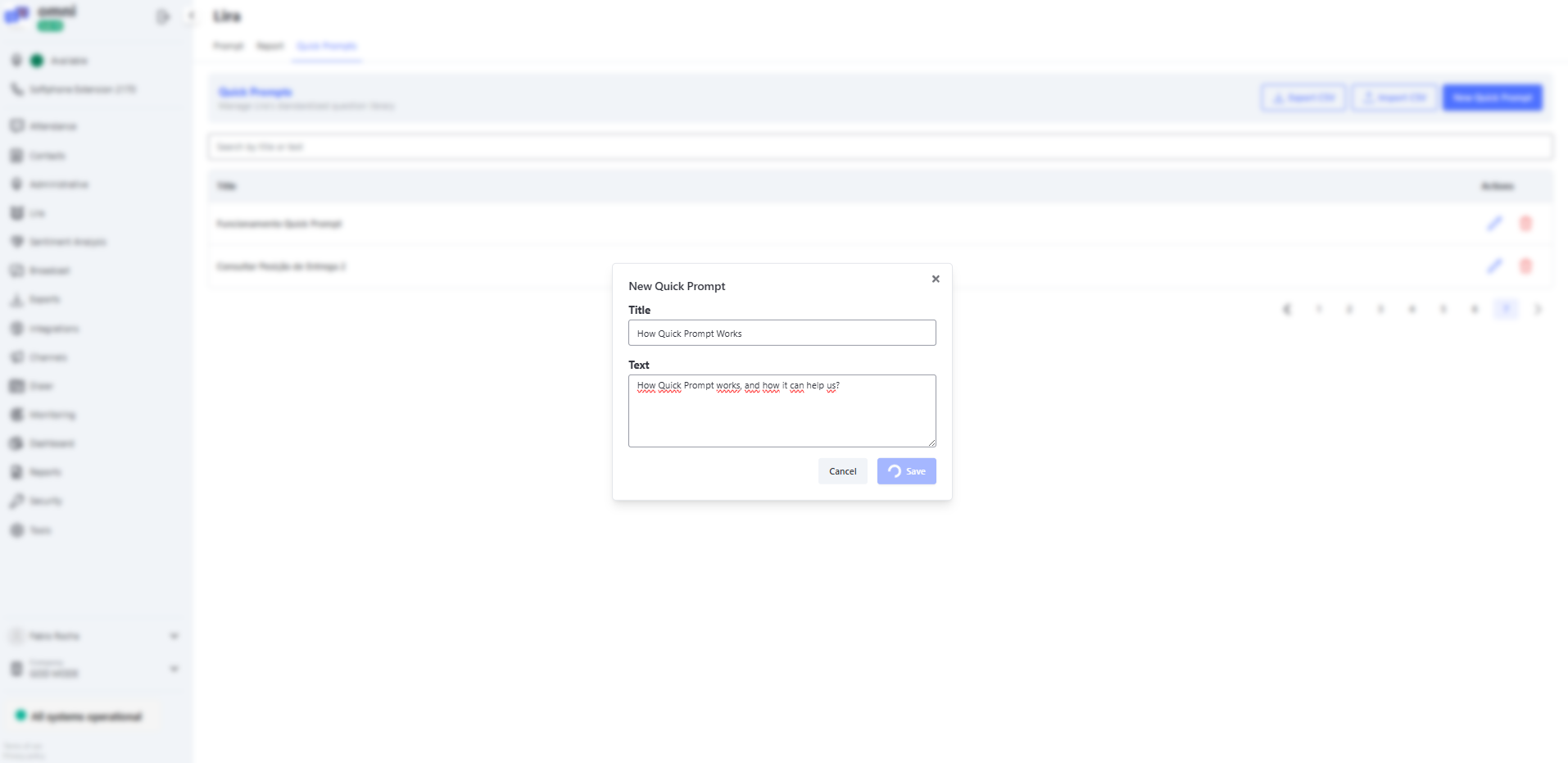
By clicking the "New Quick Prompt" button, fill in the required fields:
- Title: Identification name of the question for easy visualization in the list.
- Text: The complete question or instruction that will be sent to Lira on the attendance screen.
📥 Importing Quick Prompts via CSV
To register multiple prompts at once, you can use the bulk import option via a CSV file.
- The file must contain the header composed of
TitleandText. - The fields must be separated by semicolons (
;).
Example of import file structure:
- title
;text - Quick Prompt Functionality
;How the Quick Prompt tool works and how it can help the agent in daily operations? - Example
;New Question
CSV Export
If you need to view, review, or download all Quick Prompts already registered on the platform, simply click the "Export CSV" button.
Example of Export File Structure:
| Title | Text |
|---|---|
| Quick Prompt Functionality | How the Quick Prompt tool works and how it can help the agent in daily operations |
| Example | New Question |
On the Attendance Screen
Within the Lira attendance panel, the agent can use the registered Quick Prompts in two very simple ways:
- Keyboard Shortcut: With the cursor inside Lira's text field, simply type the
/(slash) character for the list of all registered questions to be displayed. Then, just select the desired prompt. - Button Shortcut: By clicking directly on the "/" button located just below the message input field.
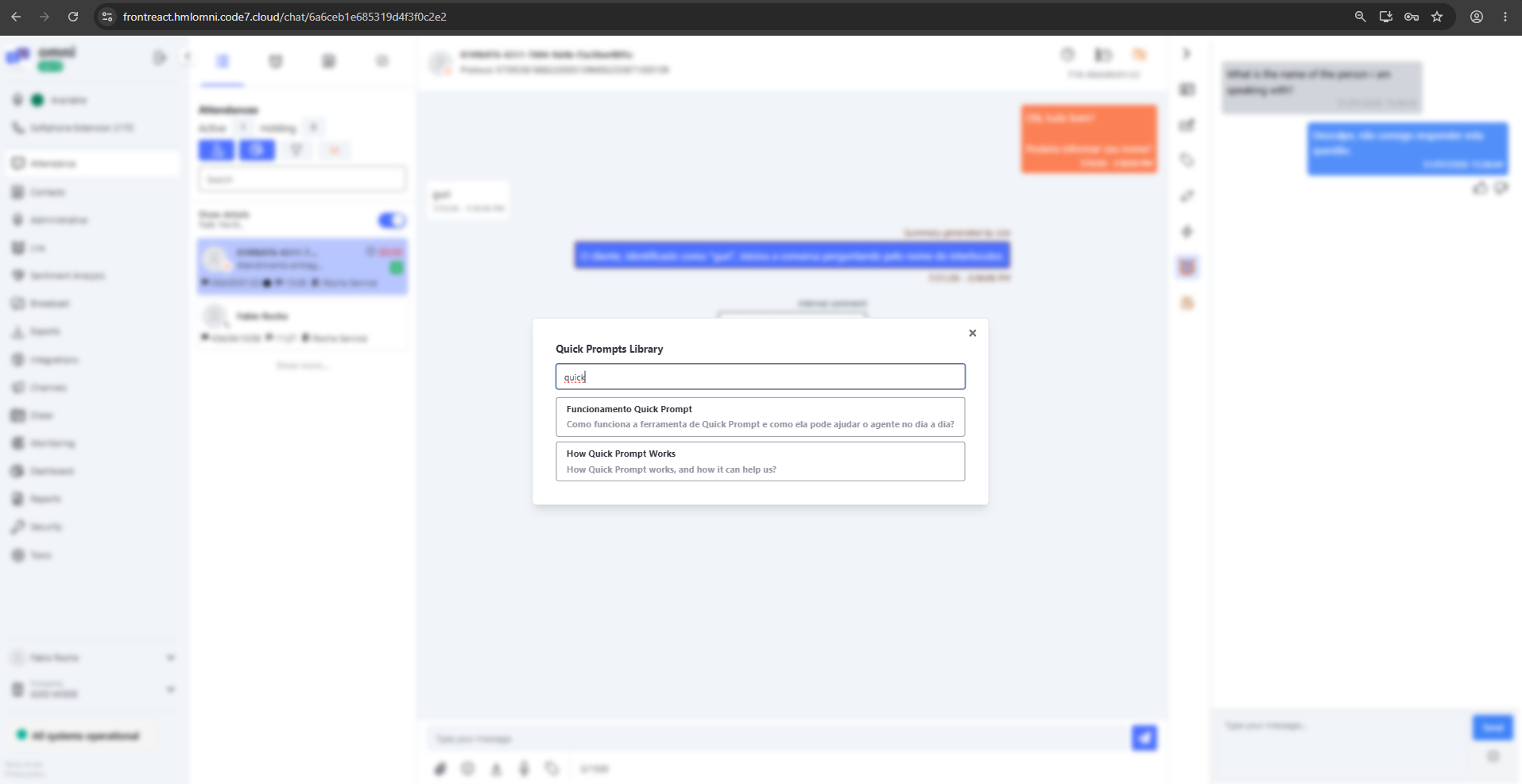
When triggering the function, a pop-up will open for the agent to select the desired question.
The agent can scroll through the list — which is dynamically loaded as the end of the page is reached — or use the search bar to look for a specific term present in the Title or Text.
💡 Note: The list has dynamic pagination. This means that items are not loaded all at once; they appear as the agent scrolls down to the end. For searching, however, it is not necessary to load the entire list: simply type the desired term in the search field.
When selecting the desired Quick Prompt, the system inserts the question text directly into the message box. Then, the agent only needs to click the Send button.
How to monitor usage and consumption
To check Lira’s consumption reports, access the Lira menu and the Report submenu.
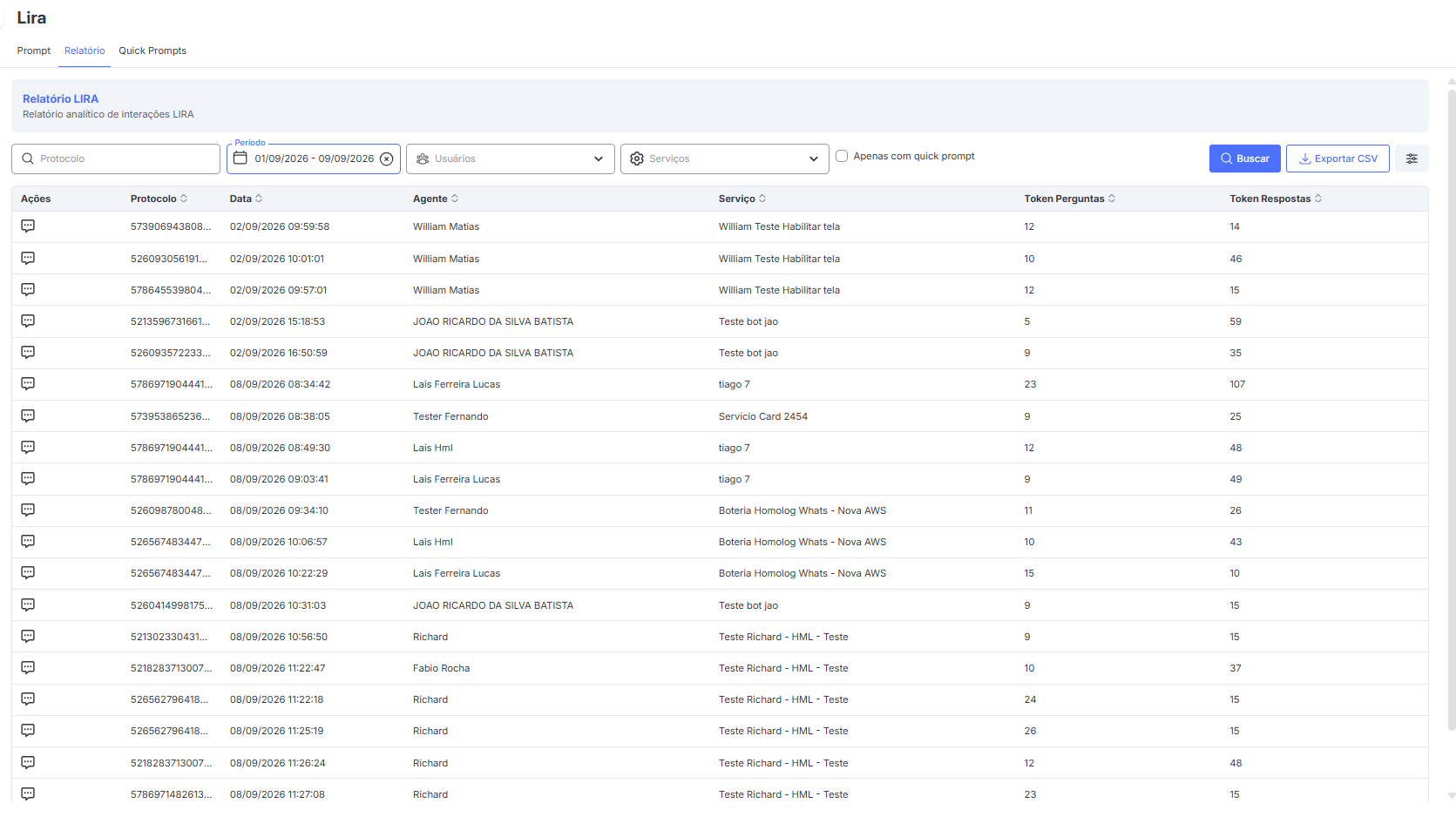
There you can filter by attendance protocol, date, user who accessed it, and the services of the attendance. It is mandatory to provide a date range to perform the search.
In this report, it is possible to check the messages in detail by clicking the 'View messages' button, as well as the token consumption.
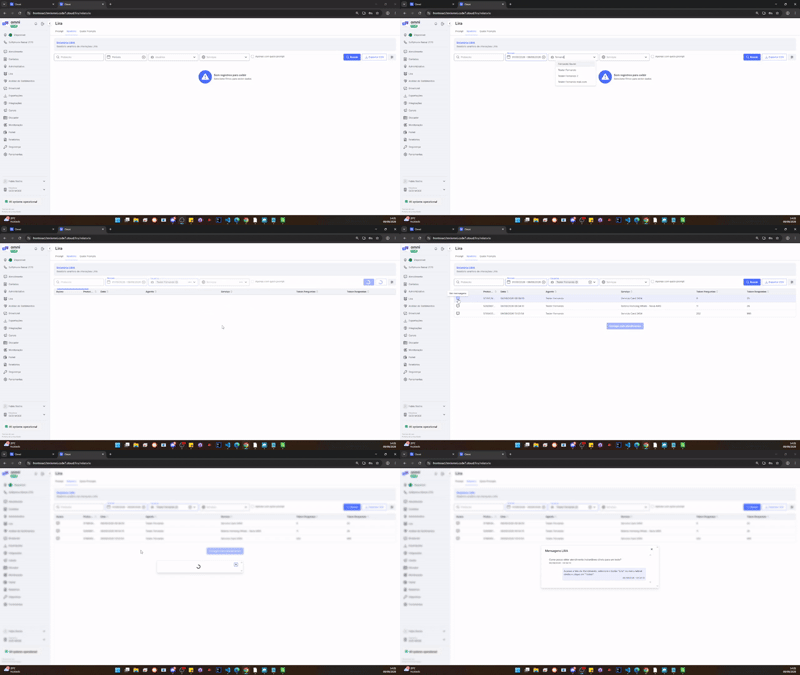
Exportação de prompts utilizados via CSV
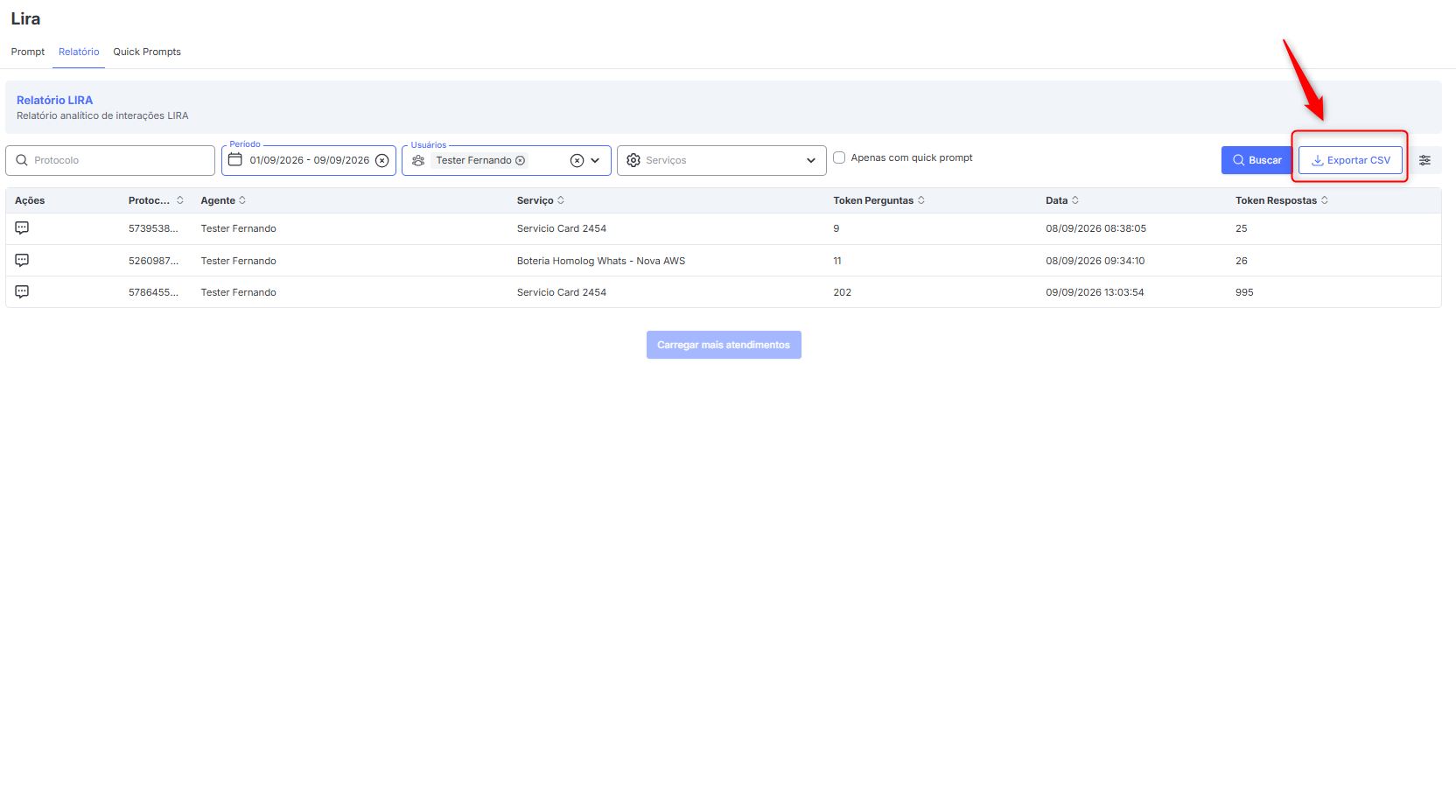
Uma das funcionalidades disponíveis nessa tela é a exportação de prompts utilizados recentemente, filtrados em formato CSV.
Para utilizar a função, utilize o botão "Exportar CSV", localizado no lado direito da tela:
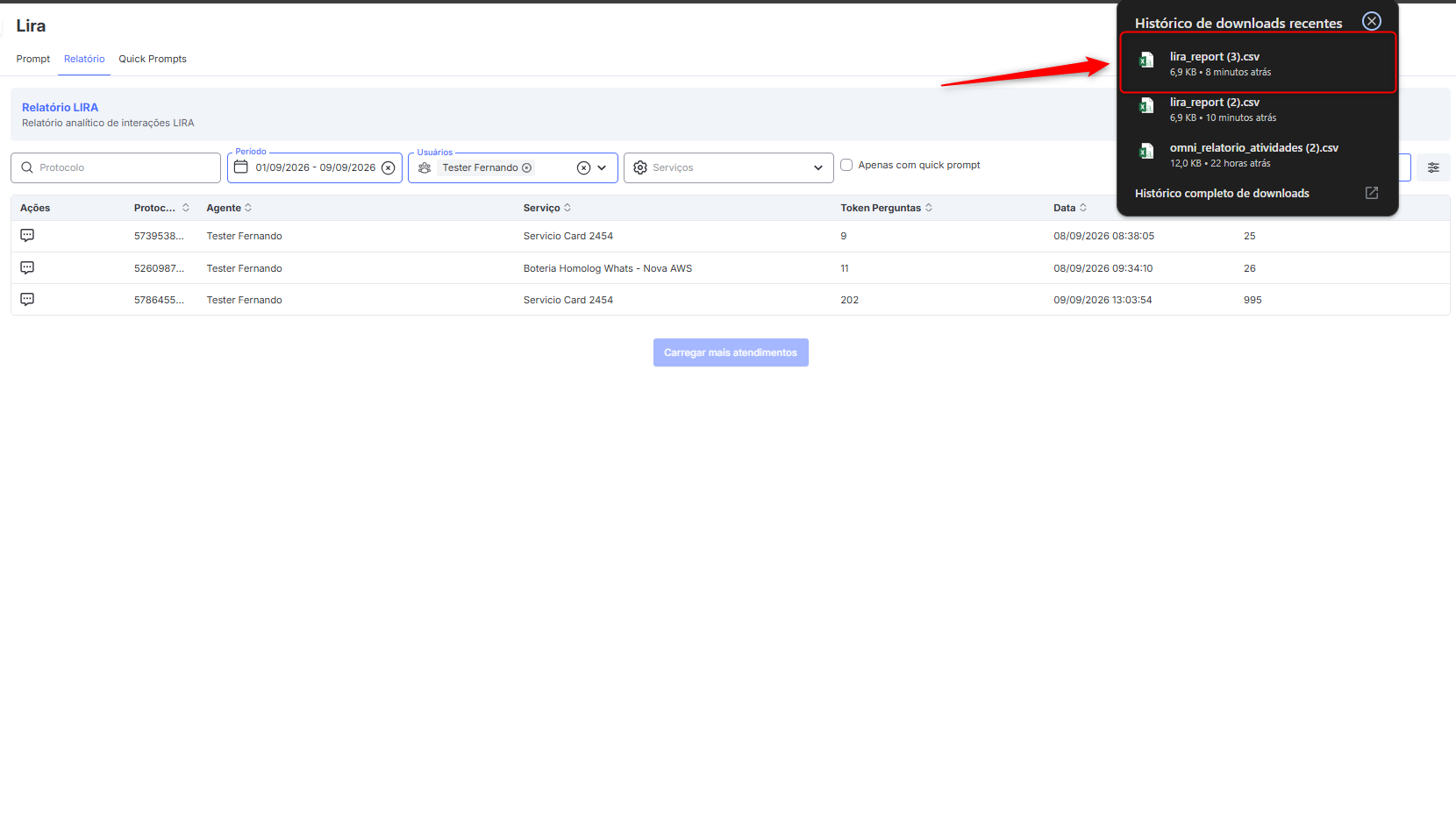
Será gerado o relatório e disponibilizado para download, conforme filtro aplicado:
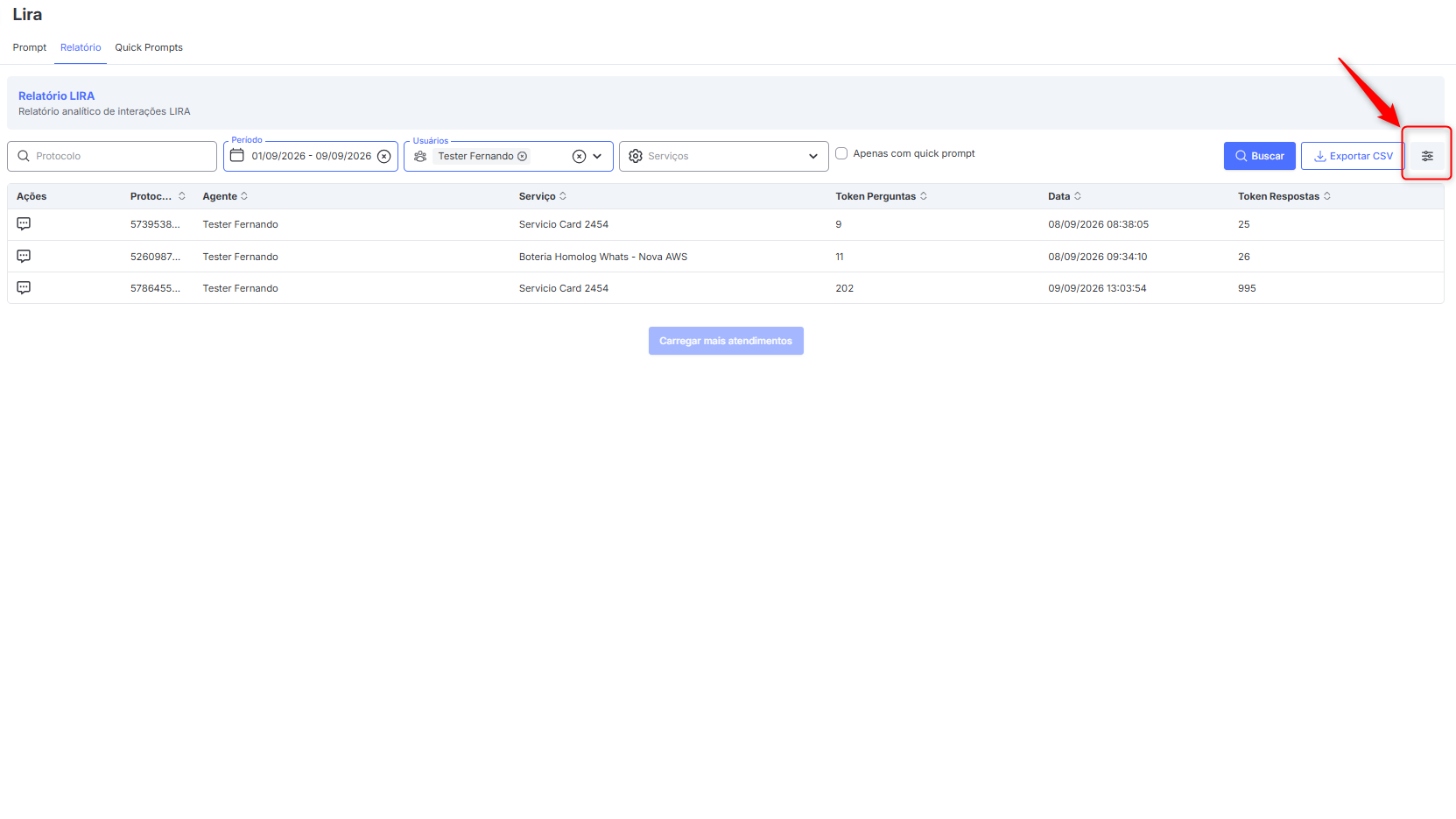
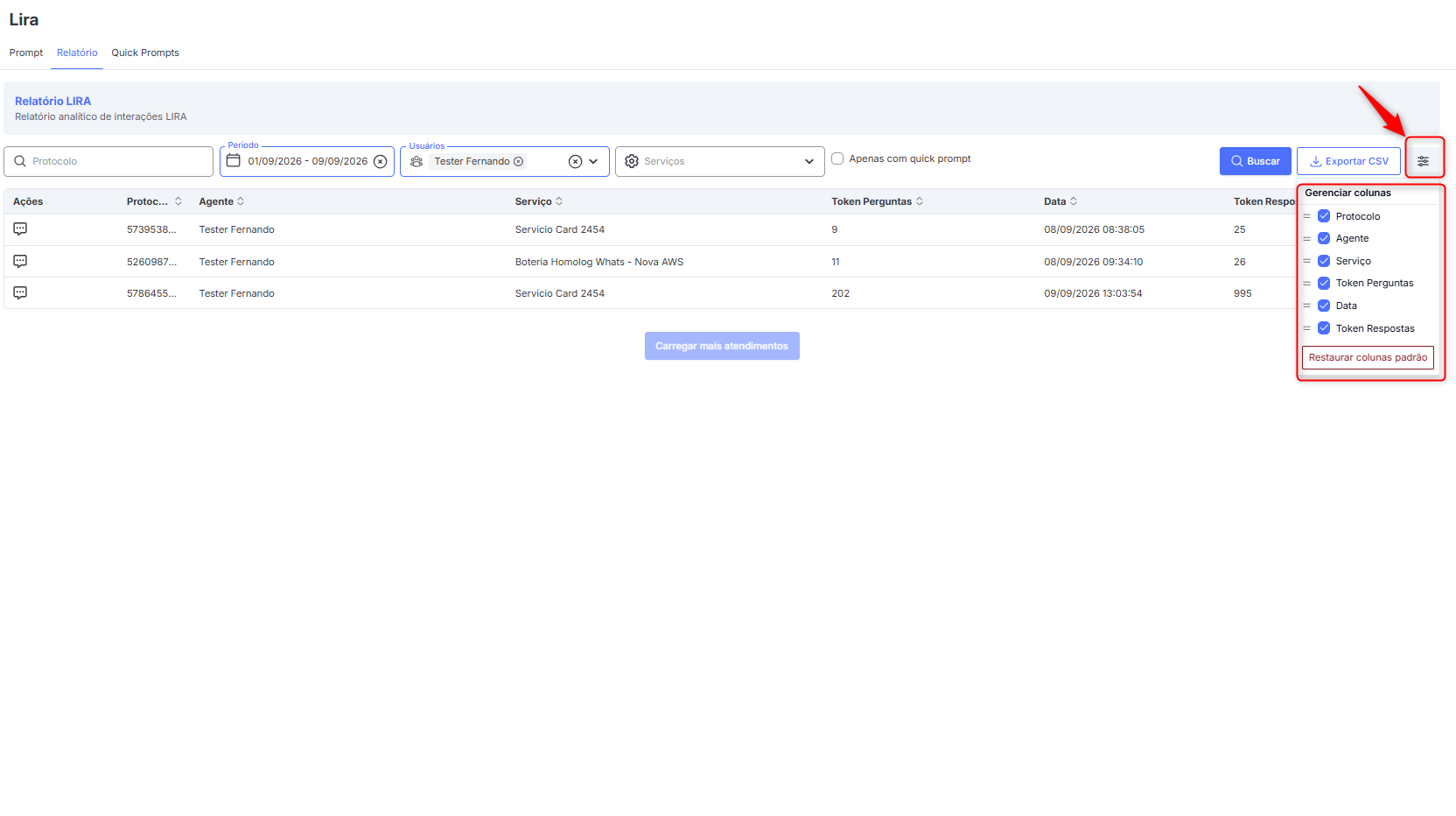
Os filtros para geração do relatório podem ser adicionados ou removidos, no botão "Gerenciar Colunas", localizado ao lado direito da tela:
Best Practices
We created this section to help you in preparing the training files for LIRA.
Data Ingestion and File Formats
Lira performs a syntactic analysis of the content during the ingestion process, meaning it interprets and extracts information from the files provided by the organization. This process allows the AI to understand the textual content and use this information as a basis for generating responses.
Currently, files containing structured text are supported, such as:
- .txt
- .md
- .html
- .doc / .docx
- .xls / .xlsx
To ensure greater accuracy in the responses generated by Lira, it is important to pay attention to the quality and format of the documents used:
- Prefer structured textual content: documents with continuous text, complete and organized descriptions tend to generate better results
- Avoid excessively visual content: files with many images, charts, or little text may hinder interpretation
- Pay attention to PDFs generated from presentations (PowerPoint): this type of material usually contains:
- Fragmented text (short bullet points)
- Lack of context between pieces of information
- Visual structure that is not well interpreted during text extraction
As a consequence, Lira may not correctly understand the content or may generate incomplete responses.
Recommendations:
- Whenever possible, use more descriptive documents (such as FAQs, manuals, or explanatory texts), ensuring that the information is clear, complete, and in textual format.
Suggestions for Optimizing AI Training Files
To ensure that the AI works efficiently and makes the most of the information provided, it is essential to structure the content in a clear, detailed, and contextualized manner. Below are practical recommendations to improve the format and organization of the file:
Separation of Business Rules and Information
Business rules, such as topic restrictions or specific guidelines, should be handled directly by the AI’s internal mechanisms. Including them in the training file may be redundant and even harmful to the model’s performance, as it can generate conflicts or overload the AI with unnecessary information.
Recommendations:
- Avoid redundancies: Do not include business rules that are already managed internally by the AI.
- Focus on content: Prioritize information that enriches the AI’s knowledge, such as detailed explanations, practical examples, and relevant contexts.
- Information Format
- The use of explicit questions and answers may limit the AI’s ability to generate dynamic and contextualized responses. Instead, it is best to present the information in a continuous and explanatory manner, providing context and details that allow the AI to understand and apply the knowledge flexibly.
Example:
❌ Limited Format:
"How do I register on the portal?"
✔️ Explanatory and Contextualized Format:
"To register on the portal, go to the homepage and click the 'Create Account' button. Then, fill in the required fields such as name, email, and password. A valid ZIP code must be provided to complete the registration. After confirming your email, you will have full access to the portal’s features."
Benefits:
- The AI can generate more complete responses adapted to different situations.
- The additional context helps avoid misunderstandings or generic answers.
Content Enrichment
The AI significantly benefits from detailed, well-structured, and contextualized information. The richer and more complete the content, the better the AI’s ability to provide accurate and useful responses.
Recommendations:
- Add practical examples: Explain concepts with real cases or hypothetical situations.
- Provide context: Explain the "why" of things, not just the "how."
- Include technical details (when relevant): If the subject requires it, provide technical information, but always in a clear and accessible way.
- Use analogies and comparisons: This helps the AI relate concepts and improve understanding.
Example:
"The registration process on the portal is similar to creating a profile on social networks, where the user needs to provide basic information and confirm their identity via email."
Organization and Structuring
Organizing the content is fundamental to facilitate the AI’s assimilation of information. Use a logical and hierarchical structure, with clear divisions between topics and subtopics.
Recommendations:
- Use subtitles and bullet points: Divide the content into clear, well-defined sections.
- Maintain a logical hierarchy: Start with general concepts and move on to specific details.
Best Practices
To ensure the training file is effective and high quality, follow these best practices:
✅ Clarity and Consistency:
Avoid ambiguous or contradictory information.
Use simple and direct language, avoiding excessive jargon.
✅ Avoid Redundancies:
Do not repeat content unnecessarily, but ensure all essential information is included.
✅ Regular Updates:
Review the file periodically to keep information updated and relevant.
Remove obsolete or outdated data.
✅ Relevant Context:
Prioritize useful and practical information, avoiding overly technical or irrelevant content.
Include real examples and applications to enrich the context.
✅ Testing and Validation:
- After reworking the file, validate the AI’s performance to ensure the information is being properly assimilated.
- Adjust the content based on the results obtained.
Next Steps
- If possible, we recommend reviewing the file based on these suggestions. If you need support in the reworking process or have questions, we are available to help.
- Below, we suggest an action plan to implement the improvements:
Analysis of Current Content:
- Identify improvement points in the current file.
- Remove redundancies and unnecessary information.
Content Restructuring:
- Organize the material into clear and well-defined sections.
- Add examples, contexts, and relevant details.
Validation and Testing:
- Test the AI’s performance with the new file.
- Adjust the content based on the results.
Continuous Updating:
- Establish a schedule for periodic reviews.
- Keep the file always updated and relevant.
With these improvements, the AI training file will be more complete, organized, and efficient, ensuring better performance and more precise, contextualized responses.