Broadcast
The Broadcast feature in Omni allows you to create, manage, and monitor mass messaging campaigns via WhatsApp and SMS, with control over contact groups, sending strategies, and result tracking.
Prerequisites for Use
📲 For sending via WhatsApp:
- Phone number registered in the WhatsApp channel
- HSM templates approved according to Facebook guidelines, to ensure message delivery
💬 For sending via SMS:
- Activation of an Incoming Service, carried out through a technical request, to enable sending integration
Contact Group
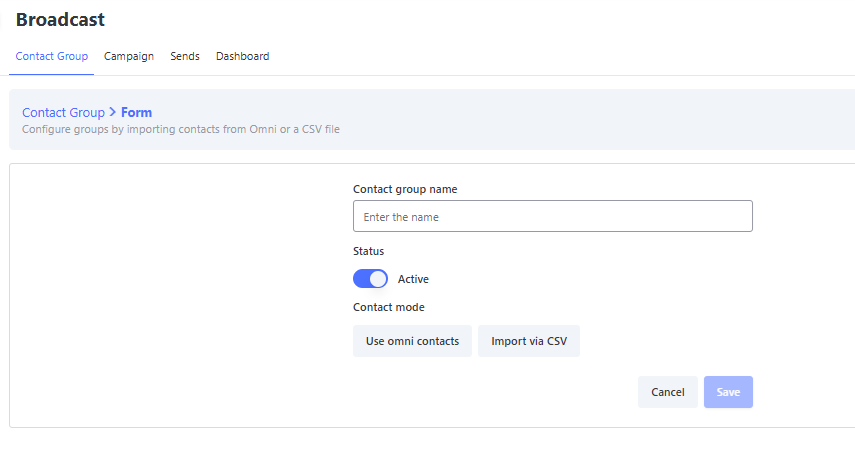
You can create contact groups in two ways:
- Importing a CSV file with the contact list
- Selecting already registered contacts from your company’s database
🖥️ Available Actions on Screen
On the Contact Group screen, you can perform the following actions:
- ✏️ Edit (pencil icon): Change information or update the contact list
- 🔎 View (magnifying glass icon): Access group details and check the added contacts
📝 Contact Group Editing
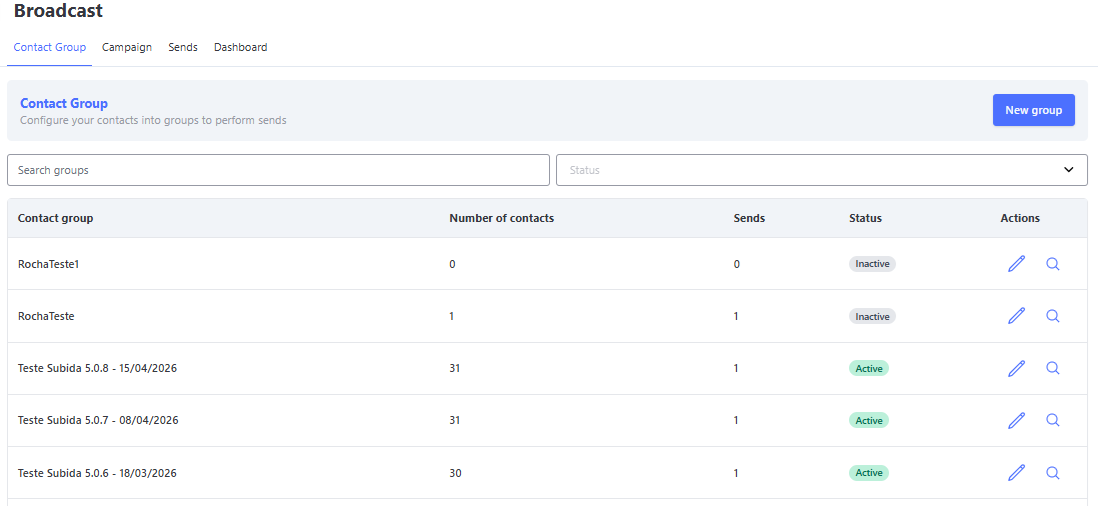
On the editing screen, you can:
- Activate or deactivate the group
- Add new contacts by importing a file
- Select contacts already registered in the system
👁️🗨️ View Contact Group
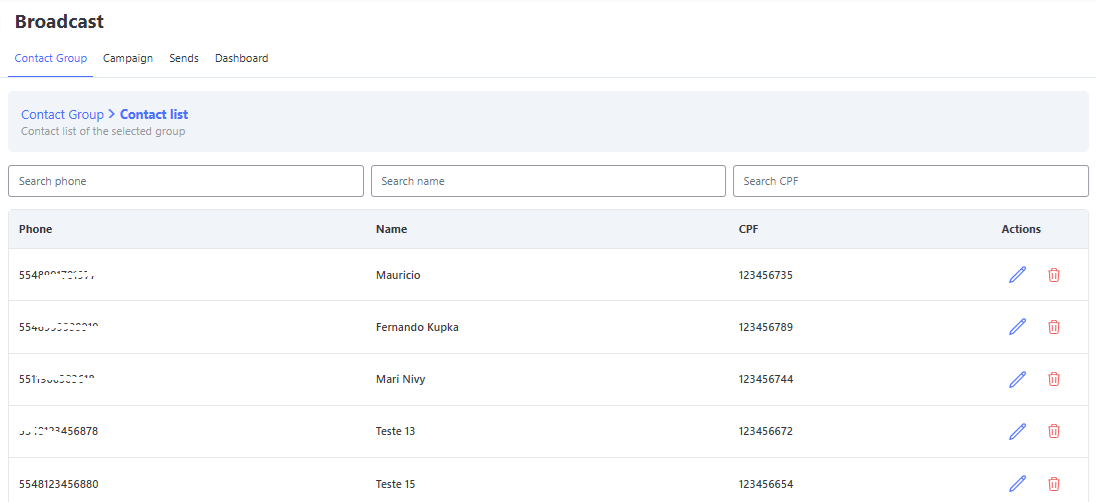
On this screen you can:
- Check the list of added contacts
- Edit a contact’s information
- Remove contacts from the group
Campaign
Campaigns are central elements of the Broadcast module and allow you to configure and organize the essential details for mass messaging via WhatsApp or SMS. Each campaign contains information such as:
- Sending Channel: Defines whether the campaign will be sent via WhatsApp or SMS.
- Active Integration: Selects the number registered in the system (appears only after choosing the channel).
- Service: Automatically filled in after selecting the integration.
With this, you can reuse configurations already created for different sendings, making it easier to manage multiple campaigns.
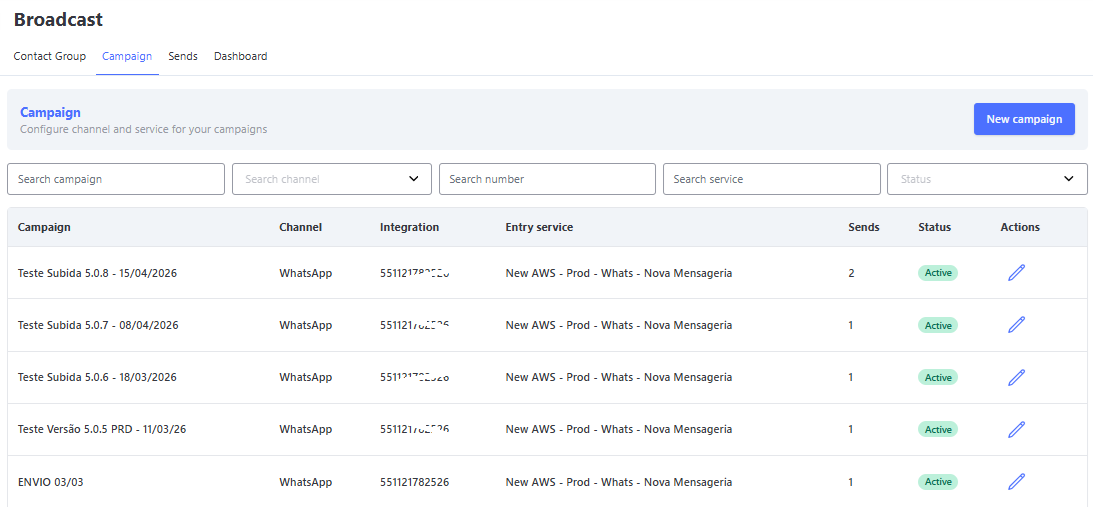
🔎 Available Filters
At the top of the table, you can apply filters to customize the campaign view:
- Search Campaign: Search by campaign name.
- Search Channel: Filter by channel type (WhatsApp or SMS).
- Search Number: Filter by specific registered numbers.
- Search Service: Filter by services linked to campaigns.
- Status: Filter by campaign status (Active or Inactive).
💡 Quick Tip: These filters help you quickly find the desired campaigns, especially when there are many active in the system.
📋 Campaign Table View
The table displays the following information for each campaign:
| Column | Description |
|---|---|
| Campaign | Name of the configured campaign. |
| Channel | Type of channel used (WhatsApp or SMS). |
| Integration | Number registered in the system for sending. |
| Incoming Service | Service linked to the campaign. |
| Sendings | Total number of sendings carried out by the campaign. |
| Status | Current status of the campaign (Active or Inactive). |
| Actions | Edit button to modify the campaign. |
📣 How to Create a New Campaign
- Access the Campaign screen, located in the top menu.
- In the upper right corner, click the New Campaign button.
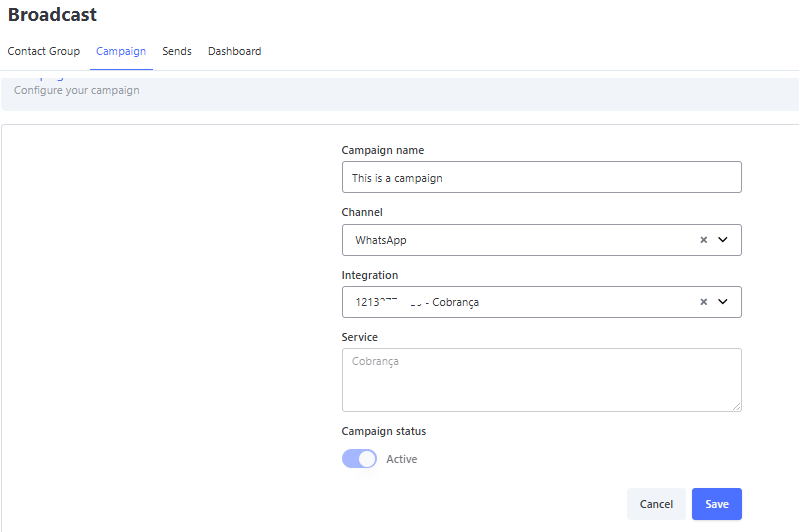
This will open the Configure Campaign screen, where you must fill in the following fields:
- Campaign Name: Identifier name of the campaign.
- Channel: Select whether the campaign will be sent via WhatsApp or SMS.
- Integration: Choose the number registered in the system (appears only after selecting the channel).
- Service: Automatically filled in after selecting the integration.
- Status: By default, the campaign is created as Active. You can change this status as needed.
After filling in the fields, click Save to finish.
❗ Important Notes
-
🔏 Campaign Editing: A campaign can be edited only if it has no sendings registered yet. After the first sending, all campaign information — including name, channel, integration, and service — becomes locked for editing.
-
🚫 Campaign Deactivation: The status can be changed to Inactive only through campaign editing, as long as no sendings have been registered. After the first sending, the campaign can no longer be edited, therefore it is not possible to manually change the status.
-
⚙️ Automatic Deactivation by Integration Deletion: If the integration (number) linked to the campaign is deleted from the system, the campaign will be automatically deactivated, regardless of whether sendings have already been made or not. This measure ensures system integrity and prevents sending attempts with invalid numbers.
Sendings
The Sendings section is where you put into practice the campaigns previously created.
On this screen, you can schedule, view, edit, or replicate mass message sendings via WhatsApp or SMS.
Additionally, it allows you to:
- View the history of previous sendings
- Edit or duplicate already created sendings
- Create new schedules based on configured campaigns
With this, you have full control over when and how messages will be delivered to your contacts.
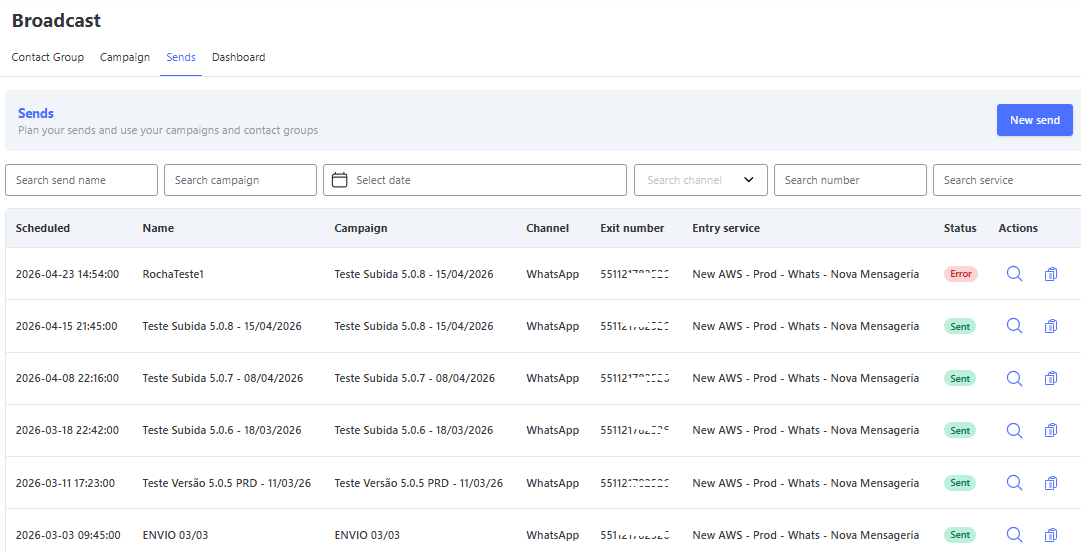
📤 New Sending
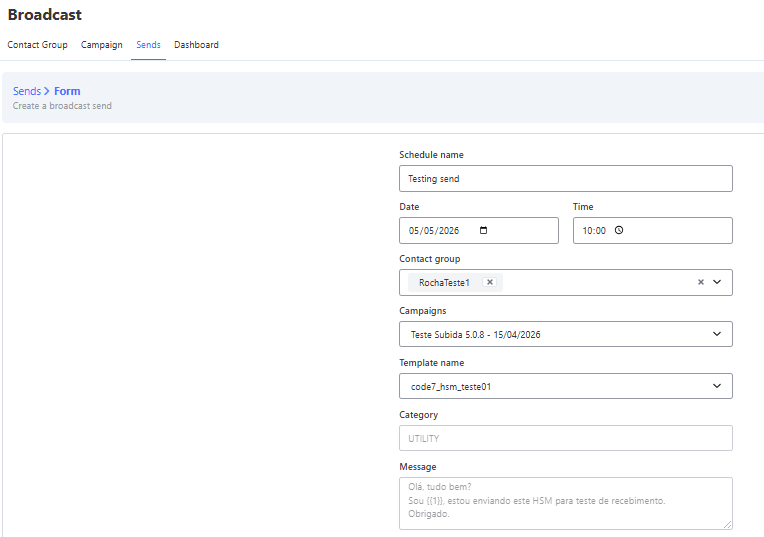
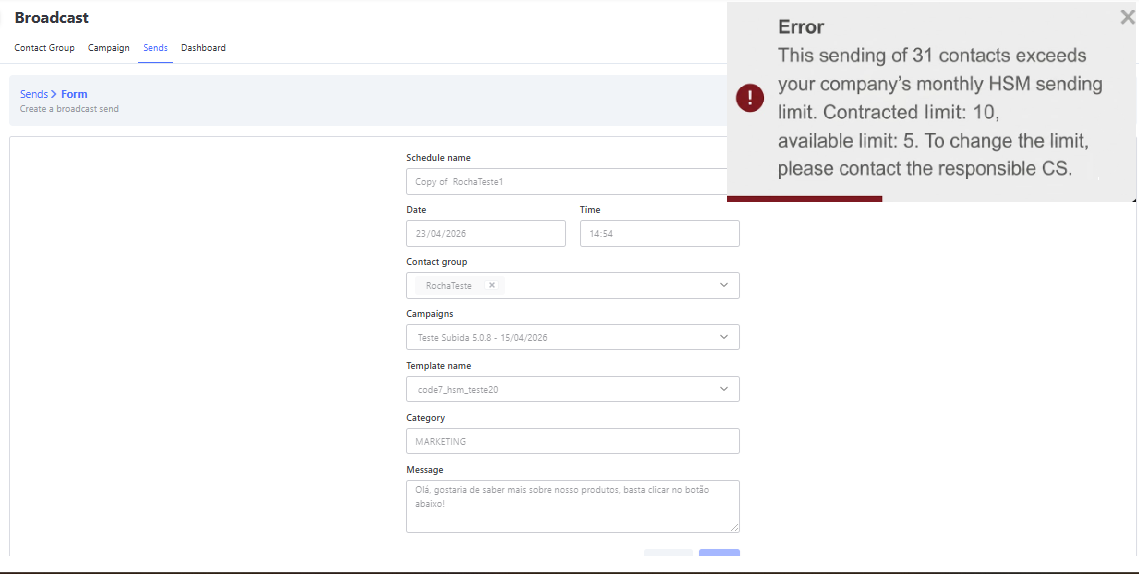
To create a new sending, click New Sending on the sendings screen. The Configure Sending screen will open, where you must fill in:
- Schedule Name: Identifier name of the sending
- Date: Enter the sending date in the format
dd/mm/yyyy - Time: Set the exact time of the sending
- Contact Groups: Select one or more previously created groups
- Campaign: Choose an already configured campaign (WhatsApp or SMS)
⚠️ Important:
- For SMS campaigns, there are no content restrictions.
- For WhatsApp campaigns, select an approved HSM template and fill in the variables as needed.
📎 Sending Attachments in Broadcast (WhatsApp)
It is now possible to send different types of attachments via HSM in WhatsApp Broadcast, provided that:
- The HSM template used allows the sending of the desired type of attachment.
- The file is in the correct format.
| Attachment Type | Supported Formats |
|---|---|
| Image | jpeg, png |
| Audio | aac, mp4, mpeg, amr, ogg |
| Video | mp4, 3gp |
| Document | txt, pdf, doc, docx |
💡 Quick Tip:
Make sure the selected HSM template supports the type of attachment you want to send. Otherwise, the sending may fail.
Sending Limit
If the number of sendings exceeds the allowed Monthly limit, a message will be displayed informing that the sending will not be carried out until the next day.
Each company has a daily sending limit.
If you need to increase this limit, contact the responsible CS.
Dashboard
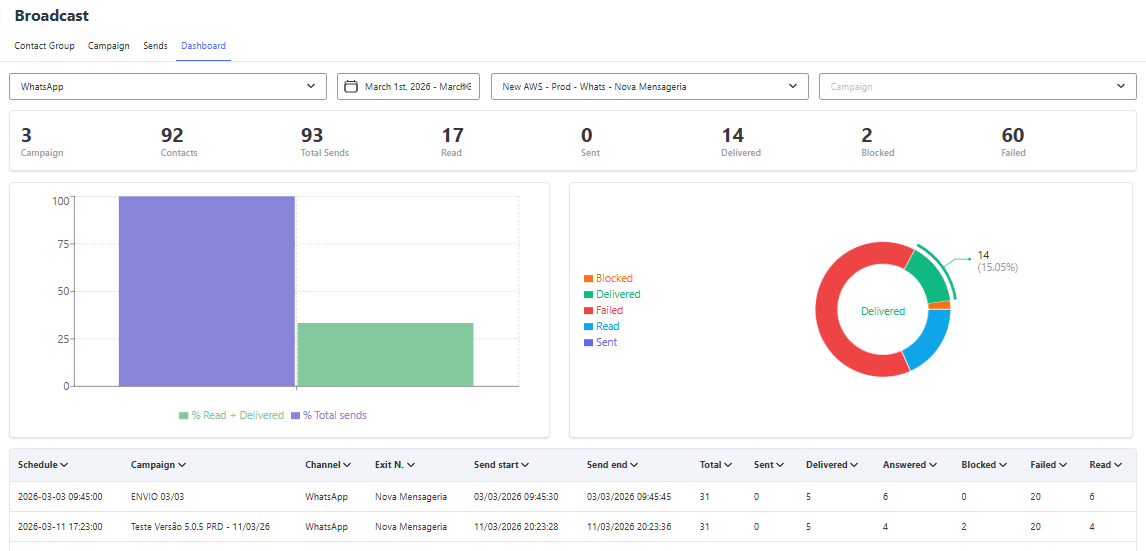
The Dashboard screen provides an overview of the results of WhatsApp or SMS campaigns, allowing you to track key metrics such as sendings, deliveries, interactions, and success rates. This tool helps evaluate campaign performance and make strategic decisions based on data.
🔎 Available Filters
You can refine the data displayed on the Dashboard using the filters available at the top of the screen:
- Channel: Filter by channel type (WhatsApp or SMS).
- Date: Define the date range for analysis.
- Service: Filter by service linked to the channel.
- Campaign: Filter by a specific campaign.
⚠️ Important:
Only one filter at a time can be applied — you either filter by Campaign or by Service. The last field filled in will take priority.

ℹ️ Information Displayed on the Dashboard
The main Dashboard screen presents the following key metrics:
- Number of Campaigns: Total campaigns carried out in the selected period.
- Total Contacts: Total number of contacts who received messages.
- Total Sendings: Total number of messages sent.
- Sent: Messages successfully sent to the messaging system.
- Delivered: Messages received by the recipient.
- Blocked: Messages that were blocked and not sent.
- Failed: Messages not delivered due to technical errors or other issues.
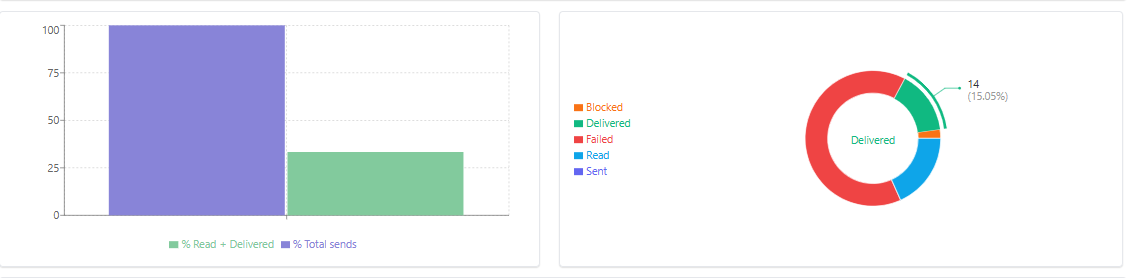
📈 Visual Charts
-
📊 Bar Chart (%):
- Shows the percentage of messages sent, read, and delivered in relation to the total sendings.
- Helps quickly visualize sending effectiveness.
-
⭕ Pie Chart:
- Represents the distribution of messages according to their final status:
- Blocked: Messages that were blocked and not sent.
- Delivered: Messages received by the recipient.
- Sent: Messages successfully sent.
- Failed: Errors during the delivery process.
- Read: Messages opened by the recipient.
- Represents the distribution of messages according to their final status:
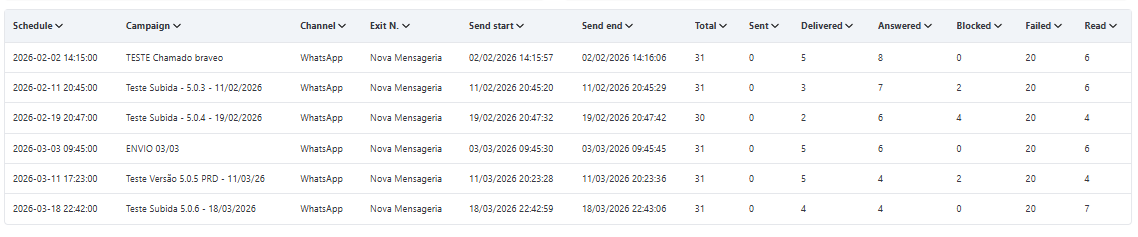
📋 Detailed Table
Below the charts, there is a table that provides detailed information about each sending:
- Schedule: Date and time scheduled for the sending.
- Campaign: Name of the campaign associated with the sending.
- Channel: Type of channel used (WhatsApp or SMS).
- Outgoing Number: Outgoing number configured for the sending.
- Sending Start: Start time of the sending.
- Sending End: End time of the sending.
- Total: Total number of messages sent.
- Sent: Messages successfully sent to the system.
- Delivered: Messages received by the recipient.
- Replied: Messages that generated customer responses.
- Blocked: Messages that were blocked and not sent.
- Failed: Messages that were not delivered.
- Read: Messages opened by the recipient.