Email Sending Settings via Omni
For Omni to manage, receive, and send email messages for your operation, it is necessary to integrate with your corporate provider. Due to security concerns and strict privacy policies of major providers, the use of your standard login password has been discontinued, making it mandatory to use secure authentication methods (such as App Passwords or application credentials).
Settings in the Google Account
To integrate or update your Gmail address in Omni, the ecosystem requires the generation of a specific App Password within the Google panel.
Below, we will demonstrate the complete step-by-step process to enable account security and generate your credential.
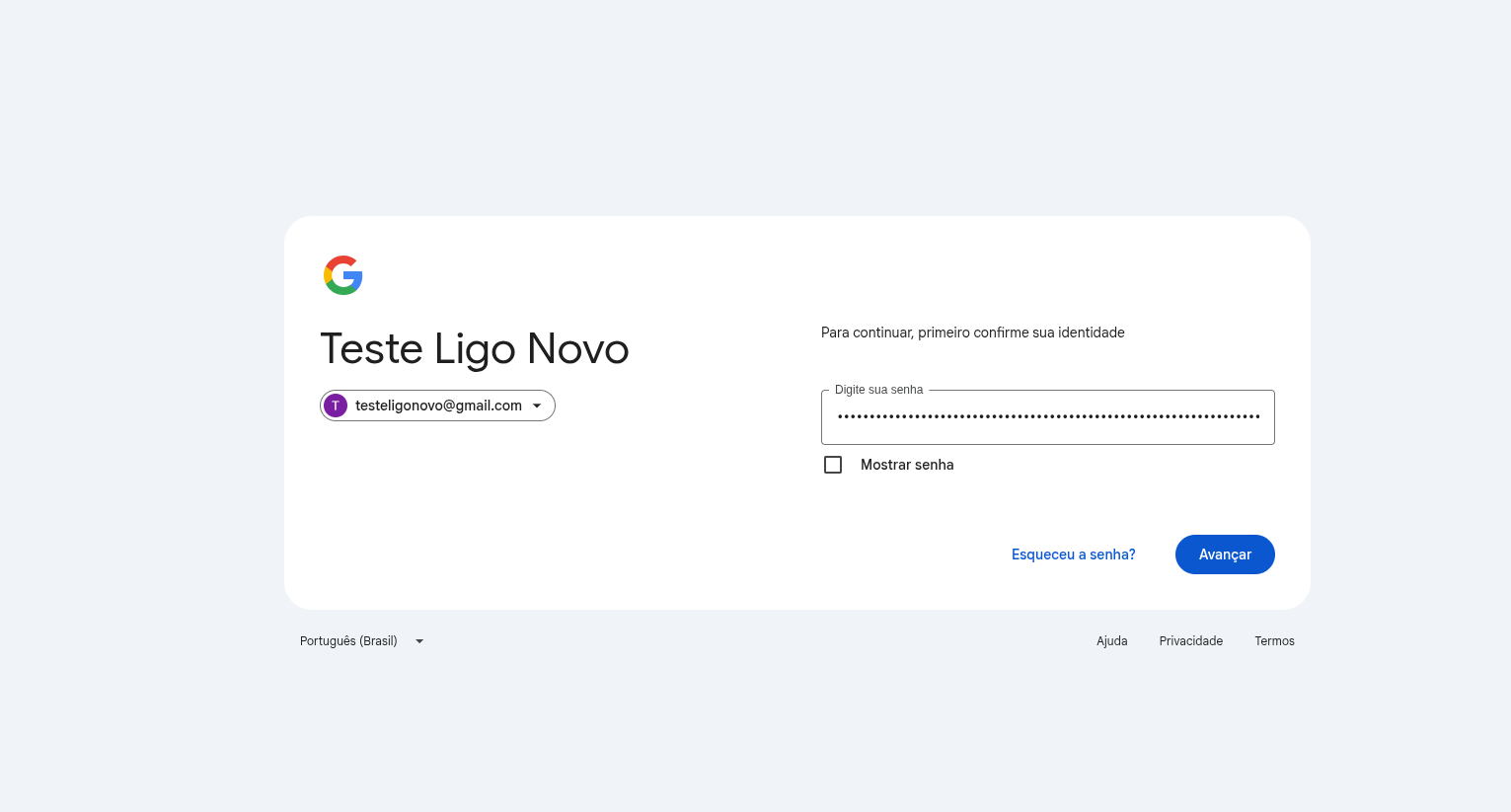
🔒 IMPORTANT NOTE (Identity Confirmation): Since we are handling sensitive security settings, Google may request that you enter your standard password and confirm your identity at any time during this tutorial (especially if the process takes a few minutes). If the screen below appears, simply enter your email password, click Next, and continue the step-by-step process normally from where you left off.
Activation of Access Protocols (POP/IMAP)
Before proceeding to the security keys, it is strictly necessary to ensure that Gmail allows external systems to download your messages.
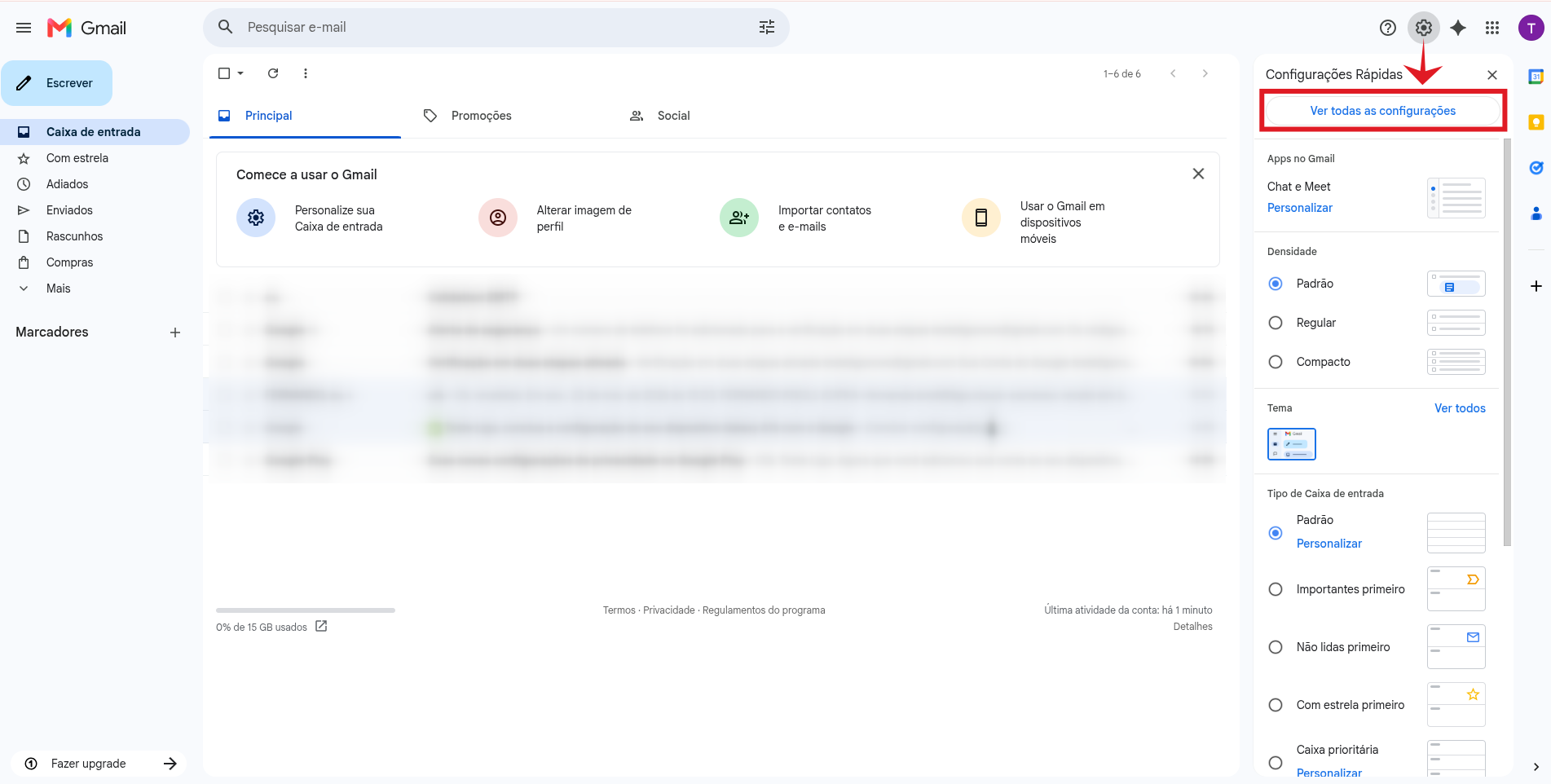
- Access your corporate Gmail, click on the Gear icon (Settings) in the upper right corner, and select See all settings.
-
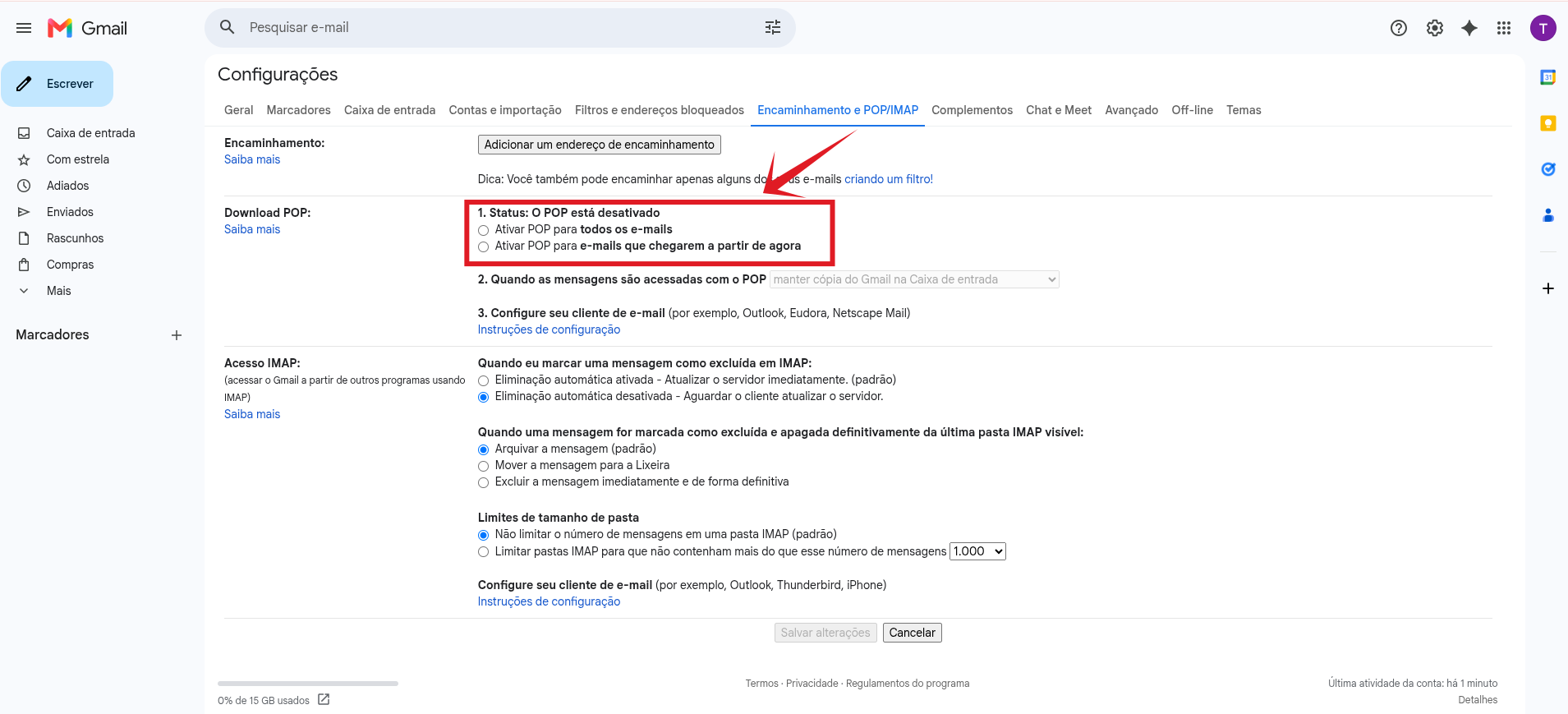
In the top horizontal menu, click on the Forwarding and POP/IMAP tab.
-
Locate the access sections and make sure to check the following options:
- Download via POP protocol: Select the option Enable POP for all mail or Enable POP for mail that arrives from now on.
- IMAP Access Status: Since this protocol is usually already enabled by default in Gmail, no extra action is required for this option.
-
Scroll down to the bottom of the page and click the Save changes button.
Access Account Management
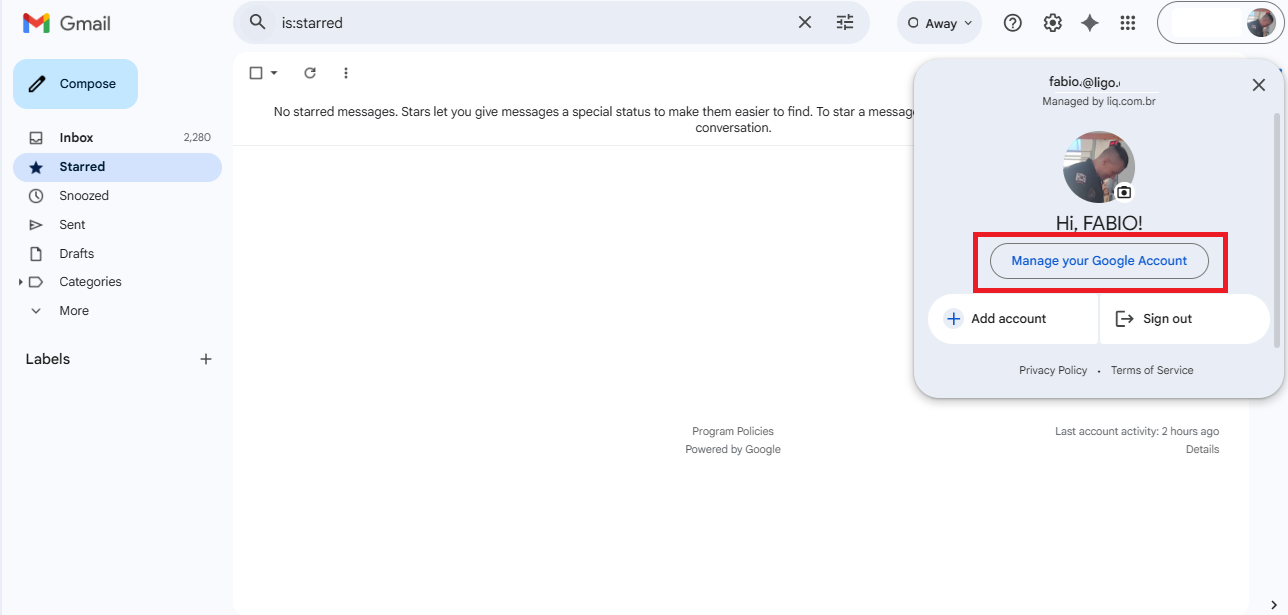
- Access Gmail using the corporate account credentials you want to integrate or update in Omni.
- In the upper right corner of the screen, click on your profile picture or the initials of your name.
- In the dropdown menu that opens, click the Manage your Google Account button.
Activation of Two-Step Verification
For Google to allow the creation of an App Password, it is a mandatory prerequisite that the account has Two-Step Verification enabled. If yours is already active, skip to the next section.
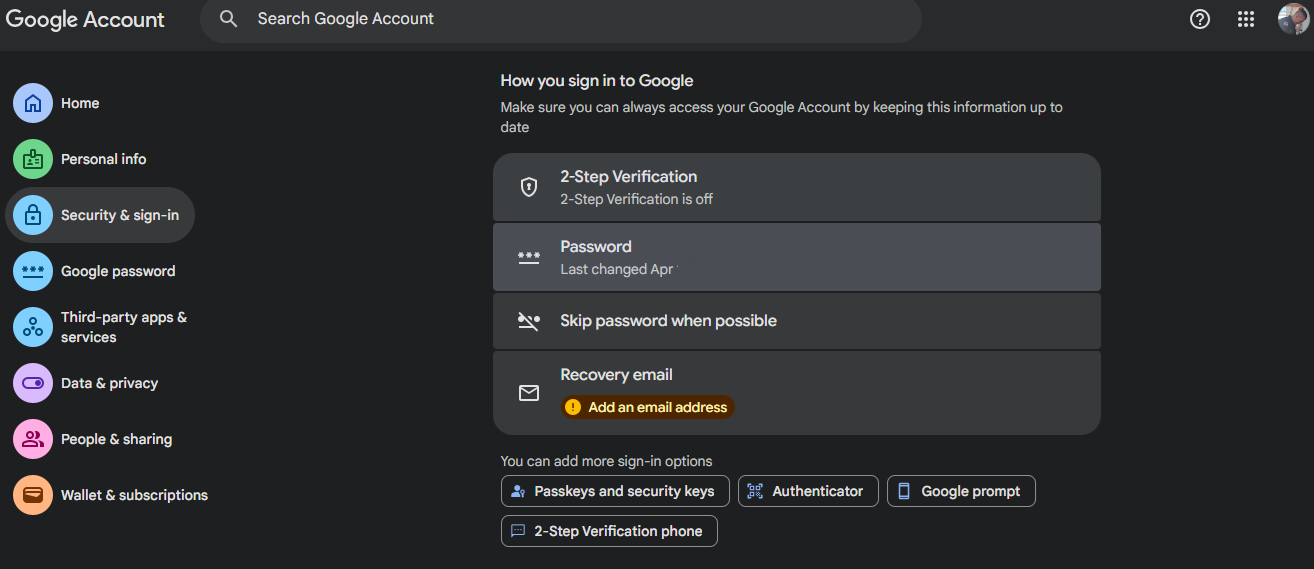
- In the left-hand menu of the Google Account, click on the Security and login option.
- In the How you sign in to Google section, click on the Two-step verification option.
- Google will present the validation methods available for your corporate account. Choose the option that best fits your company’s infrastructure and security policies.
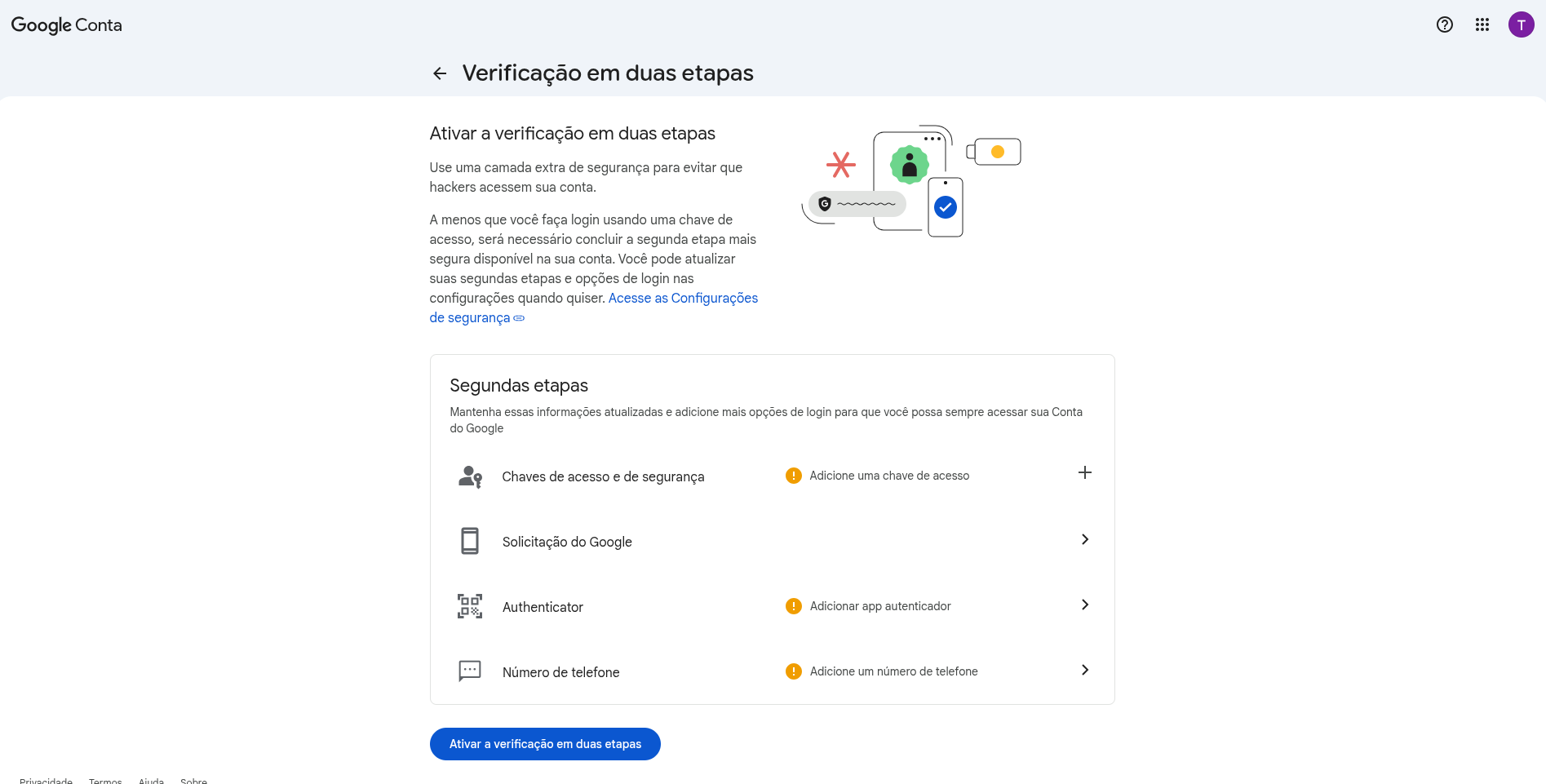
Available Authentication Methods:
- 🔑 Access and Security Keys: Allows the use of physical or biometric methods (such as facial recognition, fingerprint, or physical USB security keys) to validate access in a modern and encrypted way.
- 📱 Google Prompt: Sends a push pop-up notification directly to the screen of an authorized smartphone connected to the same Google account, requiring only a tap on "Yes" to approve the login.
- 🔒 Authenticator: Allows pairing authentication apps (such as Google Authenticator or Microsoft Authenticator) to generate temporary numeric codes (TOTP) of 6 digits that change every 30 seconds.
- 💬 Phone Number: Traditional method that sends a one-time numeric validation code (OTP) via SMS or voice call to the registered mobile device.
💡 Example Note: To continue with this technical guide, we will use the validation method via Phone Number, which is the most common standard in basic implementations.
-
Choose the desired method by clicking on the Phone number option and proceed.
-
The panel will display the phone management screen. Click the Add a phone number button.
-
Enter the full mobile number (including area code) that was chosen to receive Google’s notifications and security codes, then proceed by clicking Next.
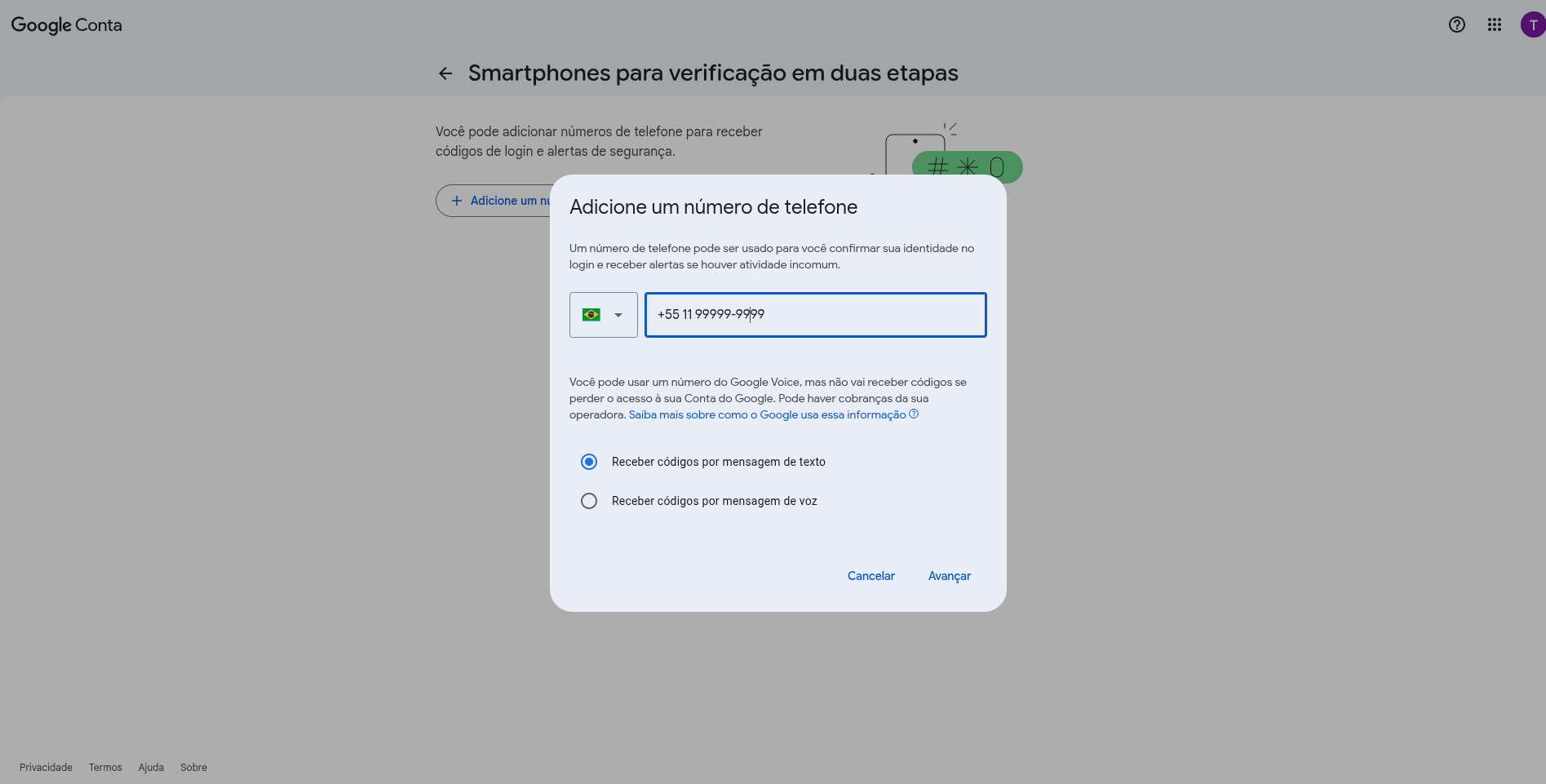
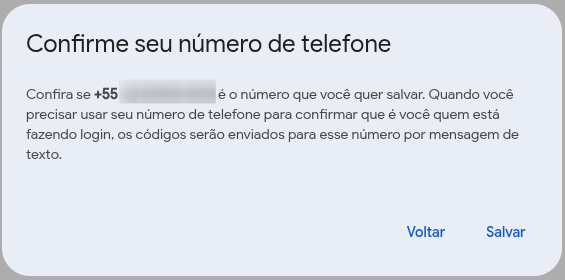
- Google will display a confirmation window to validate the phone. Make sure the number shown is correct and click the Save button to register the device to the account.
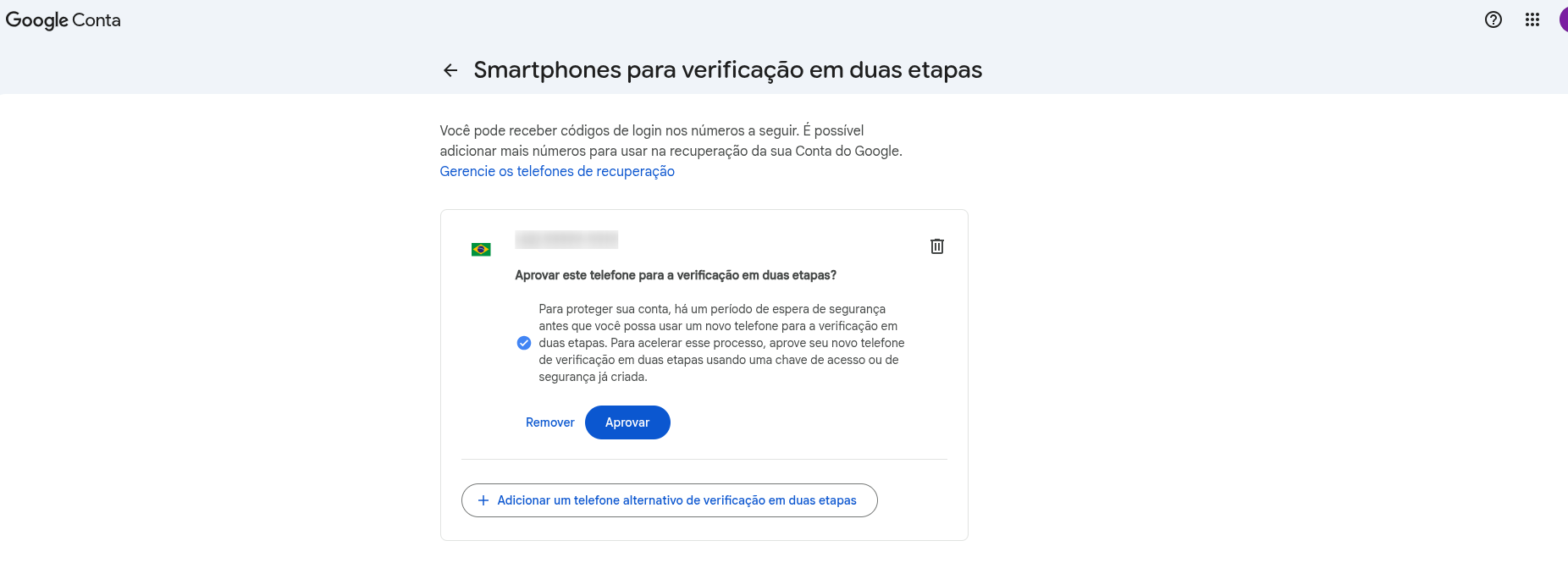
- Next, the panel will display the status of the new phone awaiting validation. Click the blue Approve button.
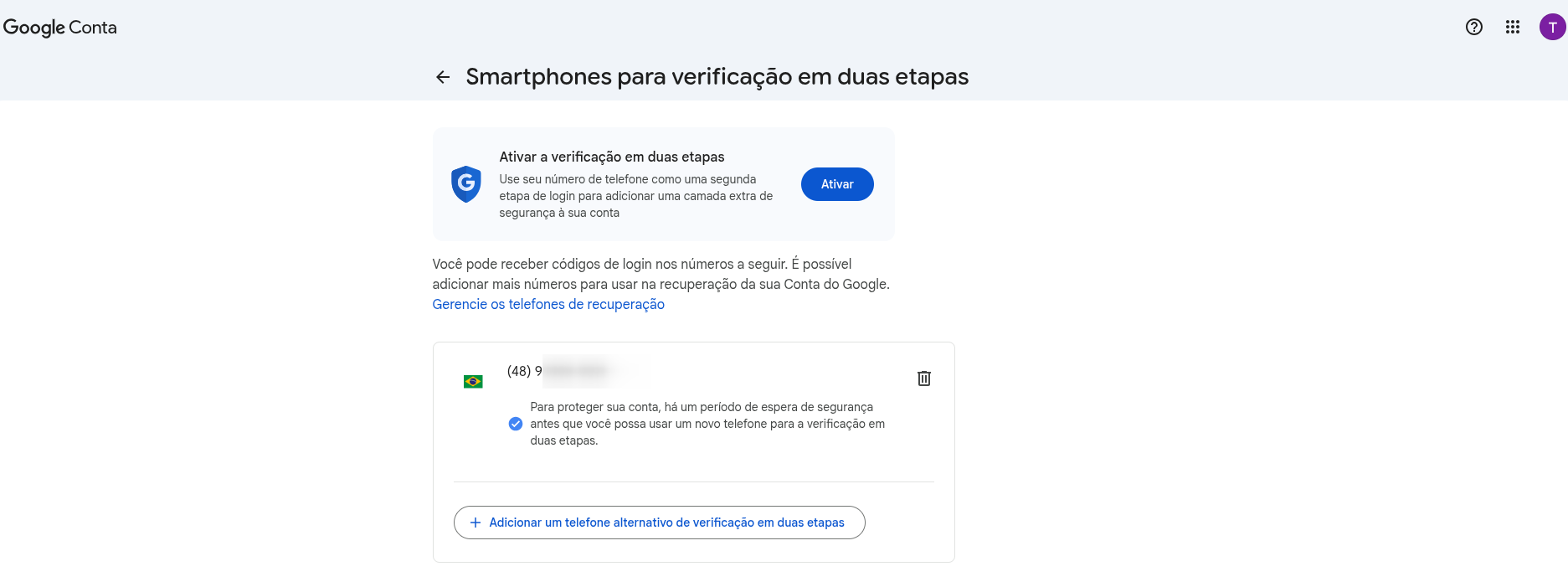
- After approving the device, Google will redirect you to a review screen. Note that Two-Step Verification is still not active. To proceed, click the blue Turn on button located in the upper right corner of the screen.
- Google will request final confirmation of the procedure. To definitively complete the security setup, click the blue Turn on two-step verification button located at the bottom of the screen.
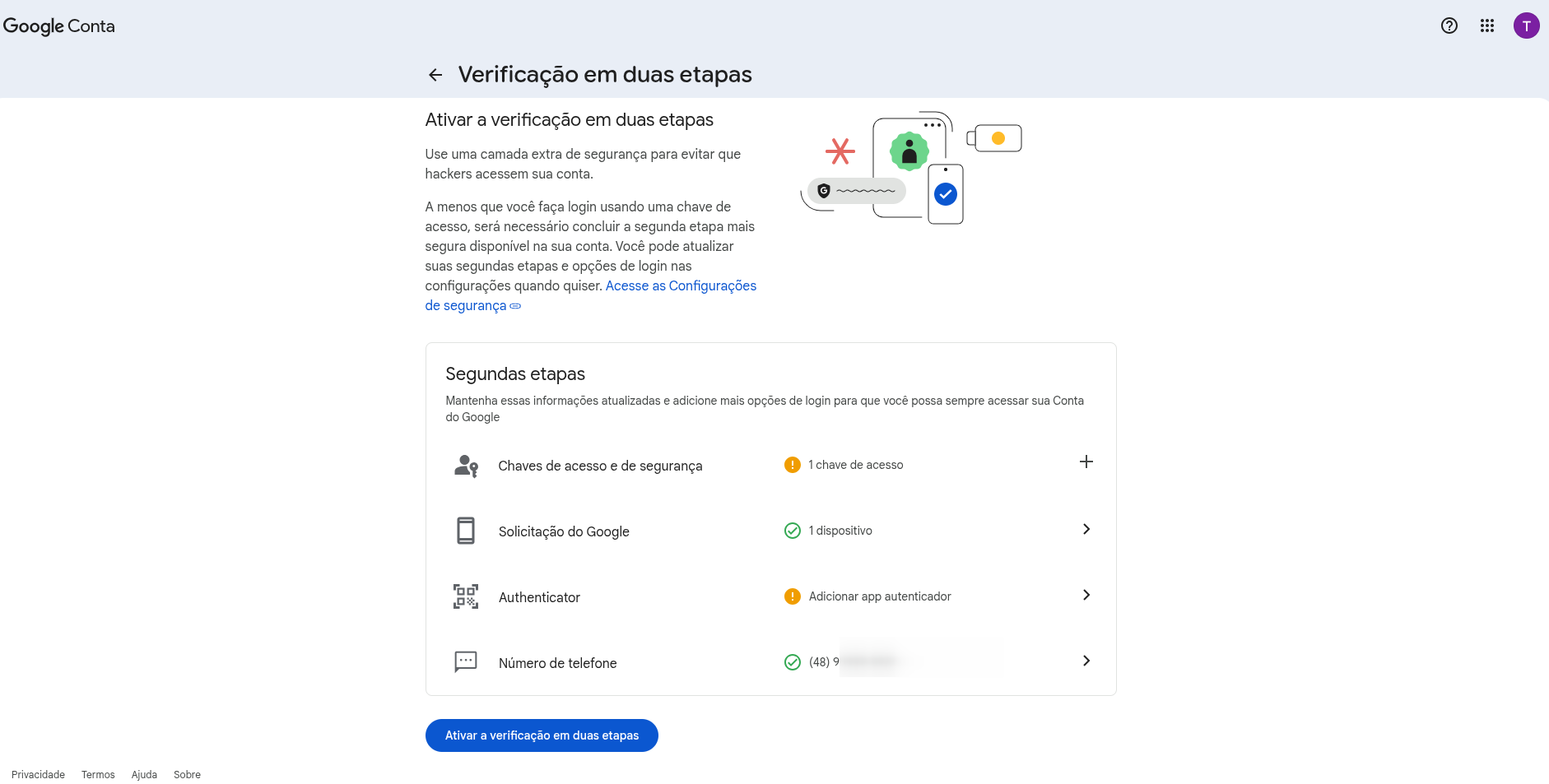
- Google will display the status summary screen. On this page, you can confirm that Two-Step Verification is officially marked as Active and that your phone number has been successfully added. To return to the main security menu and proceed to credential generation, click the back arrow icon located in the upper left corner of the interface.
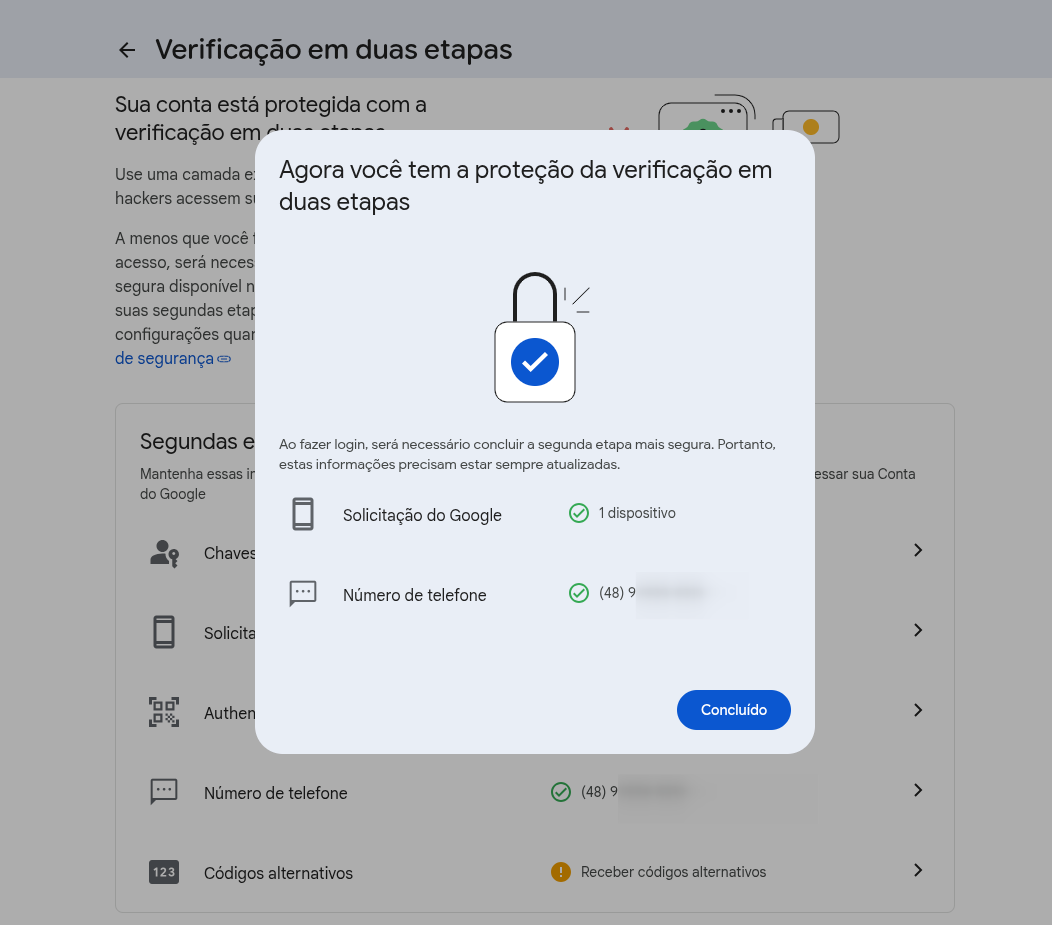
Generating the App Password
With account security properly enabled, Google will provide the necessary parameters to extract the integration key for Omni.
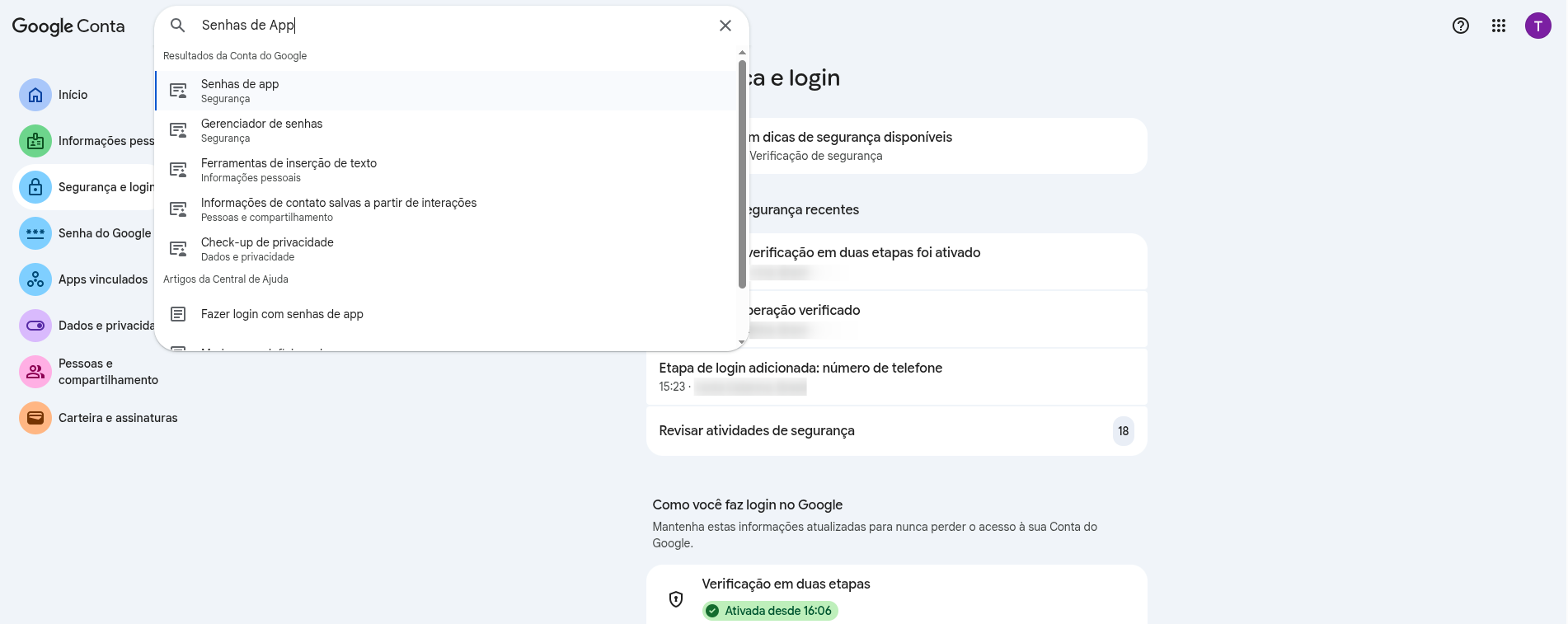
- After returning to the main menu, click on the search bar located at the top of your Google Account screen, type App Passwords, and click on the corresponding option that appears in the results.
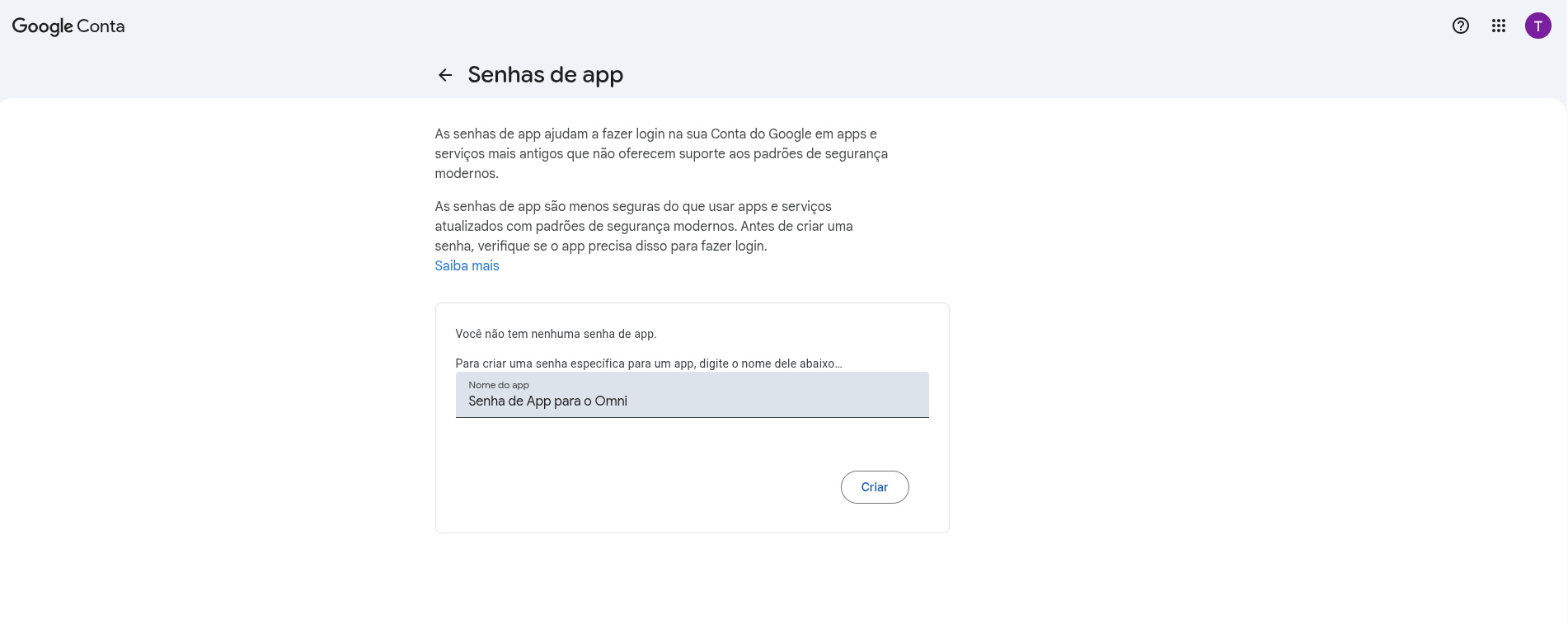
- On the App Passwords screen, you will create the credential that Omni will use to connect to your email account. In the App name text field, type the name of the system — we suggest using Omni to make future identification of this access easier — and then click the blue Create button located to the right of the field.
- The panel will display a pop-up window containing your Generated App Password (a unique 16-character sequence shown inside the highlighted gray block). Copy this password immediately, because for security reasons it is displayed only once and cannot be retrieved again.
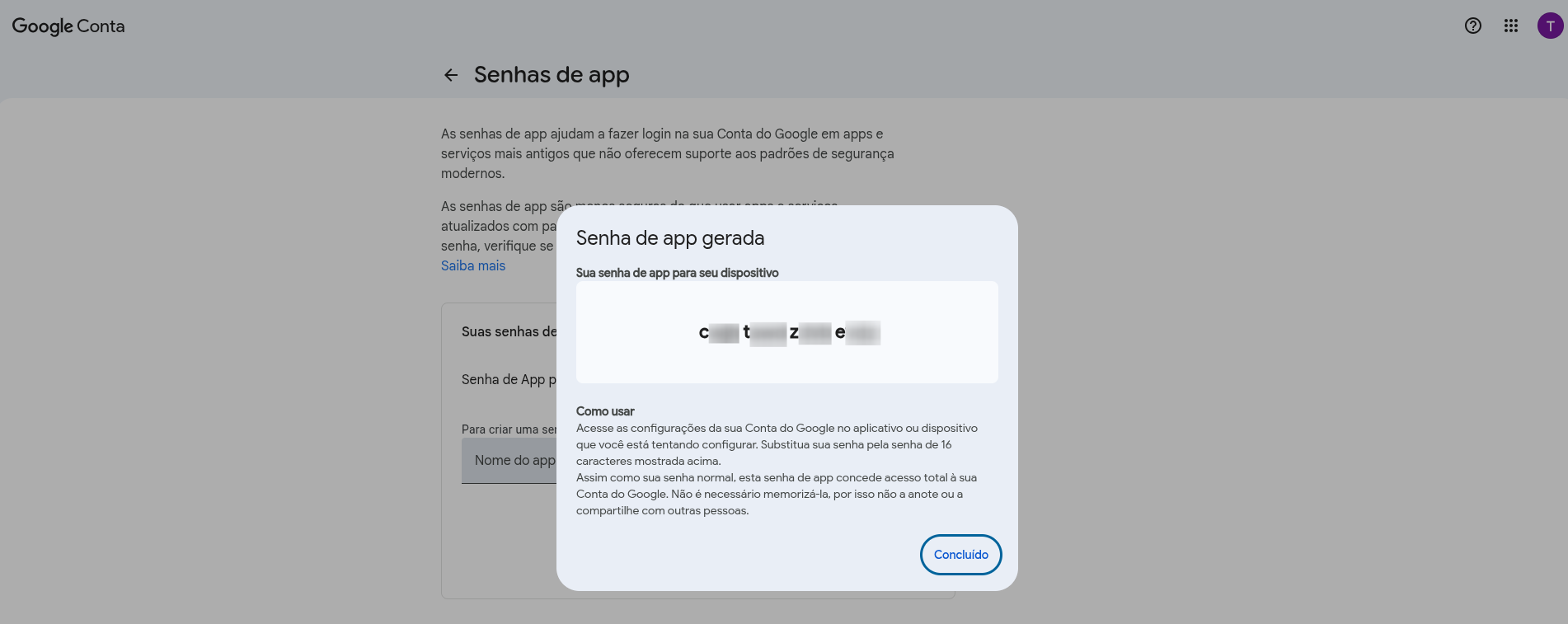
⚠️ Attention: This 16-character combination (without spaces) will replace your standard login password when performing the integration within the Omni panel.
Linking and Updating in Omni
With your 16-character key copied from the Google panel, it is time to apply it in the Omni platform to reestablish or start the message flow.
- Access the administrative panel of the Omni platform.
- In the navigation menu, go to Channels and select the Email option.
- Depending on your current scenario, perform one of the actions below:
- For Existing Accounts (Update): Locate the email you want to fix in the list, click Configure, and go directly to the Password field.
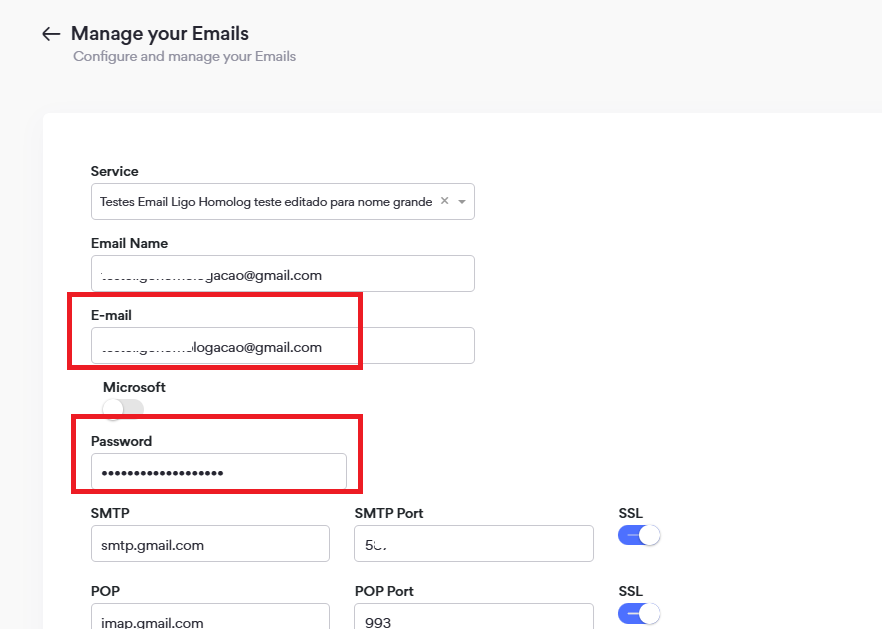
- For New Accounts (Integration from Scratch): Click the button to add a new channel and fill in the structural fields of the account (Service, Email Name, Email Address, Password, and Incoming/Outgoing Servers with their respective Ports).
-
In the Password field, delete any old information (if present) and paste the 16-digit App Password you generated and copied from the Google panel.
-
Click the Test Config. button located at the bottom right of the screen so Omni can validate the entered data.
-
Test Validation:
- If the test returns Success: The system will display the floating message Settings OK! in the center of the screen. This confirms that the ports, servers, and App Password are working perfectly together. Click the blue Save button to finalize the integration.
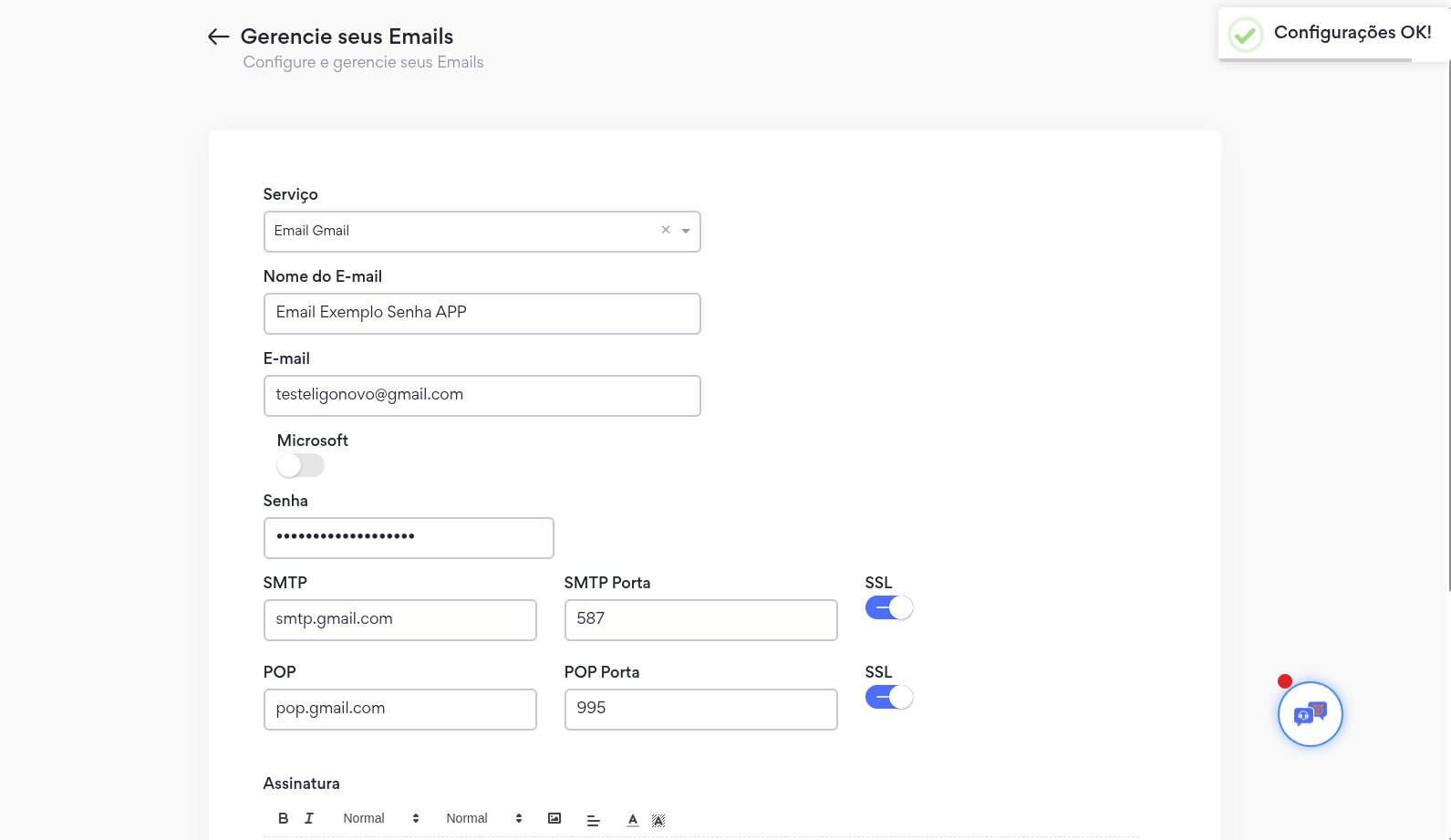
- If the test returns Error: The system will indicate the failure. If this happens, make sure the 16-character password was pasted without extra spaces and review whether the POP/IMAP protocols were correctly saved in Gmail.
⏳ Operational Information: After clicking Save with the validated test, Omni will start the synchronization process in the background. The average time for full processing and for the mailboxes to resume downloading and sending emails normally through the platform is up to 15 minutes.
Microsoft Azure Settings
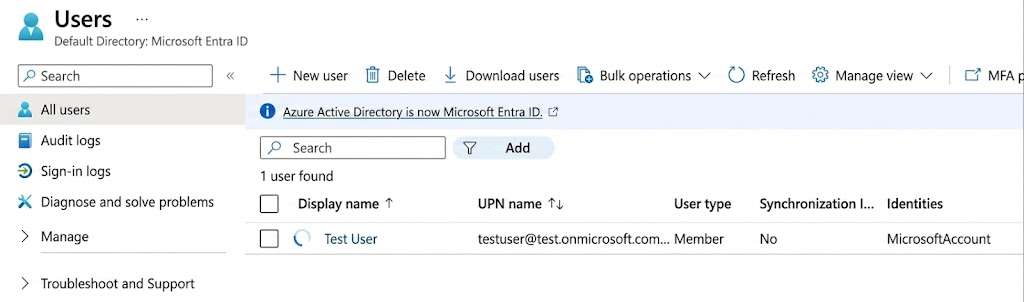
To register a Microsoft email, you must enable the Microsoft flag when registering a new email.
The information required to complete the registration is:
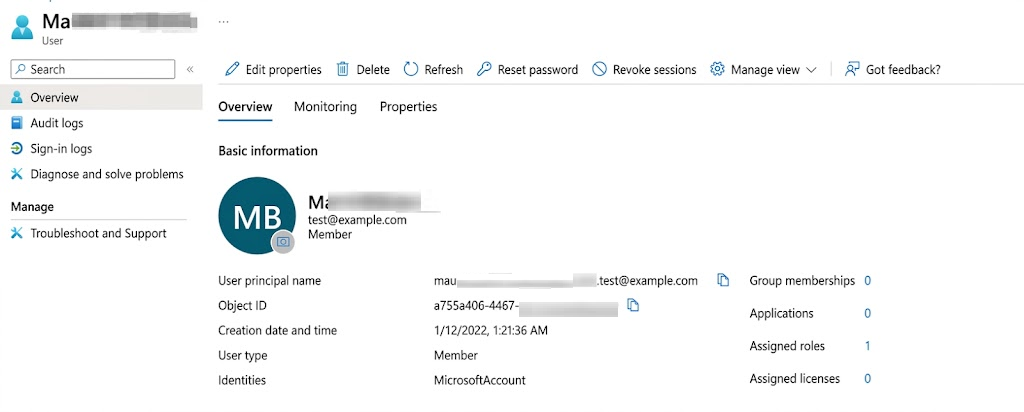
- Email ID / Object ID
- Tenant ID / Directory ID
- Application ID
- Application Secret / Value
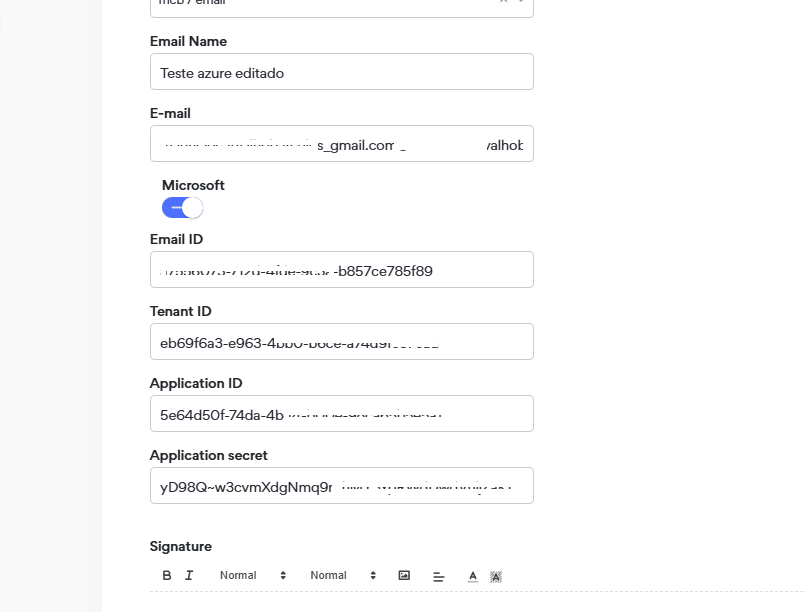
Procedure for Azure Portal Configuration
Registering a New App
In the Azure portal, under App Registrations, you must create a new app.
Register an application: Choose a name and set the “Account Type” to Any Azure AD directory (Multitenant).
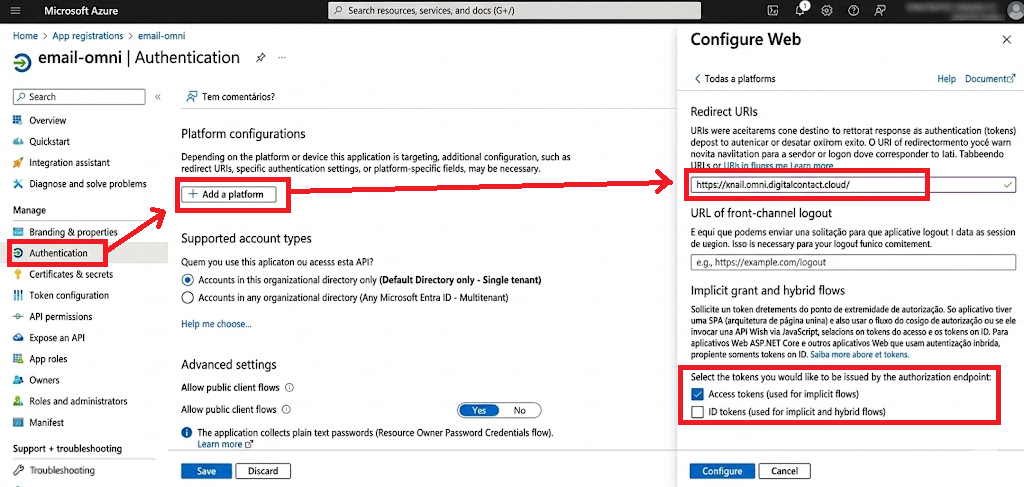
The next step is to create authentication for the application:
Go to App Registration -> Authentication -> Add a platform -> Web Applications
Fill in the Redirect URIs: https://email.omni.digitalcontact.cloud/
Check the options “Access tokens” and “ID tokens”.
Adding a Secret Key
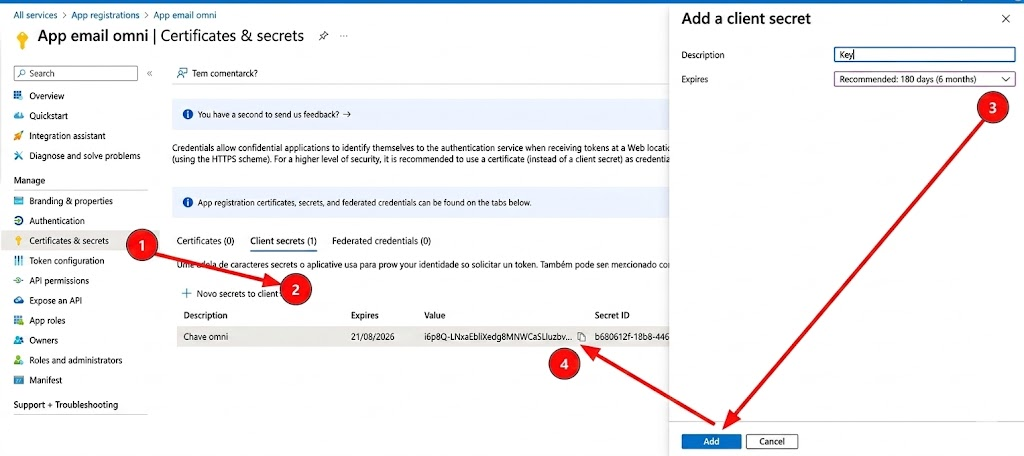
In App Registration -> Certificates & Secrets: select Add a client secret.
Choose a "Description" and set the Expires option. This will generate a Value for your Secret. Save this value carefully.
API Permissions
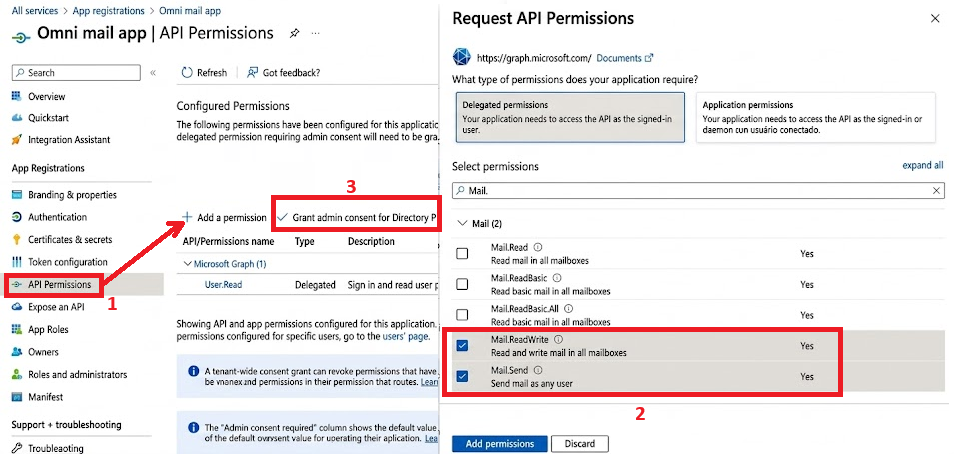
In the API Permissions tab, we must grant certain permissions to the App.
Go to App Registration -> API Permissions -> Add an API permission -> Microsoft Graph
Add the following Application-type permissions: Mail.ReadWrite and Mail.Send
Click Grant admin consent for (...)
Data for Integration
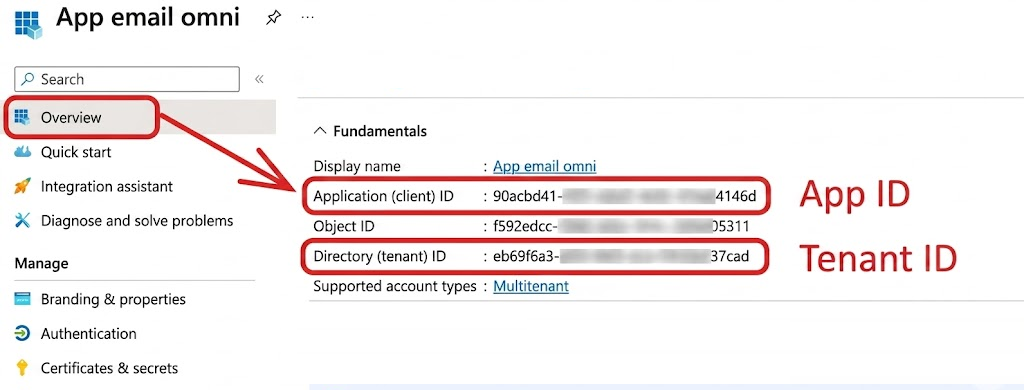
In App Registration -> Overview
Copy the Application ID and Directory (Tenant) ID.
In addition to these two pieces of information, you will also need the Value of the Secret generated earlier.
Lastly, we need the User ID of the email to be registered:
In the Organization Users screen, access the desired email and copy the Object ID.