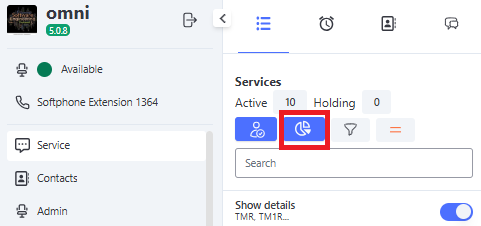
Dashboard
Viewing Dashboards
The Dashboard is a visual panel that centrally presents a set of strategic information: indicators and their metrics.
As an essential resource for supporting decision-making, it allows you to view the company’s health on a single screen or share the data with the entire team. In this way, managers gain a global view of processes, being able to dynamically and objectively track data related to projects and campaigns.
Inbound (Reception)
This Dashboard provides consolidated information about calls received by the operation. It centralizes time metrics, call counts (received, answered, abandoned), and performance analysis charts.
At the top of the screen, filter options and time views are available to refine the analysis.
Filters and Views
🔎 Available Filters:
- 📂 Service: Selector to filter data by service (queue).
- Note: Selecting the "Service" (general) option will display consolidated data for all queues.
- 🎧 Agent: Selector to filter data by user.
- Note: Allows viewing individual performance or all agents in the operation.
- 🏷️ User Tag: Filters data by user groups previously registered via user tags.
- 📅 Start and End Date: Defines the time period to be displayed on the dashboard.
⏳ Time Views:
- Hour: Displays call data for the current day, broken down by hour.
- Day: Displays consolidated calls received during the day.
- Week: Presents data in a weekly view.
- Month: Presents data in a monthly view.
Inbound Dashboard View
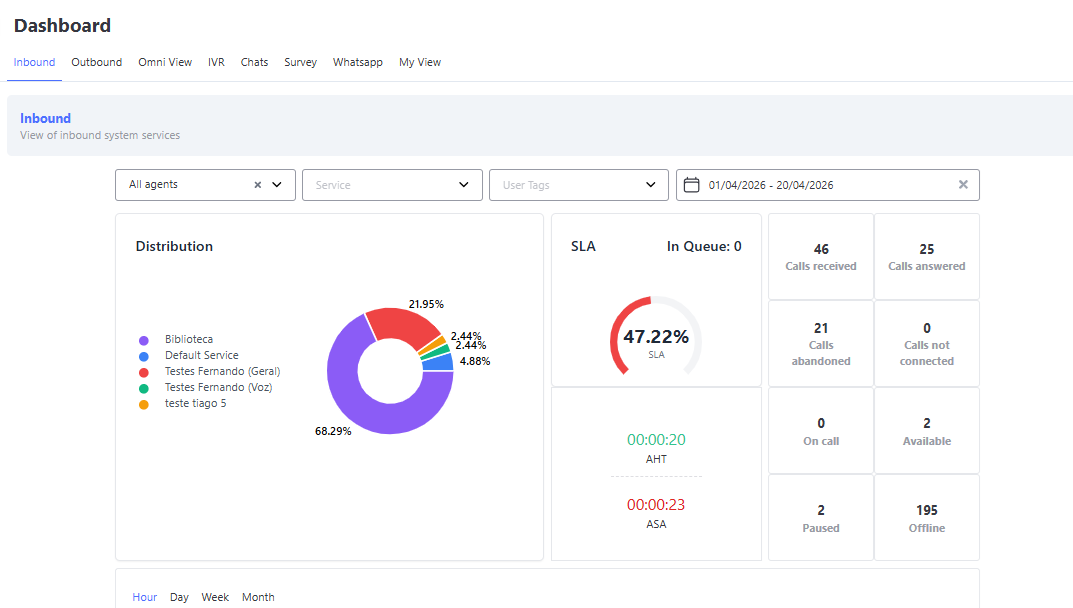
Dashboard Concepts and Metrics
Understand the meaning of the indicators presented on the panel:
- 🎯 SLA: Service level of the operation or queue. Defined in the settings, it indicates the percentage of calls that must be answered within a set time.
- 📊 Distribution: Shows the division of received calls according to services (queues).
- ⏱️ AHT (Average Handling Time): Represents the average handling time of the operation or queue.
- ⚡ ASA: Average speed of answer of the operation or queue.
- 📞 Calls Received: Total volume of calls that entered during the period.
- ✅ Calls Answered: Number of calls effectively answered.
- ❌ Calls Abandoned: Number of calls disconnected by the customer before reaching the agent.
- 🚫 Calls Not Connected: Calls disconnected by the system (e.g., queue timeout).
📞 Real-Time Agent Status:
- 🟢 Available: Number of agents free to receive calls.
- 🎧 On Call: Agents currently handling inbound (voice) calls.
- ⏸️ Paused: Agents who are on pause.
- 🔴 Offline: Logged-out agents who were previously on pause.
📈 Charts:
- Received vs Answered: Visual comparison between demand (received) and delivery (answered).
- Calls and SLA: Comparative distribution between call volume and achieved service level.
Inbound Dashboard Chart View: Answered vs Received
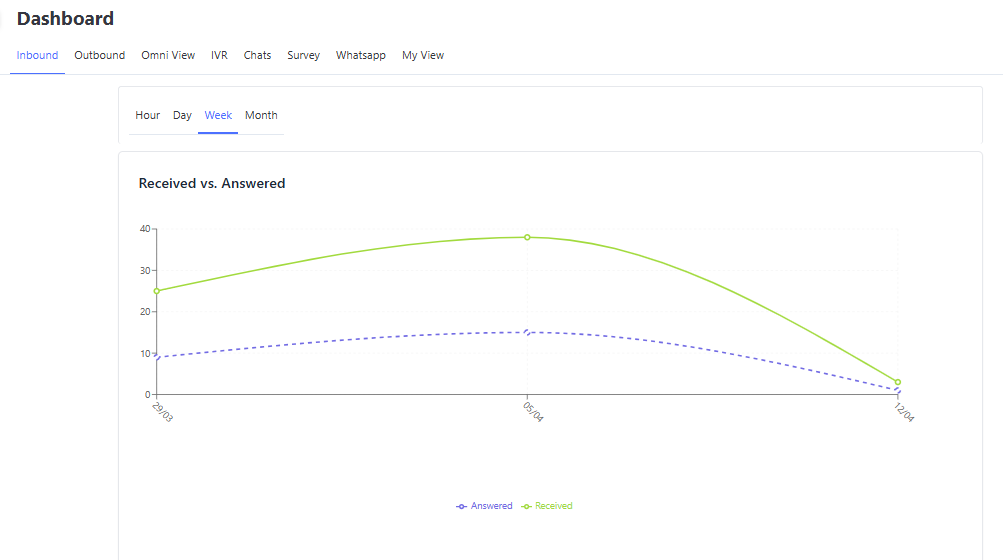
Chart View: Calls and SLA
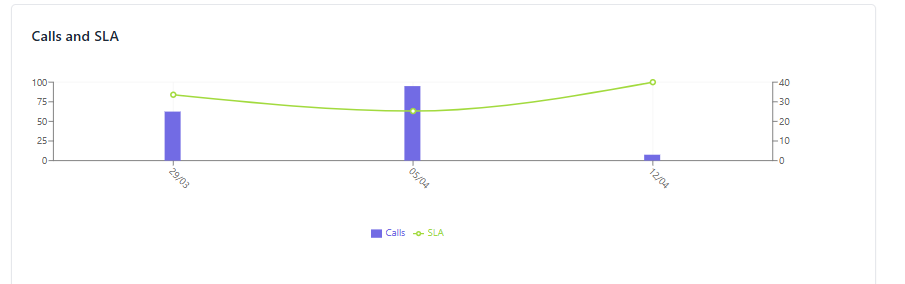
💡 Tip: By clicking on the indicator name (in the chart legend), you can hide or display the data for that specific metric, making visualization easier.
Outbound
Provides information about the operation’s outbound (active) calls, such as: handling time; number of calls dialed, answered, and not connected, among others.
At the top of the screen, there are options for filters and data/date views.
Filters
- Service: dropdown to filter data by service (queue). Selecting the "Service" option will display data for all queues in the operation.
- Agent: dropdown to filter data by user (agent). Selecting the "User" option will display data for all agents in the operation or the chosen queue.
- User Tag: dropdown to filter data by user groups previously registered in User Tags.
- Start and End Date: defines the date range to be displayed on the dashboard.
Views
- Hour: displays only call data received today, broken down by hour.
- Day: displays only call data received during the day.
- Week: displays data in a weekly view.
- Month: displays data in a monthly view.
Outbound Dashboard View
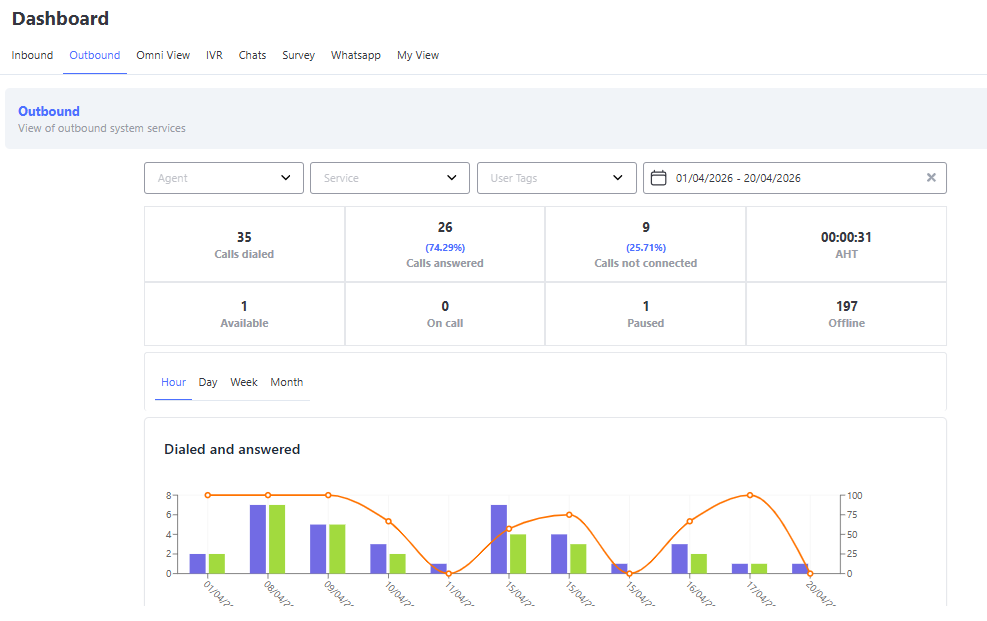
Dashboard Concepts and Metrics:
- Dialed Calls: Total volume of calls made during the period.
- Answered Calls: Number of calls answered by customers during the period.
- Not Connected Calls: Number of calls not answered by customers during the period (e.g., voicemail).
- AHT: Average handling time of outbound (active) calls.
- Available: Number of agents available to handle calls at the moment.
- On Call: Number of agents currently handling outbound calls (voice only).
- Paused: Number of agents currently on pause.
- Offline: Number of agents logged out and on pause.
- Dialed vs Answered: This chart shows the distribution of calls dialed by the agent and answered by the customer during the period. It also presents the success rate of calls (% Connect), i.e., the percentage of dialed calls that were completed without connection issues.
Omni View
The Omni View is Omni's monitoring hub. It provides managers with a unified and strategic view of all attendances in the organization, consolidating metrics into a single visual dashboard.
Through it, it is possible to track the performance and volume of operations divided by communication channel:
- 💬 Text Media: Attendances via chat, WhatsApp, and digital channels.
- 📞 Voice: Inbound and outbound operations.
- ✉️ Visualization of attendances and email messages.
Omni View Dashboard Visualization
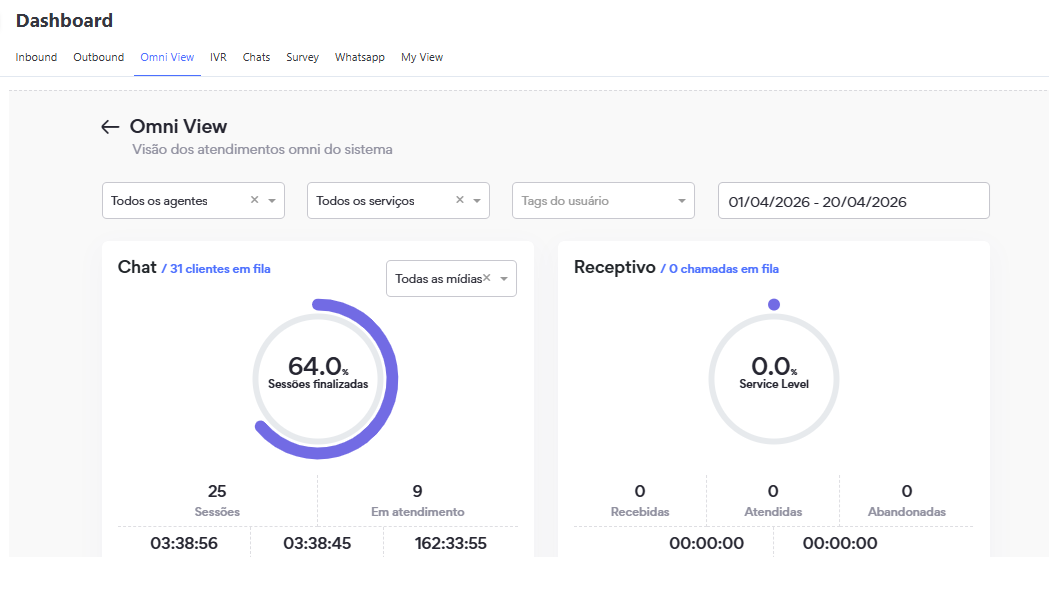
Filters
The dashboard includes dynamic filters that allow customization of metric visualization according to management needs:
- 👤 Agent: Allows filtering indicators by a specific user. If not selected or cleared, the dashboard will display consolidated data from all agents in the operation or the selected queue.
- 🎯 Service: Allows filtering data by a specific service (queue). If not selected or cleared, the indicators from all queues in the operation will be displayed together.
- 🏷️ User Tag: Enables grouping and viewing metrics by teams or user profiles previously categorized through User Tags.
- 📅 Start Date and End Date: Defines the exact period (date range) to be considered for displaying data on the dashboard.
💡 Note: Interactions that are still in progress (open attendances) and that started outside the selected date range in the filter will not be counted in the Chat indicators.
Chat
The Chat block consolidates metrics and the volume of interactions received through all text media integrated into the platform:
- 🤖 Boteria
- 📦 ML Questions (Mercado Livre)
- 🛍️ ML After Sales (Mercado Livre)
- 💙 Messenger (Facebook)
- 📢 Reclame Aqui
- ✈️ Telegram
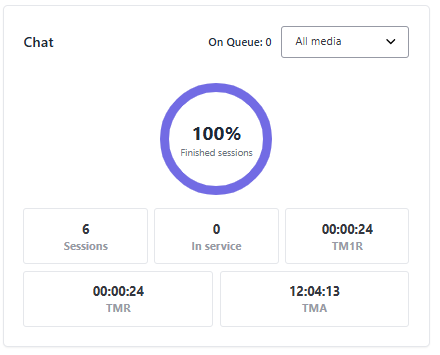
Chat Concepts and Metrics
- ⏱️ TM1R (Average First Response Time): Average time elapsed until the agent sends the first reply to the customer after the start of the attendance.
- 💬 ART (Average Response Time): Average waiting time for the replies sent by the agent throughout the entire conversation.
- ⌛ AHT (Average Handling Time): Average total duration of attendances, from the moment the agent takes over the conversation until its completion.
Inbound Voice
The Inbound Voice block presents the monitoring of calls received by the operation, allowing verification of the call flow reaching agents and queues.

Inbound Concepts and Metrics
- 📞 Received Calls: Total number of calls received by the platform during the selected period.
- 🎧 Answered Calls: Number of calls that were effectively directed and answered by an agent.
- ❌ Abandoned Calls: Number of calls in which the customer hung up before speaking with an agent.
- ⌛ ASA (Average Speed of Answer): Average time customers waited in the queue until being attended or abandoning the call.
- ⏱️ AHT (Average Handling Time): Average total duration of inbound calls, counted from the agent’s attendance until the hang-up.
Outbound Voice
The Outbound Voice block consolidates the data of calls made by the operation, providing visibility into the productivity of manual and automated dialing.

Outbound Concepts and Metrics
- 📲 Dialed Calls: Total number of calls dialed by the operation.
- 🟢 Answered Calls: Number of outbound calls that were completed and answered by the customer.
- 🔴 Unconnected Calls: Calls that resulted in busy signals, voicemail, or were not answered.
- ⏱️ AOT (Average Operational Time): Average duration of attendance in successfully connected outbound calls, considering the total conversation time and the handling of the operation.
Email
The Email block provides a centralized view of the organization’s volume of electronic messages, making it easier to monitor the flow of demands received and processed.

Email Concepts and Metrics
- 📥 Received: Total number of emails that entered the platform during the selected period.
- 📤 Replied: Number of emails that were answered by agents.
- 📩 Not Replied: Total number of emails received that have not yet been answered or handled by the attendance team.
- 💬 ART (Average Response Time): Average waiting time for the replies sent by the agent throughout the entire conversation.
IVR
This is a dashboard with statistical data from the company’s IVRs, providing information about inbound calls.
IVR Dashboard Visualization
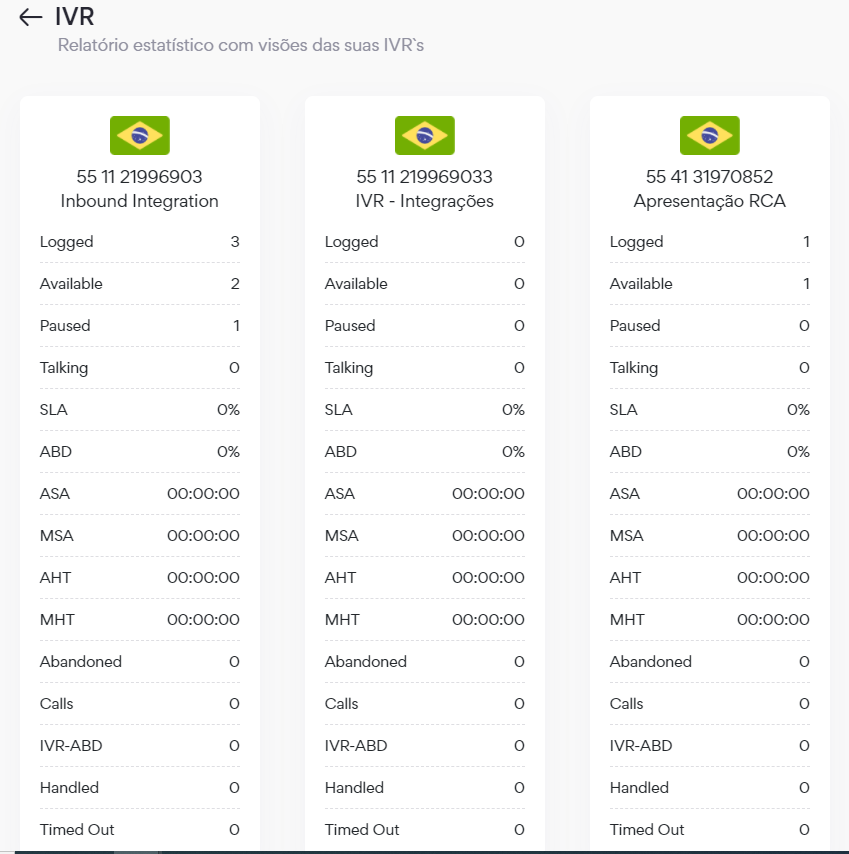
Indicators in the IVR Dashboard
- Logged: Total number of logged-in users.
- Available: Total number of users available for service.
- Paused: Total number of users on pause.
- Talking: Total number of users currently in service.
- SLA (Service Level Agreement): Service level of the queue.
- ABD (Abandonment Rate): Percentage of abandonments in the service queue.
- ASA (Average Speed of Answer): Average waiting time before being answered.
- MSA (Maximum Speed of Answer): Maximum waiting time before being answered.
- AHT (Average Handling Time): Average handling time.
- MHT (Maximum Handling Time): Maximum handling time.
- Abandoned: Total number of abandonments in the service queue.
- Calls: Total number of inbound calls.
- IVR-ABD: Total number of abandonments still within the IVR.
- Handled: Calls successfully handled and logged.
- Timed Out: Number of calls dequeued after reaching the maximum wait time without being answered.
Chats
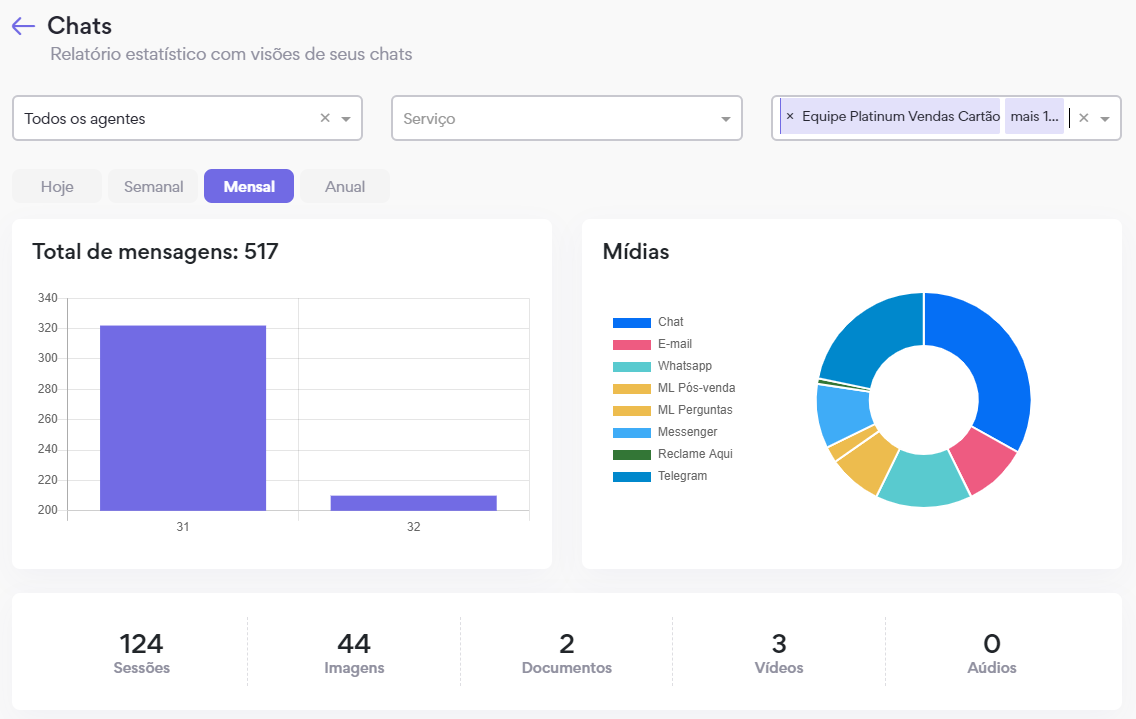
Report that provides information about all interactions handled via chat, with:
Filters:
- Agent
- Service
- User Tag
Views:
- Today
- Weekly
- Monthly
- Annual
Chat Dashboard Visualization
Survey
Through the survey dashboard, it is possible to monitor in real time or retrospectively the results obtained from surveys. Using filters, the data can be narrowed down according to the research needs.
- Define which Survey you want to monitor. The screen will then display the following filters:
- Media
- Channel
- Service
- Date
- Alias — title of the question created in the Survey
After selecting the filters, click on "Generate".
Survey Monitoring Demonstration
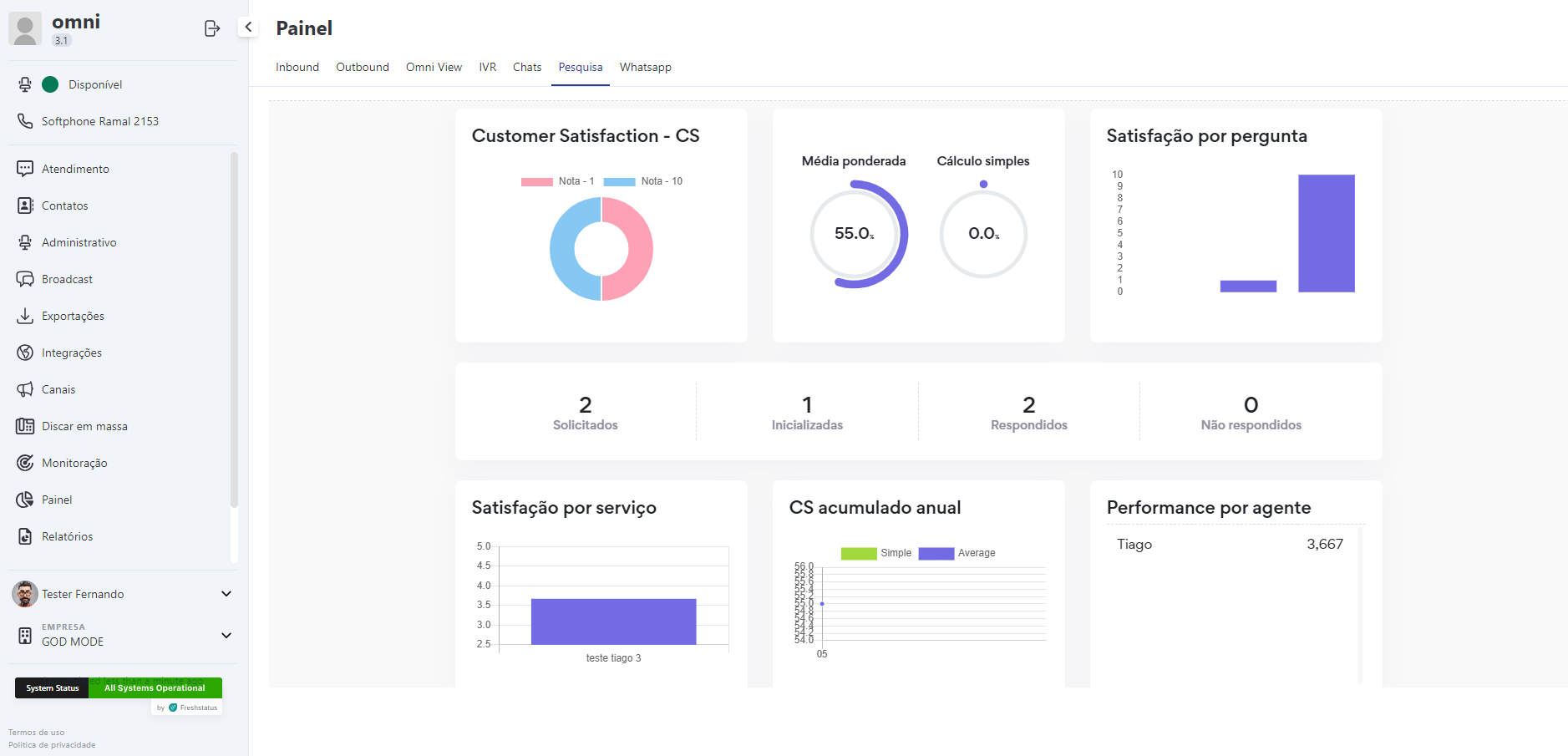
Below are the concepts and metrics for the fields present in the survey dashboard:
-
CSAT (Customer Satisfaction):
- Customer Satisfaction - CS: This chart displays all ratings given in surveys, based on the number of responses received for each rating.
- Weighted Average: Percentage based on the average rating of answered surveys (for questions ranging from 1 to 5 or 1 to 10).
- Simple Calculation: Percentage of satisfied customers divided by the sum of satisfied (rating 1) and dissatisfied (rating 2 for questions from 1 to 2, or 3 for questions from 1 to 3).
- Satisfaction by Question: Chart showing the average responses for each configured question.
- Requested: Sum of responses based on surveys that were initiated.
- Initiated: Total number of surveys started but not yet answered.
- Answered: Total number of surveys answered.
- Not Answered: Total number of surveys not answered within 24 hours (for chat interactions).
- Satisfaction by Service: Average survey ratings by service assigned to the survey.
- Annual Accumulated CS: Chart with the monthly average, based on percentages from Weighted Average and Simple Calculation.
- Performance by Agent: Average survey ratings by agent.
-
NPS (Net Promoter Score):
- Customer Satisfaction - CS: This chart displays all ratings given in surveys, based on the number of responses received for each rating.
- Score: Percentage based on the subtraction of promoters (ratings 9 to 10) from detractors (ratings 1 to 6).
- Satisfaction by Question: Chart showing the average responses based on the score for each configured question.
- Requested: Sum of responses based on surveys that were initiated.
- Initiated: Total number of surveys started but not yet answered.
- Answered: Total number of surveys answered.
- Not Answered: Total number of surveys not answered within 24 hours (for chat interactions).
- Satisfaction by Service: Average survey ratings based on the score, by service assigned to the survey.
- Annual Accumulated CS: Chart with the monthly average, based on percentages from the Score.
- Performance by Agent: Average survey ratings based on the score, by agent.
WhatsApp
Dashboard that provides a view of all interactions handled via WhatsApp, whether outbound through HSM (Highly Structured Message) campaigns or inbound when the customer sends a WhatsApp message.
WhatsApp Dashboard Visualization
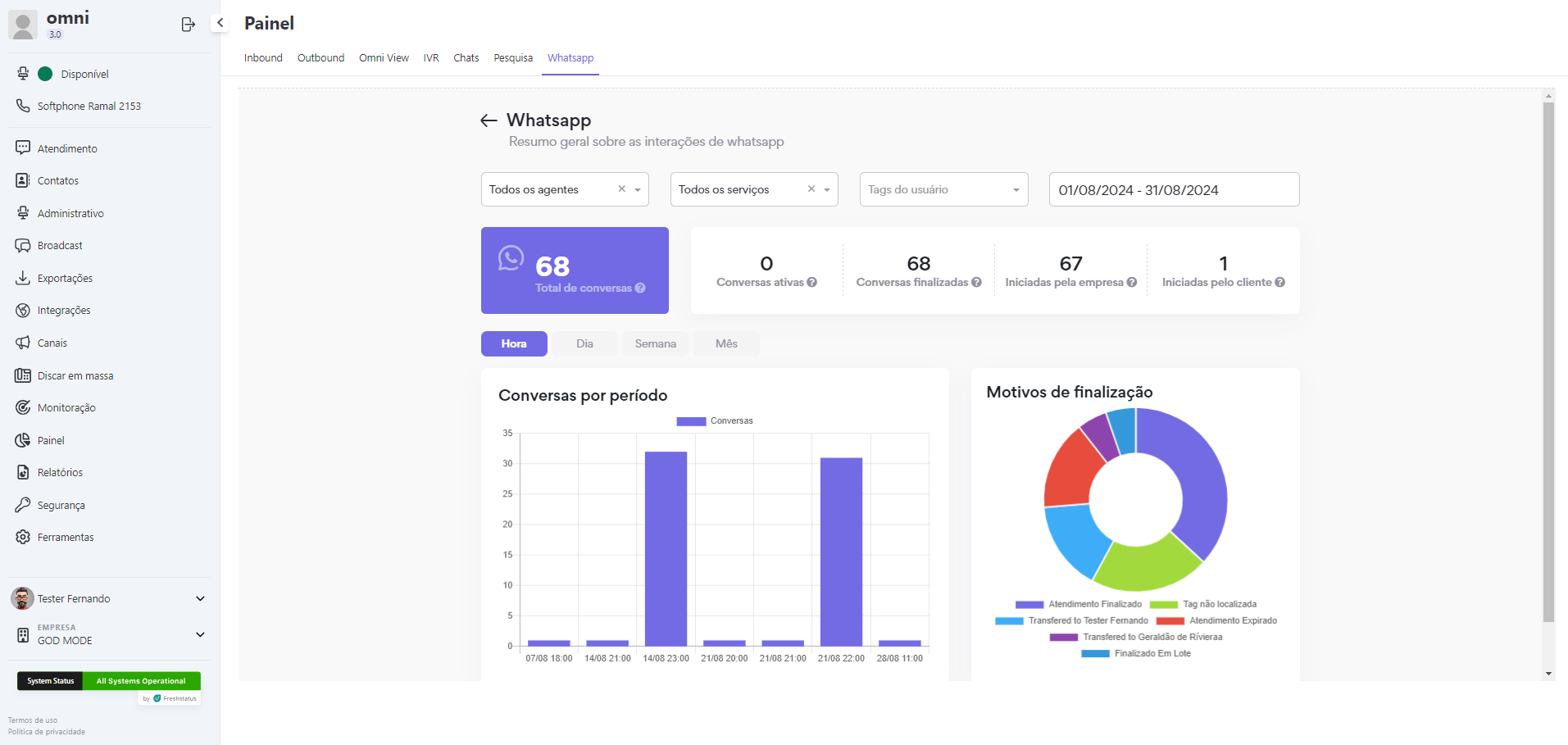
Filters
- Agent: Dropdown to filter data by user (agent). Selecting the "User" option will display data for all agents in the operation or in the chosen queue.
- Service: Dropdown to filter data by service (queue). Selecting the "Service" option will display data for all queues in the operation.
- User Tag: Dropdown to filter data by user groups previously registered in User Tags.
- Start and End Date: Defines the date range to be displayed on the dashboard.
Panel:
- Total Conversations: Total of active conversations + total of finalized conversations.
- Active Conversations: Total of conversations opened via WhatsApp within the 24-hour window.
- Finalized Conversations: Total of conversations closed on WhatsApp after the 24-hour window.
- Initiated by Company: Conversations generated through broadcast campaigns or quick sends.
- Initiated by Customer: Conversations generated by the customer and received on the platform.
Views:
- Today
- Weekly
- Monthly
My View
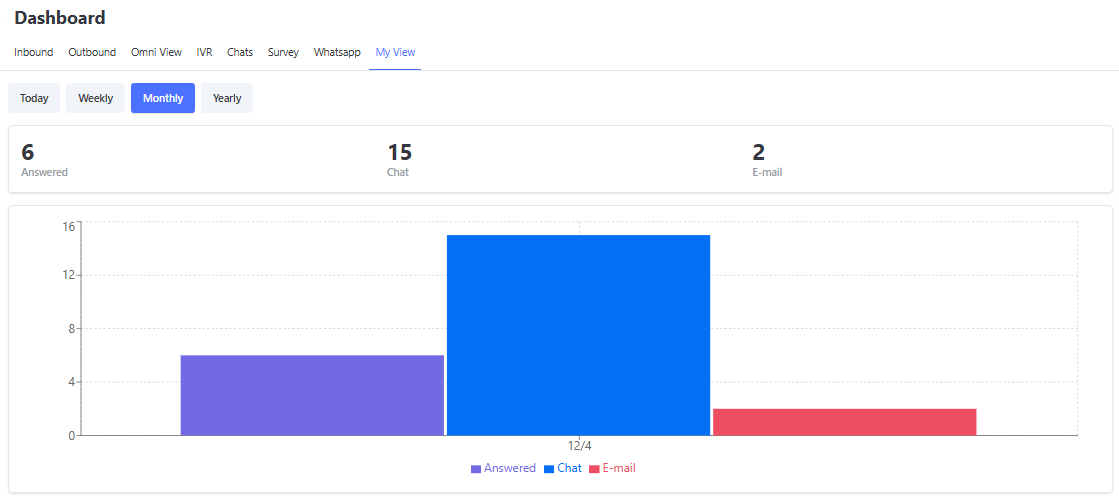
This dashboard displays information about the interactions handled by the user themselves. If the user has access to this screen, they can view the number of interactions handled in chats, emails, and answered calls.
The information is presented in specific time intervals:
- Today: Information about interactions handled during the day.
- Weekly: Information about interactions handled during the week.
- Monthly: Information about interactions handled during the month.
- Annual: Information about interactions handled during the year, starting from January.
My View Dashboard
You can access this menu in two ways:
- Through the Dashboards menu.
- Using the shortcuts available on the interaction screens.
"My View" Button on Interaction Screen in Card
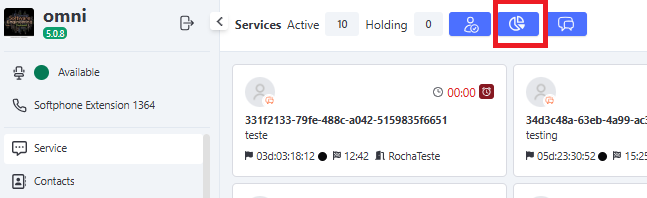
"My View" Button on Interaction Screen